Homework solver
Get a step-by-step solution for math, physics, chemistry, accounting or any subject from a typed question or a photo, check your own answer and practice with similar problems.
The homework solver works through a problem the way a good teacher would: every step, why it is done, and the final answer in a box at the end. It works for math, physics, chemistry, biology, accounting, economics, statistics and any other subject. Type the question or upload a photo of it, printed or handwritten.
Open Homework solver in the sidebar, under Study.
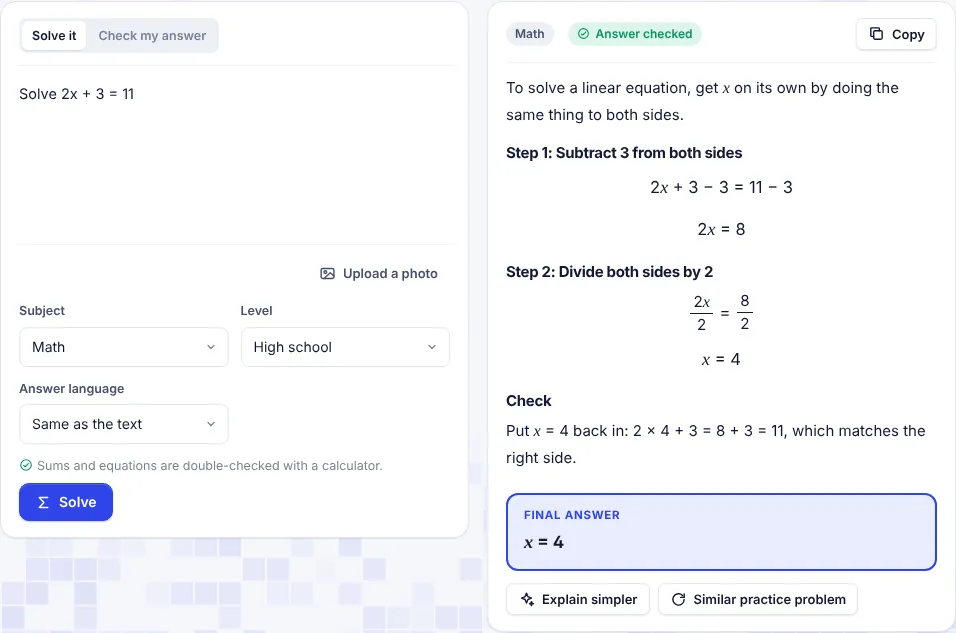
Solve a problem
- Make sure Solve it is selected at the top.
- Type or paste the question in the big box, for example "Solve 2x + 3 = 11".
- Or click Upload a photo and pick a photo of the problem (JPG, PNG or WebP). Anything you type as well is read as extra notes for the photo. Click the x on the photo to remove it.
- Choose the Subject. Any subject lets the solver work it out from the question.
- Choose the Level: School, High school or University. The explanation is pitched at that level.
- Choose the Answer language. Same as the text answers in the language of the question.
- Click Solve.
The solution appears as it is written. Click Stop to stop it. You get:
- one line on the method,
- the steps, each with a heading and the working shown,
- a Check step that tests the answer another way, for example by putting it back into the equation,
- the Final answer in a box.
Formulas are shown the way they are written on paper: fractions stacked, powers raised, roots with a bar over them.
Click Copy to copy the problem, the steps and the final answer as plain text.
Answers checked with a calculator
For plain sums ("Calculate 3/4 + 5/6 × 2") and equations with one unknown ("Solve 2x + 3 = 11"), SerpPal also checks the final answer itself with a calculator:
- Answer checked means a direct calculation gives the same answer, or that the answer makes both sides of the equation equal.
- Check this answer means it does not. A note under the answer says what the calculation gives. Go through the steps before you use it.
Word problems, proofs and questions with more than one unknown are not checked this way, so they show neither badge.
Check my answer
Already solved it yourself? Find out if you got it right.
- Click Check my answer at the top.
- Type the question, or upload a photo of it.
- In Your answer, type your final answer. Add your working too: then the solver can point to the exact step where it went wrong.
- Click Check my answer.
You see Your answer is right, Your answer is partly right or Not quite, then what you did well, the first step that went wrong and how to fix it, and the correct solution with the Correct answer boxed.
Explain simpler and practice problems
Under every solution:
- Explain simpler explains the same solution again in plainer words, with the reason for each step and an everyday example where it helps.
- Similar practice problem writes a new problem of the same type and difficulty. Try it first, then click Show the solution to compare. Click Try it yourself to put the problem in the box, ready for Check my answer.
Both are added under the solution and saved with it.
Your solutions
Every solution is saved with its question, your settings and any follow-ups. Recent, at the bottom of the page, lists them. Click one to open it again.
AI words and limits
Each solution, check and follow-up counts toward your monthly AI words (the length of the answer). Photos also count toward the photos you can read per hour on your plan, the same limit as photos in AI chat: 15 an hour on free plans, 120 on paid plans. See Plans and limits.
Questions can be up to 6,000 characters, and one photo at a time.
Use the solver to learn how to solve a problem, not only to copy the answer. Read each step, then try the practice problem on your own.
Tips
- One problem at a time gives the clearest steps. Split a worksheet into separate questions.
- Crop the photo to the problem, with good light and the page flat.
- Add your working when you check an answer: you learn more from the step that went wrong than from the final number.
- Pick the level you study at, so the explanation is not too basic or too advanced.
Troubleshooting
"Type the question or upload a photo of it" The box is empty. Type the question, or upload a photo.
"Type your answer to check it" In Check my answer, fill in Your answer first.
"You can read up to 15 pages from photos an hour on your plan" You reached the hourly photo limit. Type the question instead, or try again later.
The photo was read wrongly Under the solution, From your photo shows what was read. If it is wrong, type the question in the box and click Solve again.
"The homework solver needs AI" AI writing is not turned on for this site. Ask the site admin.