Terms and topics (Optimization tab)
Use the Optimization tab to add recommended terms, heading phrases and names, check your meta, word count and balance, and read every row of the panel.
The Optimization tab is your main checklist while you write. It shows every recommended term with how often you use it, plus a row for each other check. Click a row to open or close it.
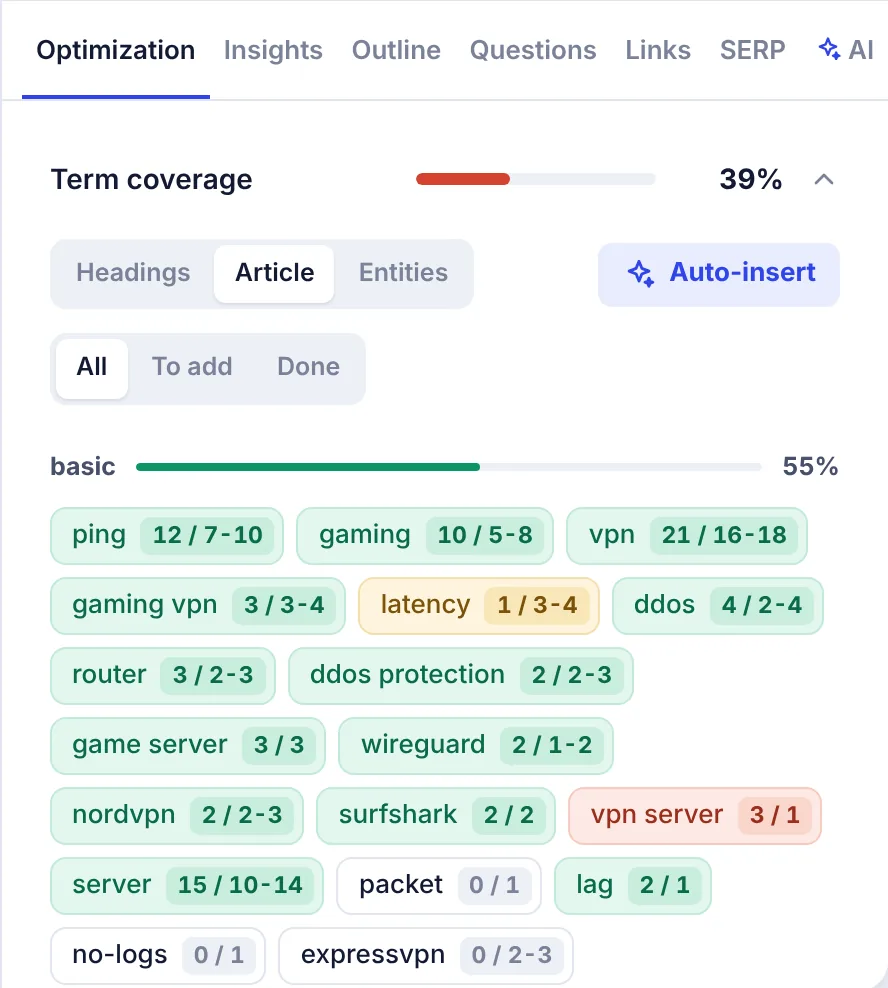
Term coverage
The first row, Term coverage, shows the share of all recommended terms (basic and extended) you have used at least once. Open it to see the terms in three views:
- Article: the terms to use in your text, split into basic and extended, each with its own coverage bar.
- Headings: the phrases top pages use in their title, H1 and H2 / H3 headings. Green means your title or headings already use it.
- Entities: brands, products and places the top pages mention. Hover a name to see the share of top pages that mention it.
In Article view you can filter the chips:
- All: every term.
- To add: terms you have not used yet, or not enough.
- Done: terms in range, or used more than the range.
Reading a term chip
Each chip shows the term, then uses now / recommended range. For example latency 1 / 3-4 means you use "latency" once and the top pages suggest 3 to 4 times at your target length.
| Color | Meaning |
|---|---|
| White | Not used yet |
| Yellow | Used, but less than the range. Use it a bit more. |
| Green | In range |
| Red | Used too often. Cut a few to avoid keyword stuffing. |
A term a little above its range stays green. It only turns red when it is also much denser than on the top pages. How the content score works explains the ranges and why extended terms only need to appear once.
Adding a term
- Click in the article where the term should go.
- Click the term chip. SerpPal inserts it at your cursor with a space after it.
- Edit the sentence so it reads naturally.
For safety, a click on a chip never replaces selected text. If you have selected a lot of text, or you have not clicked in the article yet, the term is copied instead, and you see "copied. Click in the article where it should go, then click the term or paste."
Do not just drop terms into the text. Rewrite the sentence around the term so a reader would never notice. Search engines and readers both reward natural text.
Auto-insert
The Auto-insert button asks the AI to work the missing terms, names, heading phrases and topics into your article without rewriting it. It is the same as Optimize the whole article in the AI menu, and needs at least 150 words. See AI writing in the editor.
Highlighting terms in the text
Click the marker icon in the toolbar (Highlight recommended terms) to see where the terms already appear. A yellow highlighter mark means the term is fine, light orange means use it a bit more, and pink means it is overused. It covers the top 80 basic terms and the top 30 names. Click the icon again to turn it off.
Meta
Checks for the Title and Meta fields above the article:
- Title length: 30 to 60 characters is the target.
- Keyword in the title.
- Description length: 120 to 160 characters.
- Keyword in the description.
- Phrases top titles use: green chips are already in your title. Hover a chip to see the share of top titles that use it.
The bar and percentage of this row is the Title and meta part of your score, which also checks your H1 and first 100 words. Click Write title and description to let the AI write both fields.
Words
Your word count against the top pages:
- Your article: green from 85% of your target.
- Top pages: the typical range (the middle half of the top pages).
- Median of top pages.
- Your target: change your target length here. The minimum is 300.
Optimization balance
The share of basic terms that are not overused. If some are, you see them in red with their counts so you can cut them. "No term is overused. Good balance." means you are fine.
The other rows
- AI optimization: the AI quality review. Click Get the quality score. See Insights and checks.
- AI search readiness: how easily Google AI Overviews, ChatGPT and Perplexity can quote your article. See Insights and checks.
- Plagiarism: searches Google for sentences from your article. See Plagiarism check.
- AI visibility: whether Google's AI Overview and AI assistants mention your brand for this keyword. See AI visibility.
- Content statistics: a table comparing you with the top pages: words, characters, paragraphs, H1 / H2 / H3, images, lists and tables, links, bold phrases, exact keyword uses, reading ease and reading time (at 230 words per minute).
Topics
Recommended topics live on the Outline tab: the AI topic brief (when available) and the headings most top pages share. A green check means your article covers that topic. See Outline, questions, links and SERP.
Common questions
Why do the term numbers change when I edit my target length? Ranges are per 1,000 words of top pages, scaled to your target. A longer target means higher ranges.
A term looks wrong for my topic. Can I remove it? You cannot delete single terms, but you can change which competitor pages they come from. Untick pages that do not match your intent (forums, shops, other countries) with Select competitors. See Choosing competitors.
Why is "best" or "free" not in the list? Very common words that say nothing about the topic are left out of the basic terms, unless they are part of your keyword.
Does a term count inside headings? Yes. Headings, paragraphs, lists and tables all count. The Title and Meta fields do not count as text, but they count in the Meta and heading checks.