API keys
Make, copy, name and revoke the API keys that let AI assistants use your SerpPal account over MCP, how many you can have, and how to keep them safe.
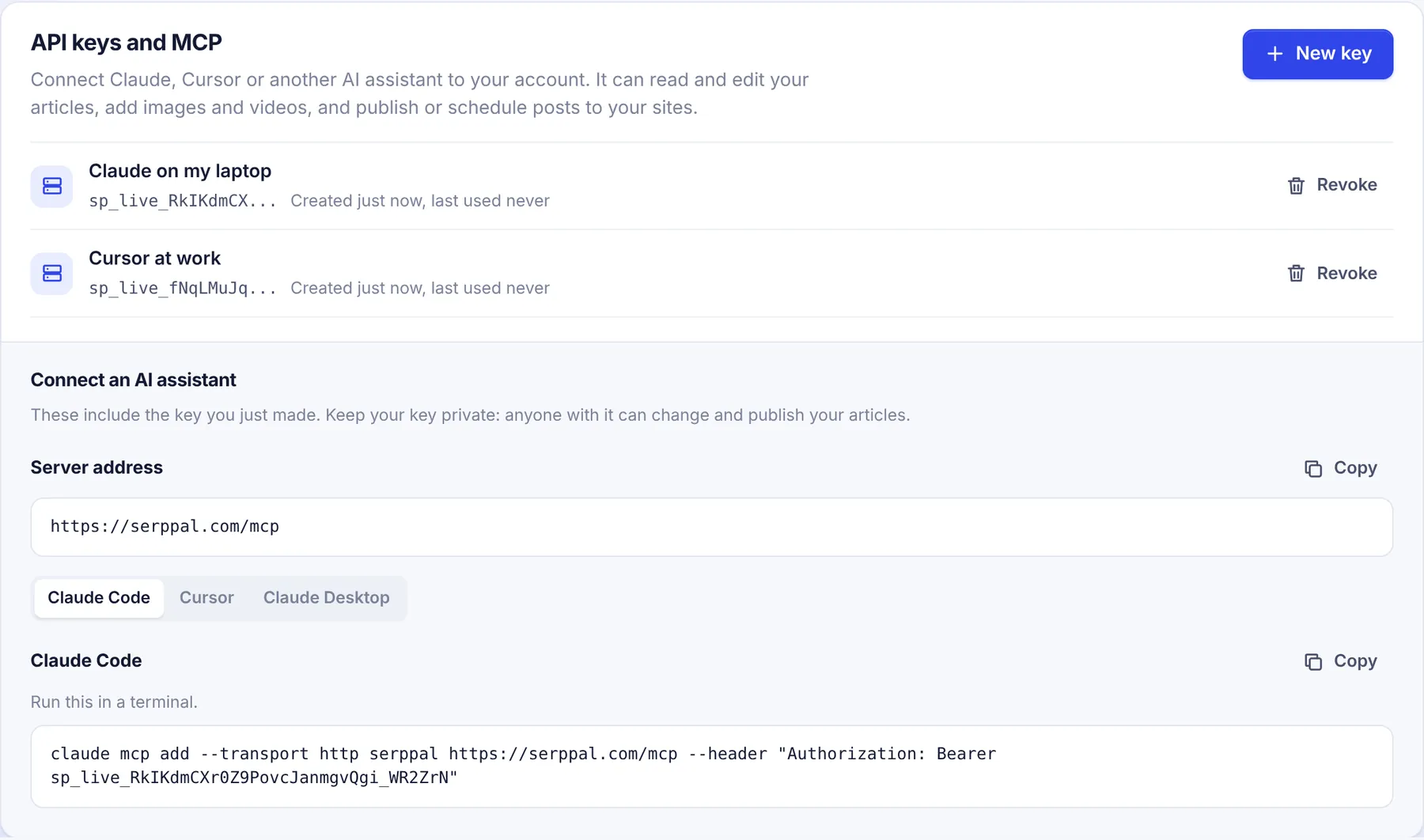
An API key lets an AI assistant act as you in SerpPal. You make keys on your Account page, and each assistant (or each computer) should get its own key, so you can revoke one without breaking the others.
Make a key
- Click Account in the sidebar.
- In API keys and MCP, click New key.
- Give the key a Name that says where you'll use it, for example
Claude on my laptoporCursor at work. Names can be up to 60 characters. - Click Create key.
- Copy the key from the Copy your new key window with the Copy button, then click Done.
The full key is shown only once. SerpPal stores only a scrambled form of it (a hash), so nobody, including SerpPal's support, can show it to you again. If you lose it, revoke it and make a new one.
A key looks like this: sp_live_ followed by 32 letters, numbers, hyphens and underscores.
Use the setup text
Under Connect an AI assistant, the panel shows:
- Server address: your SerpPal address followed by
/mcp, with a Copy button. - Tabs for Claude Code, Cursor and Claude Desktop, each with setup text you can copy.
Right after you make a key, the setup text already includes it ("These include the key you just made."). If you come back later, the text shows YOUR_KEY instead: replace it with your key.
Step-by-step guides: Claude Code, Cursor and other clients, Claude Desktop and claude.ai.
Your list of keys
Each key in the list shows:
- its name;
- its first characters, like
sp_live_48DKT6HI..., so you can tell keys apart; - when it was created and when it was last used ("last used never" until an assistant uses it). "Last used" updates at most once a minute.
Revoke a key
Click Revoke next to the key and confirm. Anything using that key loses access at once: its next request gets "Invalid or revoked API key. Make a new one on the SerpPal Account page." Revoking can't be undone.
Revoke a key when:
- you stop using an assistant or a computer;
- you think someone else has seen the key (for example it was pasted in a chat, a screenshot or a shared file, or committed to a code repository);
- you reach the limit and need room for a new one.
Limits and rules
- Up to 10 keys per account. If you try to make an eleventh: "You can have up to 10 keys. Revoke one you no longer use first."
- A key acts as you. It can do what you can do in your projects, with your role in each, and uses your plan's limits.
- Keys don't expire on their own. They stop working if you revoke them or if your account is disabled.
- Keys can only be managed when you are signed in. A key can't make, list or revoke keys, so a leaked key can't lock you out or make more keys.
- Changing your password doesn't revoke keys. If you think your account was misused, change your password and revoke your keys too.
- Each person needs their own key. Team members make keys in their own accounts. Never share yours.
Keep keys safe
- Treat a key like a password: anyone with it can read, change and publish your articles.
- Don't paste keys into chats, documents, screenshots or support emails.
- If you put a key in a project file such as
.mcp.jsonor.cursor/mcp.json, don't commit it to a shared repository. Use your user-level settings instead.
More in Security and limits.