Analyze a keyword
Start a keyword analysis from the dashboard, a project or the planner, analyze up to 20 keywords at once, use your own competitor URLs and fix failures.
An analysis is the start of every SEO article in SerpPal. You give it a keyword, a country and a language. SerpPal fetches the top 30 Google results, reads the pages it can use and turns them into a brief with a live content score.
Where you can start an analysis
| Place | Best for |
|---|---|
| Dashboard, panel "Build an SEO article from what ranks" | One keyword, fast. Also the Write with AI and Audit a page modes. |
| Project page, the Keyword form | One or many keywords (up to 20), your own competitor URLs, or bulk AI writing. |
| Content Planner | Keywords you found with search volume and difficulty. See Content Planner. |
| Editor, Questions tab, "Next articles to write" | A related search, with the Analyze button. It starts in the same project, country and language. |
Analyze from the dashboard
- Choose a mode: Optimize, Write with AI or Audit a page. See The dashboard.
- Type the keyword.
- Pick the Country, Language and Project.
- Click Analyze (or Start writing / Audit page).
The dashboard box takes one keyword at a time.
Analyze from a project
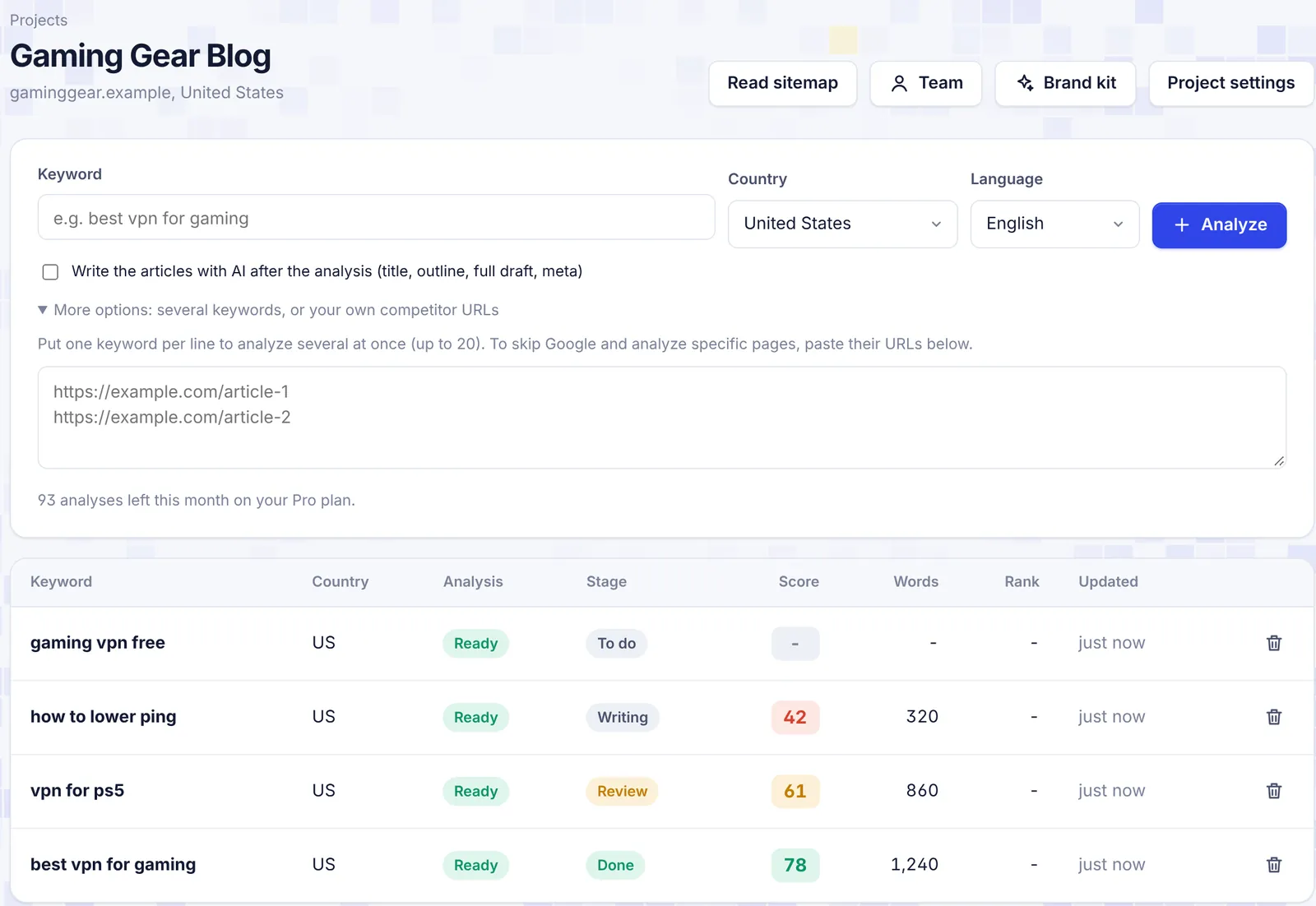
Open a project from My projects. The form at the top has:
- Keyword: the keyword to analyze. Press Enter to start, or Shift + Enter for a new line.
- Country and Language: they start with the project's defaults.
- Analyze: starts the analysis.
- Write the articles with AI after the analysis (title, outline, full draft, meta): turns on bulk writing. Only shown when AI writing is on.
- More options: several keywords, or your own competitor URLs: opens the extra options below.
Under the form you see how many analyses you have left this month. Viewers of a shared project do not see the form.
Several keywords at once
Put one keyword per line in the Keyword box. You can send up to 20 keywords. Each one becomes its own article and counts as one analysis. If you send more than 20 lines, only the first 20 are used.
With one keyword, SerpPal opens it right away. With several, you stay on the project page and see "N analyses started". The table updates by itself every few seconds while they run.
Your own competitor URLs
Paste page addresses in the box under More options, one per line or separated by spaces (up to 30). SerpPal then skips Google and builds the brief from those pages only.
Use this when:
- search data is not connected on the site;
- you want to compare with specific pages, for example the top pages in another tool or your direct competitors.
Good to know:
- Addresses must start with
http://orhttps://, and must be public pages. - There are no Google questions or related searches, because Google was not asked.
- The URLs apply to every keyword in the form.
- You can also change competitors after an analysis without starting over. See Choosing competitors.
While the analysis runs
When you open an article that is still running, you see a progress page:
- Waiting for a free slot: SerpPal runs a couple of analyses at a time. Yours starts soon.
- Reading the top results: Google results are in, and SerpPal is reading the pages. A short log shows each step, for example "Found 28 results and 4 questions" and "Analysing 10 of 26 pages".
It usually takes 1 to 2 minutes. You can leave the page. The analysis keeps running, and the editor opens when you come back.
In the project table, the Analysis column shows the state:
| Pill | Meaning |
|---|---|
| Waiting | In the queue. |
| Analyzing | Running now. |
| Ready | Done. Click the row to open the editor. |
| Ready, from cache | Done, reusing a recent analysis of the same keyword, country and language. |
| Failed | Something went wrong. Hover the pill to see why. |
With bulk writing on, you also see AI in queue, AI writing, AI draft ready or AI failed.
How SerpPal picks the pages
- It asks Google for the top 30 results in your country and language.
- It skips YouTube, Facebook, Instagram, TikTok, X (Twitter), Pinterest, LinkedIn and PDF files.
- It reads the rest. Pages with fewer than 200 words count as "too short", and pages that block visitors count as "could not be read".
- Some results hide their address behind a Google link. SerpPal cannot open those at first. You can recover them later with Find them in the competitor picker.
- The brief uses the first 10 pages it could read, in Google order. All readable pages are kept, so you can widen or change the set later.
Cached analyses
If anyone analyzed the same keyword, in the same country and language, in the last couple of weeks, SerpPal reuses those Google results. It says "Using a recent analysis of this keyword" and the pill shows Ready, from cache. The results are the same quality and arrive faster. It still counts as one analysis.
Need fresh results? In the editor, open More and choose Run the analysis again. This fetches new Google results, keeps your article as it is and uses one analysis.
Audit a page you already published
- On the dashboard, choose Audit a page.
- Type the keyword the page should rank for.
- Paste the page address in Your published page.
- Click Audit page.
When the analysis is ready, SerpPal imports your page's title, description and text into the editor ("Importing your page for the audit...") and scores it. Now you can see the missing terms and topics and fix them. If the import fails, for example because the site blocks automated visits, use Import in the editor and paste the HTML instead. See Import and export.
Delete an analysis
On the project page, click the trash icon at the end of a row, then Delete. The analysis and the article you wrote for it are deleted for good. The analysis is not refunded.
Troubleshooting
"Enter a keyword": the keyword box was empty.
"Your Starter plan includes 30 analyses per month and you have 2 left.": you asked for more keywords than you have left. Send fewer, wait for the 1st of the month, or upgrade. See Plans and limits.
"The analysis failed" with "No competitor pages could be read for this keyword": none of the top results could be read. This happens with very new or very niche keywords, or when every result is a video or forum. Click Try again, try a broader keyword, or analyze with your own competitor URLs. Failed analyses do not count toward your limit.
"Search data is not configured yet": the site's Google data connection is missing. Use your own competitor URLs, or contact support.
"The analysis took too long and was stopped": a slow set of pages. Click Try again.
The analysis is stuck on "Waiting for a free slot": other analyses are ahead of yours. It starts on its own. If it stays there for more than 10 minutes, reload the page.
"This analysis is already running": you clicked Run the analysis again while it was still running. Wait for it to finish.