Humanizer
Make AI-sounding text read naturally while facts, names, numbers and formatting stay the same. Pick a style, follow each pass, and review the changes.
The Humanizer makes AI-sounding text read like a person wrote it. It keeps your meaning, every fact, number, name and link, and your formatting: headings, lists, tables, bold and links stay exactly where they were. After humanizing, it checks the text for AI again and works on the parts that still read machine-made.
Open Humanizer in the sidebar.
Humanize a text
- Paste your text into Your text. Text from Google Docs, Word or a web page keeps its headings, lists, bold and links. You can also use the icons above the box to upload a file or import a link.
- Pick a style with the Style pill (the default is Natural).
- Pick a language with the language pill. Same language keeps the language of your text.
- Optionally open Options. See Humanizer options.
- Click Humanize.
The text needs at least 5 words. For a before and after AI score, give it at least 50 words.
You can also send text here from other tools: Humanize under an answer in AI Chat, or Humanize this text in the AI checker. The text arrives with its formatting.
Styles
| Style | What it does |
|---|---|
| Natural | Reads like a careful person wrote it: natural rhythm, plain words, a clear voice |
| Strong | Restructures more, for stubborn AI text. Rebuilds every sentence and keeps every fact |
| Academic | Formal, no contractions or slang, but still reads like a careful human scholar |
| Simple | Plain words and short sentences, easy to read aloud |
| Casual | Relaxed and conversational, with contractions and the odd aside |
| Professional | A direct, confident business voice with no fluff |
Your choice of style, language and options is remembered in your browser for next time.
While it works
The right panel shows live progress:
- the elapsed time and a Stop button;
- the pass it is on, and the AI score before and the latest score so far;
- four passes, each with its score when done: Humanizing, Check again, Polish and Final polish (a pass that is not needed shows "not needed");
- how many words are done.
Long texts are split into parts of about 2,400 characters and several parts are humanized at the same time, so a long article does not take much longer than a short one. A very long paragraph is split at sentence ends and joined back together afterwards.
Your text box is locked while it works. You can switch to another tool or start another text, and it keeps going. When it finishes while you are elsewhere, you get a message like 'Humanized: "..." is ready. Find it in Recent.'
Humanizing runs in your browser tab. Switching pages inside SerpPal is fine, but if you close or reload the tab, a text that is still humanizing stops and its result is lost.
To stop, click Stop. Your text stays in the box, ready to humanize again.
The result
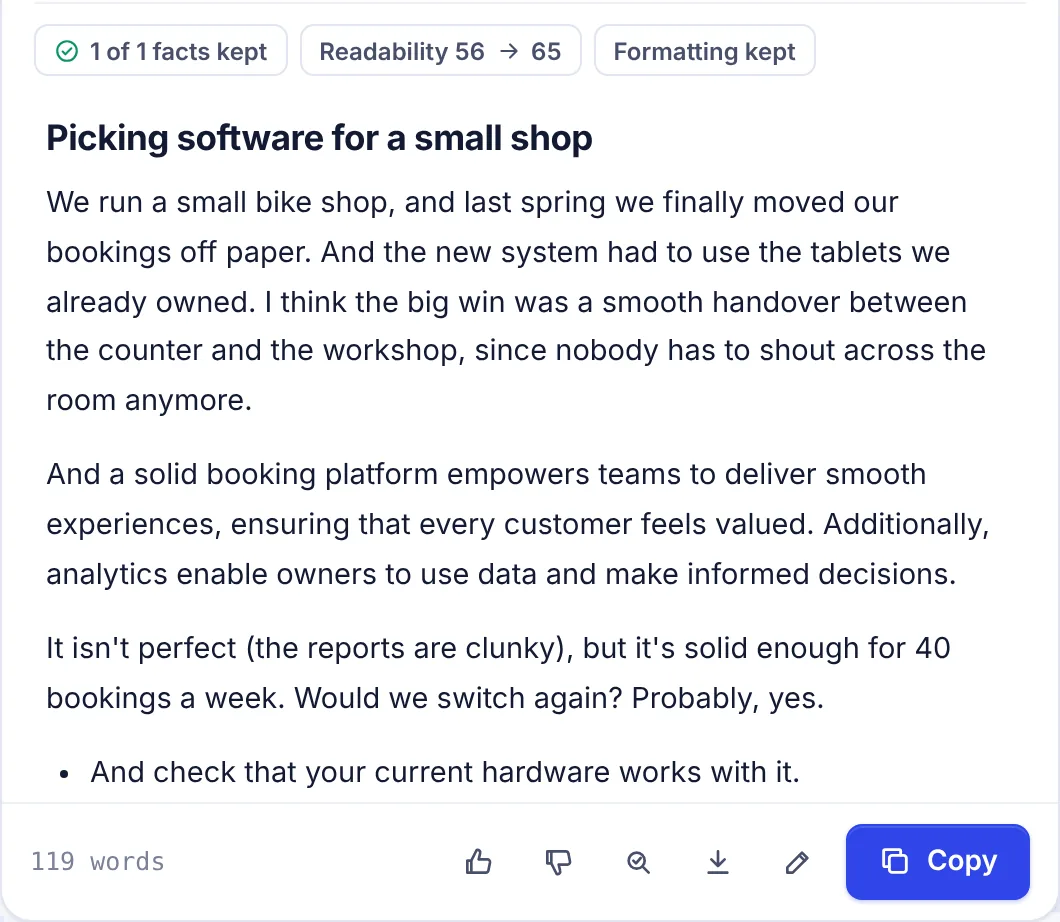
When it is done, the right panel shows the humanized text and some checks.
Before and after scores
Two gauges show the AI score of your text Before and After humanizing (for texts of 50 words or more). The input box also shows the before score as a small badge. The same score appears in a short message, like "AI estimate 82% -> 6%". See How AI detection works.
The badges
- X of Y facts kept (or No numbers or names to protect): numbers, names, links, citation marks and your kept words from the original that are still in the humanized text.
- Review N changed facts: shows when something is missing or written differently. Click it to see a list headed "Not found in the humanized text". Check each one before you use the text. Often it is harmless (a name written as "the company"), but it could be a changed number.
- Readability A → B: the reading ease score before and after. Higher is easier to read. It shows for English and some other languages.
- Formatting kept or Formatting changed: whether every heading, paragraph and list item is still the same type and in the same place.
Tools under the result
| Button | What it does |
|---|---|
| Show changes (switch at the top) | Highlights every word that differs from your original |
| Thumbs up and down | Tell us if the result was good. A thumbs down suggests trying Strong style or Strict in Options |
| AI checker icon | Opens the text in the AI checker for a sentence-by-sentence view |
| Download icon | Downloads the text as a Word (.doc) file |
| Pencil | Edit the humanized text right here. Click the check mark when done: it is saved and the After score updates |
| Copy | Copies the text with its formatting for Google Docs, Word or WordPress |
To try again with other settings, change the style or options and click Humanize again.
Several texts at once
You can humanize up to 3 texts at the same time. Click New text to clear the box and start another one while the first keeps going. If you try a fourth, you see "Up to 3 texts can be humanized at the same time. Wait for one to finish."
Recent
Under the panels, Recent lists:
- texts humanizing now, with their progress percentage and time (click one to watch it);
- your saved results, with their word count, date and After score.
Every finished result is saved automatically. Click a saved one to open it with its original text, its result and the settings it used.
Tables, headings and links
- Tables are left exactly as they are. They are data, not prose.
- Headings stay word for word.
- Links and bold stay around the same words.
- Each paragraph or list item comes back as one paragraph or list item, in the same order.
How your facts are protected
After each part is humanized, SerpPal compares it with your original:
- every number, link, citation mark and kept word must still be there, and most names too;
- the part must keep every point (not much shorter) and not be padded (not much longer);
- it must not get harder to read.
If a part breaks a rule, it is humanized again with notes on what to fix. If it still loses facts, that part keeps your original wording rather than risk a wrong fact. This is why a result can still show some AI in places.
AI words and limits
Humanizing counts toward your monthly AI words, roughly the length of your text for each pass that changes it. Re-check and fix and Strict run extra passes, so they use more. A 1,000-word text might use 1,000 to 3,000 AI words, depending on how stubborn it is. When your words run out, humanizing stops with a message. See Plans and limits and /pricing.
Troubleshooting
"Paste some text first" The box is empty or has fewer than 5 words.
The After score is still high Try the Strong style, or turn on Strict, aim for 0% in Options. Check the highlights in the AI checker and reword the flagged sentences yourself. Some parts may have kept your original wording to protect facts.
"Review changed facts" lists something important Click the pencil and fix it in the result, or copy it from your original.
"Formatting changed" The AI returned a different number of lines for a part. Check your headings and lists, then fix them with the pencil, or humanize again.
My text disappeared after a reload A text that was still humanizing is lost when the tab reloads. Finished results are saved under Recent.
"The humanizer needs AI" AI writing is not turned on for this site. Ask the site admin.
Related
- Humanizer options: Re-check and fix, Strict and keeping words.
- Humanize in the editor: humanizing inside an SEO article.
- Paraphraser: for reworded versions, synonyms and sentence options.