Tour of the content editor
A guided tour of the SerpPal content editor, from the header buttons and toolbar to the live score, the side panel tabs and the More menu.
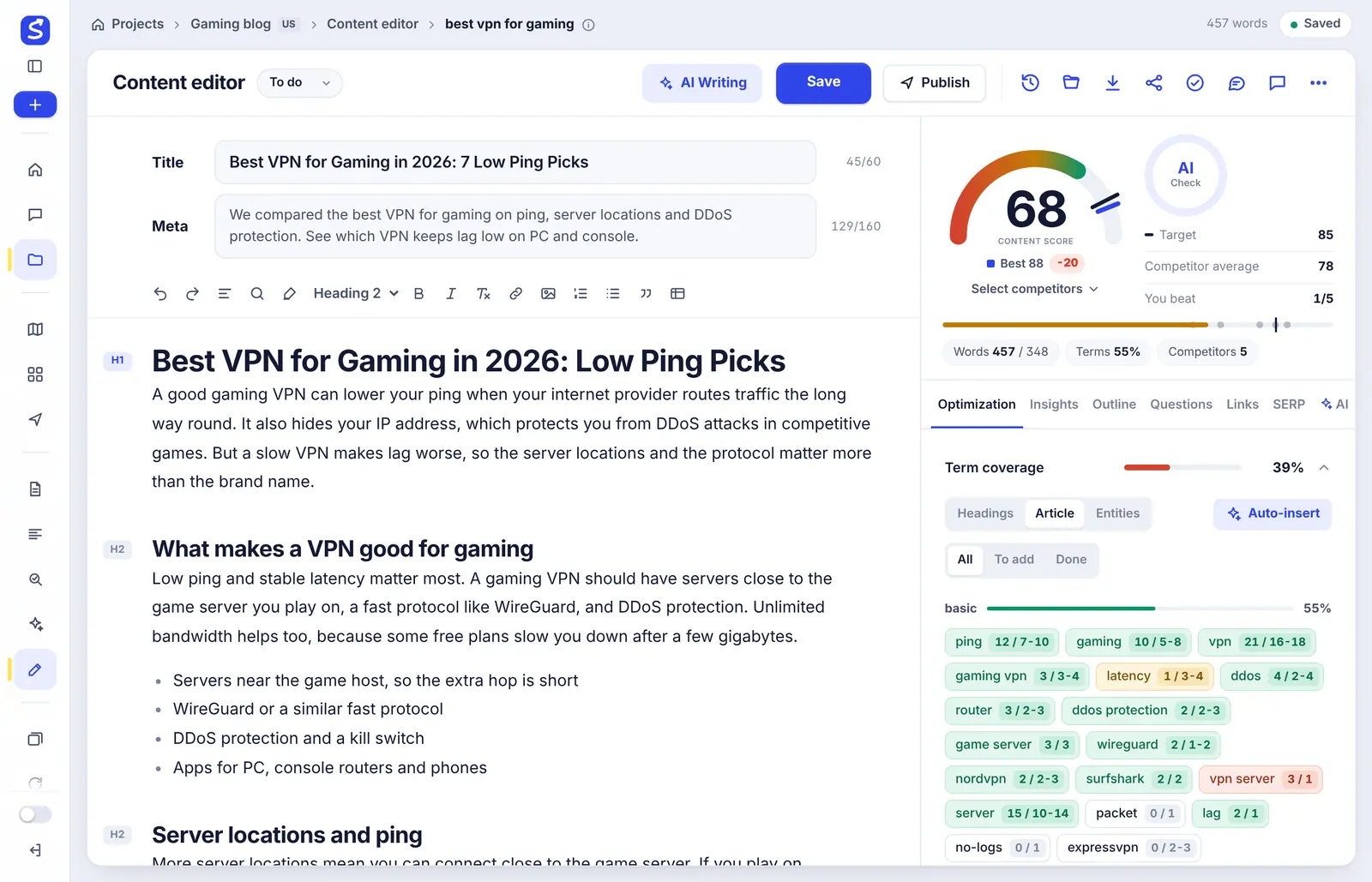
The content editor is where you write, score and polish one article. It opens as soon as the keyword analysis is ready. Your text is on the left, and the live content score and writing brief are on the right. Everything you type is scored right away in your browser, so you see the effect of every change as you write.
Opening the editor
You reach the editor in two ways:
- Analyze a keyword. While SerpPal reads the top Google results, you see a waiting page that says Reading the top results (or Waiting for a free slot when other analyses are ahead of yours). This usually takes 1 to 2 minutes. You can leave the page, the analysis keeps running.
- Open an existing article from your project or the dashboard.
If the analysis fails, the waiting page shows the reason and a Try again button. Failed analyses do not count toward your monthly limit. See Analyze a keyword for the details.
The top bar
The thin bar at the very top shows where you are and how the article is doing:
- Breadcrumb: Projects, the project name (with its country code), Content editor and the keyword. Click the project name to go back to the project.
- Info icon next to the keyword: hover it to see the country, language and how many pages were analyzed.
- Word count: the number of words in your article right now.
- Save state: Saved, Saving..., Unsaved changes or Not saved, retrying. See Versions and autosave.
- Score chip: your current content score, so you see it even when the side panel is scrolled.
The header
Below the top bar, the header holds the main actions, from left to right:
| Button | What it does |
|---|---|
| Status menu | Sets the article status: To do, Writing, Review or Done. Your project page uses it to show progress. |
| AI Writing | Opens the AI menu: article wizard, full article, outline, optimize, sound human, improve, expand, links, title and description. See AI writing in the editor. While the AI works, this button turns into Stop. |
| Save | Saves now and keeps a version you can go back to. Same as Ctrl + S. |
| Publish | Publishes or schedules the article to your site. See Publish and schedule. |
| Versions (clock icon) | Lists saved versions and restores one. |
| Import (folder icon) | Loads a live page, pasted HTML or pasted Markdown into the editor. See Import and export. |
| Export (download icon) | Copies or downloads the article as HTML, Markdown, Word, plain text or schema markup. |
| Share | Creates a read-only link to the article. See Sharing. |
| Mark as done (check icon) | Sets the status to Done. Click again to move it back to Review. |
| Comments | Opens the comment thread. A badge shows how many comments are still open. See Comments. |
| AI assistant (chat icon) | Opens the AI tab and puts your cursor in the Ask AI box. |
| More (three dots) | Writer's brief link, target URL, brand kit, focus mode and running the analysis again. See below. |
Title and meta description
Above the article you have two fields:
- Title: the title shown on Google (the SEO title). The counter shows characters out of 60 and turns red above 65.
- Meta: the meta description shown under the title on Google. The counter shows characters out of 160 and turns red above 165.
Both fields count toward your content score, and both are saved with the article. They are also used when you export or publish.
The toolbar
The toolbar formats your text. From left to right:
- Zoom: 80% to 150%. It only changes how large the text looks to you, and it is remembered in this browser.
- Undo and Redo.
- Table of contents: lists your headings. Click one to jump to it.
- Find and replace: searches the article, with Match case, Find next and Replace all.
- Highlight recommended terms (marker icon): underlines the recommended terms and names in your text with a highlighter mark. Yellow means the term is fine, light orange means use it a bit more, and pink means it is used too often. The setting is remembered in this browser.
- Text style: Paragraph, Heading 1, Heading 2 or Heading 3.
- Bold, Italic and Clear formatting.
- Link: add, change or remove a link. Links must start with
https://,http://,mailto:or/. - Insert image: adds an image from a web address (it must start with
https://orhttp://), with alt text that describes it. - Numbered list, Bulleted list, Quote and Insert table (3 by 3 with a header row).
You can also type Markdown, for example ## for a heading or - for a list. See Keyboard shortcuts.
The score and side panel
The right side starts with the score gauge, the AI quality check and the numbers you compete against. How the content score works explains every part.
Below it are seven tabs:
| Tab | What you find there |
|---|---|
| Optimization | Term coverage with every recommended term, meta checks, words, balance, AI search readiness, plagiarism, AI visibility and content statistics. See Terms and topics. |
| Insights | Quick metrics, human tone, ranking chance, Google position, AI quality review, the score breakdown and extra checks. See Insights and checks. |
| Outline | The AI topic brief, title ideas, better headings, common headings on top pages and competitor outlines. |
| Questions | People also ask, questions from top articles and related searches. |
| Links | Internal link ideas from your own site. |
| SERP | The pages that rank, with their scores and outlines. |
| AI | All AI writing actions and the Ask AI chat. |
The Outline, Questions, Links and SERP tabs are covered in Outline, questions, links and SERP. The editor remembers the last tab you used.
The More menu
- Share the writer's brief: creates a read-only brief page for a writer. See Sharing.
- Target URL: the address of the page this article is for. It is used for schema markup, when you publish, for rank tracking and to leave your own site out of the plagiarism check. It must be a full address starting with
https://(orhttp://). - Brand kit: opens the project's brand kit, which every AI action in the project follows. See Brand kit.
- Focus mode: hides the side panel and the app menu so only your article is left. Press Esc to leave.
- Run the analysis again: fetches fresh Google results and rebuilds the recommendations. It counts as one analysis, and your article stays as it is.
View-only access
If a project owner added you as a Viewer, the editor opens read-only. You see the message "View only: you can read, check the score and comment." You can read the article, see the score and all tabs, and add comments, but you cannot change the text or use AI actions. Ask the owner to make you an Editor if you need to write. See Team members.
Common questions
Why is the AI Writing button missing? AI writing has not been turned on for this site, or you have view-only access.
Does closing the tab lose my work? No. The editor saves about a second after you stop typing. If a save is still in progress, your browser warns you before you leave.
Can two people edit the same article at once? It works, but the last save wins. Changes are not merged live, so agree who is writing, and use comments for feedback.