Choosing competitors
Pick which ranking pages your brief and score come from, add pages you want to beat, recover links Google hides, and rebuild without a new analysis.
Your terms, topics, target length and score target all come from a set of competitor pages. By default that is the first 10 pages SerpPal could read from Google's top results. Sometimes those pages are not the right comparison: a forum thread, an online shop, a page for another country. This page shows how to choose the competitors yourself.
Changing competitors does not need a new Google search and does not use an analysis.
See which pages are used
Open the SERP tab in the editor. It lists every result SerpPal found, in Google order:
- the position (or + for a page you added);
- the title and address, or "Address hidden by Google";
- the word count, the number of H2 headings and the reading ease;
- the page's own content score.
Pages marked "Not used" are readable but not in the current set. Pages that could not be read show why, for example "too short (120 words)". Click a page to see its outline.
The line at the top says how many readable pages are used, for example "10 of 24 readable pages are used".
Quick switch: First 10 or All
In the Insights tab, under Competitors used, there are three buttons:
| Button | Uses |
|---|---|
| First 10 | The first 10 pages SerpPal could read, in Google order. This is the default. |
| All | Every page it could read, up to 30. |
| Choose... | Opens the competitor picker. |
Click First 10 or All to rebuild with that set straight away.
Choose pages one by one
Open the picker from Choose... in Insights, Select competitors in the SERP tab, or the Select competitors link under the score gauge.
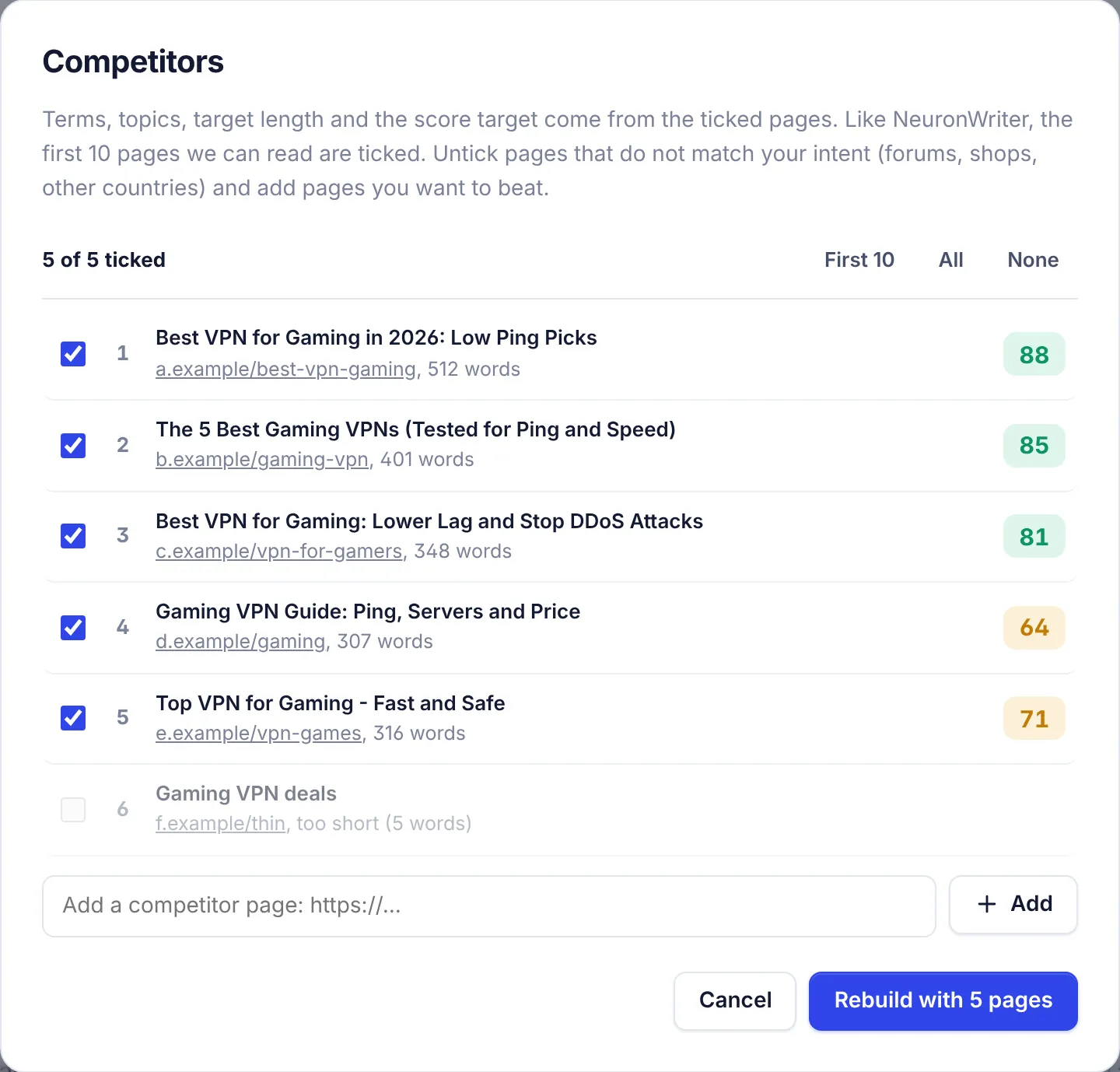
- Look at each page. Untick pages that do not match what you are writing: forums, shops, news, other countries, or a different meaning of the keyword.
- Use the shortcuts if they help: First 10, All or None.
- Add pages you want to beat (see below).
- Click Rebuild with N pages.
You need at least 3 ticked pages. Pages that could not be read are greyed out and cannot be ticked.
SerpPal saves your article, rebuilds the recommendations and reloads the editor. Your terms, topics, target length and score target now come from the pages you picked. The questions, related searches and AI topic brief stay as they were.
The score badge next to each page is that page's content score. Very low scoring pages are often thin or off-topic. Leaving them out raises the bar a little and gives you better terms.
Add your own competitor pages
In the picker, paste a page address in Add a competitor page: https://... and click Add.
- SerpPal reads the page right away. When it can be used, it is added and ticked ("Page added and ticked").
- Pages you add show + instead of a position.
- You can add up to 20 pages of your own per article.
- Remove a page you added with its trash icon. Pages from Google cannot be removed, only unticked.
- Added pages only count after you click Rebuild.
If the page cannot be used you see "Added, but it cannot be used" with the reason, for example it is too short or the site blocks visitors.
Recover links hidden by Google
Google sometimes hides the real address of a result behind a Google link. SerpPal cannot open those during the analysis, so they show as "Google hid this link".
When the picker finds hidden results it shows "N results hidden by Google could not be opened" with a Find them button.
- Click Find them. SerpPal asks for the real addresses and reads those pages.
- You see "Found 2 hidden links", or "Google still hides these links. Try again in a few minutes."
- If you were still on the default first 10, the newly found pages are ticked in their Google position.
- Click Rebuild to use them.
A hidden link that turns out to be a page already in the list is dropped.
Troubleshooting
"Pick at least 3 readable competitor pages": tick at least three pages that are not greyed out.
"Fewer than 3 pages could be read. Add pages of your own or find the hidden links first.": most results could not be read. Use Find them or add pages yourself, then rebuild.
"Run the analysis again once to enable choosing competitors": this analysis is from before SerpPal kept the competitor pages. Open More and choose Run the analysis again once (it uses one analysis). After that you can choose competitors as often as you like.
"That page is already in the list": the page is already there. Tick it instead.
"You can add up to 20 pages of your own": remove a page you added first.
"That site cannot be used as a competitor (video, social network or PDF)": YouTube, Facebook, Instagram, TikTok, X, Pinterest, LinkedIn and PDF files are not used as competitors.
"The analysis is not ready yet": wait until the analysis finishes.
My score changed after a rebuild. That is expected. The score compares your article with the competitors you chose, so a different set gives a different score and target.