The dashboard and sidebar
A tour of the SerpPal dashboard and sidebar: usage cards, AI Chat, the SEO article builder and its three modes, recent articles, quick start and projects.
The dashboard is the first page you see after you sign in. You can always get back to it with Dashboard or New article in the sidebar.
Usage cards
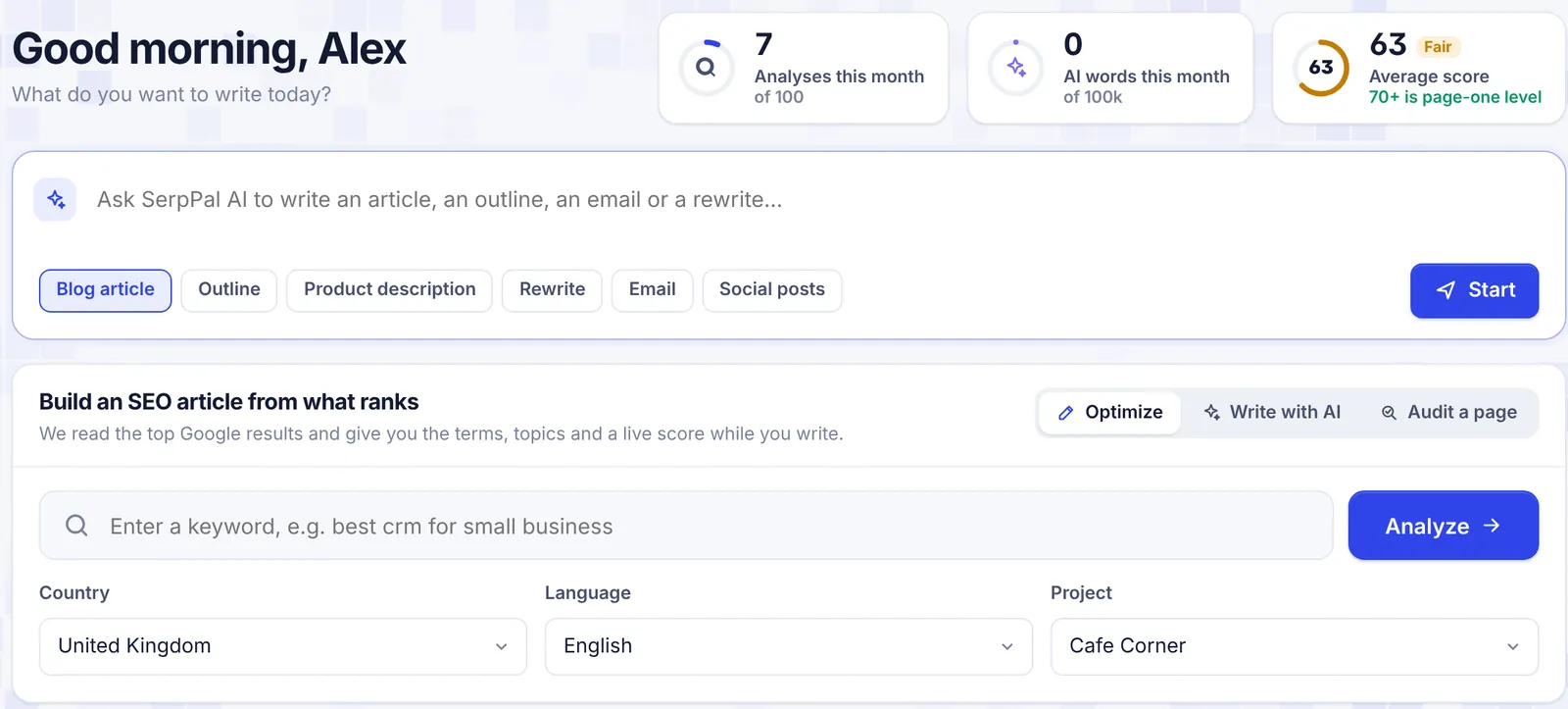
At the top right are three cards for the current month:
| Card | What it shows |
|---|---|
| Analyses this month | Keyword analyses you started this month, and your plan's limit ("of 100", or "Unlimited"). |
| AI words this month | Words the AI wrote for you this month, across all tools, and your limit. |
| Average score | The average content score of your written articles (100 words or more). Labeled Good at 70+, Fair at 50 to 69 and Low below 50. "70+ is page-one level" is the target to aim for. |
The ring around a card turns to a warning color when you have used 90% of that limit. Limits reset on the 1st of every month. See Plans and limits.
AI Chat box
Below the greeting is a box that says "Ask SerpPal AI to write an article, an outline, an email or a rewrite...". Type a request and click Start (or press Enter) to open it in AI Chat. The chips under the box (Blog article, Outline, Product description, Rewrite, Email, Social posts) fill in a starting sentence for you.
This box only appears when AI writing is turned on for the site.
Build an SEO article from what ranks
This is where most work starts. Type a keyword, choose the options and click the button.
The three modes
| Mode | Button | What happens |
|---|---|---|
| Optimize | Analyze | SerpPal reads the top Google results and opens the content editor with the brief and a live score. You write. |
| Write with AI | Start writing | Same analysis, then the article wizard opens: pick a title, shape the outline, and the AI writes the full article. Only shown when AI writing is on. |
| Audit a page | Audit page | Adds a Your published page field. Enter the keyword the page should rank for and the page's address. After the analysis, SerpPal imports your page into the editor and scores it, so you can see what it is missing next to the top 10. |
The options
- Country: where the searchers are. Only countries with Google keyword data are listed. See Countries and languages.
- Language: the languages that country has data for. When you change the country, the list updates.
- Project: where the article is saved. If you have no projects, choose My articles (created for you) and SerpPal creates a project called "My articles".
The country and language start with the settings of your most recently active project.
Each click counts as one analysis on your plan. More detail: Analyze a keyword.
Typed a keyword on the SerpPal website before signing in? It is already in the box when you reach the dashboard. Just click Analyze.
Recent articles
A list of the articles you created, newest change first, six per page. Use Previous and Next to page through.
Each row shows:
- a score ring with the article's content score (empty until the analysis is ready);
- the keyword, the project, the country code and the word count, or "analyzing", "analysis failed" or "not written yet";
- a stage pill (To do, Writing, Review, Done) or Published when it went to WordPress;
- when it was last changed.
The filter buttons above the list:
- All: everything.
- To do: articles that are not marked Done and not published yet.
- Published: articles marked Done, sent to WordPress, or published through Publishing.
Click a row to open it in the editor. All projects opens your projects page.
Quick start panel
Three shortcuts on the right:
- Find topics to write opens the Content Planner.
- Write a new article with AI switches the builder to Write with AI.
- Audit a page you published switches the builder to Audit a page.
Projects panel
Shows up to five of your projects with their country code. Click one to open it, or click Manage (or Create when you have none). Connect a site opens the projects page, where you can set up publishing, a sitemap and rank tracking for each project.
The sidebar
The sidebar is on every page:
- New article: back to the dashboard builder.
- Workspace: Dashboard, AI Chat and My projects.
- Tools: Content Planner, Templates and Publishing.
- Writing: Essay writer, Summarizer, AI checker and Humanizer. While an article is open you also see Content editor here.
- Study: Study sets, Paraphraser, Grammar checker, Citation generator and Essay grader.
- Account: Account and Plan and billing.
The plan box
At the bottom is your plan name with two meters, Analyses and AI words, each as "used / limit". A meter changes color at 90%. Click the i next to the plan name for a summary and, on a paid plan, the date you are paid until. On smaller plans, Upgrade opens Plan and billing.
Light, dark and collapse
- The Light / Dark switch changes the theme.
- The arrow icon next to it signs you out.
- The panel icon at the top folds the sidebar to a slim row of icons. SerpPal remembers your choice. In the editor, the sidebar starts folded on smaller screens to give the article more room.
On a phone the sidebar becomes a strip of links across the top that you can swipe sideways. The theme switch and Sign out are on the Account page.
Common questions
My usage cards show different numbers from the plan box. They read the same data. If you just ran something, reload the page to refresh them.
Why is my average score empty? Only articles with at least 100 words count. Write a little in one of your analyses and it appears.
Why does an article I marked Done show under Published? The Published filter counts finished articles too, so it doubles as a "finished" list.