Paraphraser
Reword text in 10 modes with a Synonyms slider, click any word for synonyms or any sentence for new versions, freeze words, compare modes and see history.
The paraphraser says your text again in different words, with the same meaning. Choose a mode, set how much of the wording should change, and click Paraphrase. Then fine-tune the result: click any word for synonyms, or any sentence for new versions of it. Headings, lists and bold stay as they are.
Open Paraphraser in the sidebar.
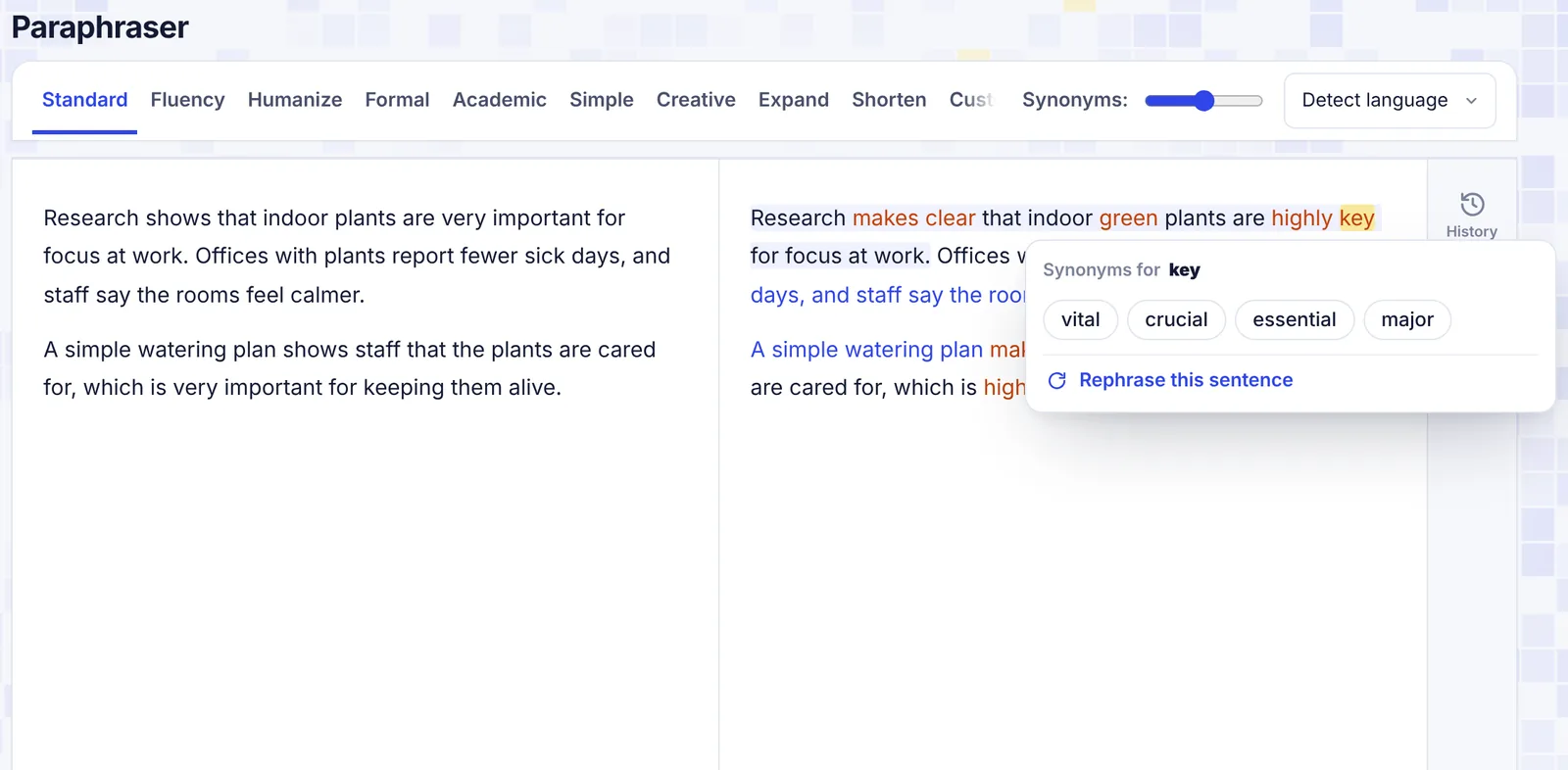
Paraphrase a text
- Put your text in the left box. You can:
- type or paste it (formatting from Docs, Word or the web is kept);
- click Paste text to paste from your clipboard;
- click Try sample text to see how it works;
- click Upload to read a PDF, Word or text file.
- Pick a mode at the top.
- Set the Synonyms slider.
- Click Paraphrase, or press Ctrl + Enter (Cmd + Enter on a Mac).
The text needs at least 3 words. Long texts are done in parts of about 2,400 characters, and you see "Paraphrasing part 2 of 5". While it works, the button turns into Stop. After a result is ready, the button says Rephrase: click it for a fresh version of the same text.
Modes
| Mode | What it does |
|---|---|
| Standard | Reworded with the same meaning and about the same length |
| Fluency | Smooth and natural, fixing awkward phrasing |
| Humanize | Reads like a person wrote it, not an AI |
| Formal | Professional register, no contractions or slang |
| Academic | Precise and objective, for papers and essays |
| Simple | Short common words that anyone can follow |
| Creative | Fresh wording and more vivid sentences |
| Expand | About half again as long, with the ideas explained more. No new facts are added |
| Shorten | About 40% shorter, every key point kept |
| Custom | Describe the style you want |
Custom: when you pick it, a box appears. Describe the style in a few words (up to 120 characters), for example "friendly and simple, like a teacher talking to students". If the box is empty, you see "Describe the style for Custom mode first".
For text that must pass an AI check, the Humanizer does more than the Humanize mode here: it checks its own result and keeps working on the parts that still read as AI.
The Synonyms slider
The slider sets how much of the wording changes:
| Setting | What changes |
|---|---|
| Very light | Only some words swapped for close synonyms, structure kept |
| Light | Words and short phrases swapped, most of the structure kept |
| Balanced | New phrasing and some new sentence shapes (the default) |
| Strong | New phrasing and restructured sentences throughout |
| Maximum | As much change as possible while keeping the exact meaning |
The slider is greyed out in Expand and Shorten, because those modes change the length instead.
Language
The language menu starts on Detect language, which keeps the language of your text. Pick a language to get the result in that language.
Read the result
- Changed words are highlighted in color.
- Longest unchanged words: the longest run of 4 or more words that stayed the same is highlighted too, so you can spot a part that still matches your original closely.
- Click the highlighter icon under the result to turn either highlight on or off.
Under the result you see the number of sentences, words, and the % changed compared with your text.
Tables are shown as they are and not paraphrased.
Click a word or a sentence
This is where you make the result your own.
- Click a word to see Synonyms for that word: up to 8 options that fit the sentence as it stands. Click one to swap it in. The capitalization is matched for you.
- Click a sentence (or the word's menu) and choose Rephrase this sentence. You get 4 different versions in the current mode. Click one to use it.
- Made a change you don't like? Click the undo arrow under the result. You can undo several steps.
Synonyms and rephrasing use a small number of AI words.
Freeze words
Click Freeze words to list words and phrases that must not change, like names, subject terms or quotes. Type one, click Add, and repeat. Click the x on a chip to remove it, or Clear all. You can freeze up to 30. The number of frozen words shows on the button, and the list is remembered in your browser.
Under the result
| Button | What it does |
|---|---|
| Undo arrow | Undoes your last synonym or sentence swap |
| Highlighter | Turns the changed-word and unchanged-word highlights on or off |
| AI checker icon | Opens the result in the AI checker |
| Download icon | Downloads the result as a Word (.doc) file |
| Copy | Copies the result with its formatting |
Next to the input, the copy icon copies your original text.
The side panel: History, Compare and Statistics
On the right edge of the page are three buttons. Click one to open its panel, click it again (or the x) to close it.
History
Every paraphrase is saved, including the swaps you make afterwards. Click one to load its input, result, mode, slider setting and custom style back. Click the bin to delete one.
Compare
Click Compare 5 modes to see your first paragraph (up to 120 words) paraphrased in Standard, Fluency, Humanize, Formal and Simple side by side. Under the one you like, click Use with its mode name: that switches to the mode and paraphrases your whole text in it. Comparing uses AI words like five short paraphrases.
Statistics
A table compares your input and output: Words, Sentences, Words per sentence, Reading time and Readability (Flesch reading ease for English text: 60 to 70 is plain English, higher is easier). It also says what level the output reads at, and shows an AI-like score for outputs of 50 words or more. See How AI detection works.
Your settings are remembered
The mode, the slider, your custom style and frozen words are saved in your browser, so the paraphraser opens the way you left it.
AI words and limits
Paraphrasing counts the words in the result toward your monthly AI words. Synonyms, rephrasing a sentence and comparing modes count too. See Plans and limits.
Troubleshooting
"Add some text to paraphrase" Add at least 3 words.
"Press Ctrl+V (or Cmd+V) in the box to paste" Your browser did not allow the Paste text button to read the clipboard. Click in the box and paste with the keyboard.
"No good synonyms for this word." There are no natural replacements for that word in this sentence. Try Rephrase this sentence instead.
"No new versions came back. Try again." Click Rephrase this sentence again.
The result is longer or shorter than my text Expand and Shorten change the length on purpose. In other modes, small differences are normal.
A frozen word still changed The AI is told not to change frozen words, but check them in the result, especially with Maximum. Swap it back by clicking the word.