Publishing overview
How SerpPal sends finished articles to WordPress, Shopify, Ghost, Webflow or any platform through a webhook, now or at a time you pick, with images and videos.
When an article is ready, you don't need to copy and paste it into your site. SerpPal can send it straight to your blog as a live post or as a draft, right away or at a date and time you choose. It can also add a featured image and place images and videos inside the article.
What you can publish to
| Platform | What SerpPal creates | What you need |
|---|---|---|
| WordPress | A post (self-hosted WordPress, or WordPress.com on a plan with plugins) | Site address, user name and an application password. See Connect WordPress. |
| Shopify | An article in one of your store's blogs | Store address and an app from the Shopify Dev Dashboard (client ID and secret), or an older shpat_ token. See Connect Shopify. |
| Ghost | A post (Ghost(Pro) or self-hosted) | API URL and an Admin API key from a custom integration. See Connect Ghost. |
| Webflow | An item in a CMS collection, such as Blog Posts | A site API token with CMS access. See Connect Webflow. |
| Webhook | A JSON message sent to an address you choose | Any address that accepts POST requests: Zapier, Make, n8n or your own code. See Connect a webhook. |
The webhook is the way to reach any other platform, such as Medium, Wix, HubSpot, Notion or a custom CMS.
How it works
- Connect a site to a project. Sites belong to a project, so every article in that project can go to them. A project can have up to 20 connected sites, for example a WordPress blog and a Shopify store.
- Open an article and click Publish. The Publish button is at the top of the content editor.
- Pick the site, the time and the details. Choose Now or Schedule, Live post or Draft to review, then check the title, slug, tags and excerpt. Add a featured image and any images or videos.
- SerpPal sends it. You see a message when it is done, and the post appears on the Publishing page.
The full walkthrough is in Publish and schedule.
Who can do what
Publishing follows the roles in a project (see Team members):
| Role | Connect, edit or disconnect sites | Publish and schedule to connected sites | See posts |
|---|---|---|---|
| Owner | Yes | Yes | Yes |
| Editor | No | Yes | Yes |
| Viewer | No | No | Yes |
Check /pricing to see which plans include publishing to your sites.
What each platform supports
Every platform gets the title, the article body, the slug and the live or draft choice. The other fields depend on the platform:
| Field | WordPress | Shopify | Ghost | Webflow | Webhook |
|---|---|---|---|---|---|
| Excerpt | Excerpt | Summary | Custom excerpt (up to 300 characters) | A summary field, if the collection has one | Sent |
| Tags | Tags | Tags | Tags | Not used | Sent |
| Categories | Categories (made if missing) | Added as tags | Added as tags | Not used | Sent |
| Featured image | Featured image | Article image | Feature image | The collection's Image field | Sent as a link |
| Images in the article | Uploaded to the media library | Copied to Shopify Files | Uploaded to Ghost | Copied by Webflow | Links to SerpPal |
| Uploaded videos | Uploaded to the media library | Uploaded to Shopify Files | Uploaded to Ghost | A link to the video | Links to SerpPal |
| Author | The connected user | The Author name you set | Set by Ghost | Not used | Not sent |
More detail is in Images and videos.
Managing connected sites
Connected sites live in each project's settings. Open the project, click Project settings (only the project owner sees it) and find Publishing. You can also connect the first site from the editor: click Publish, then Connect a site when the project has none yet.
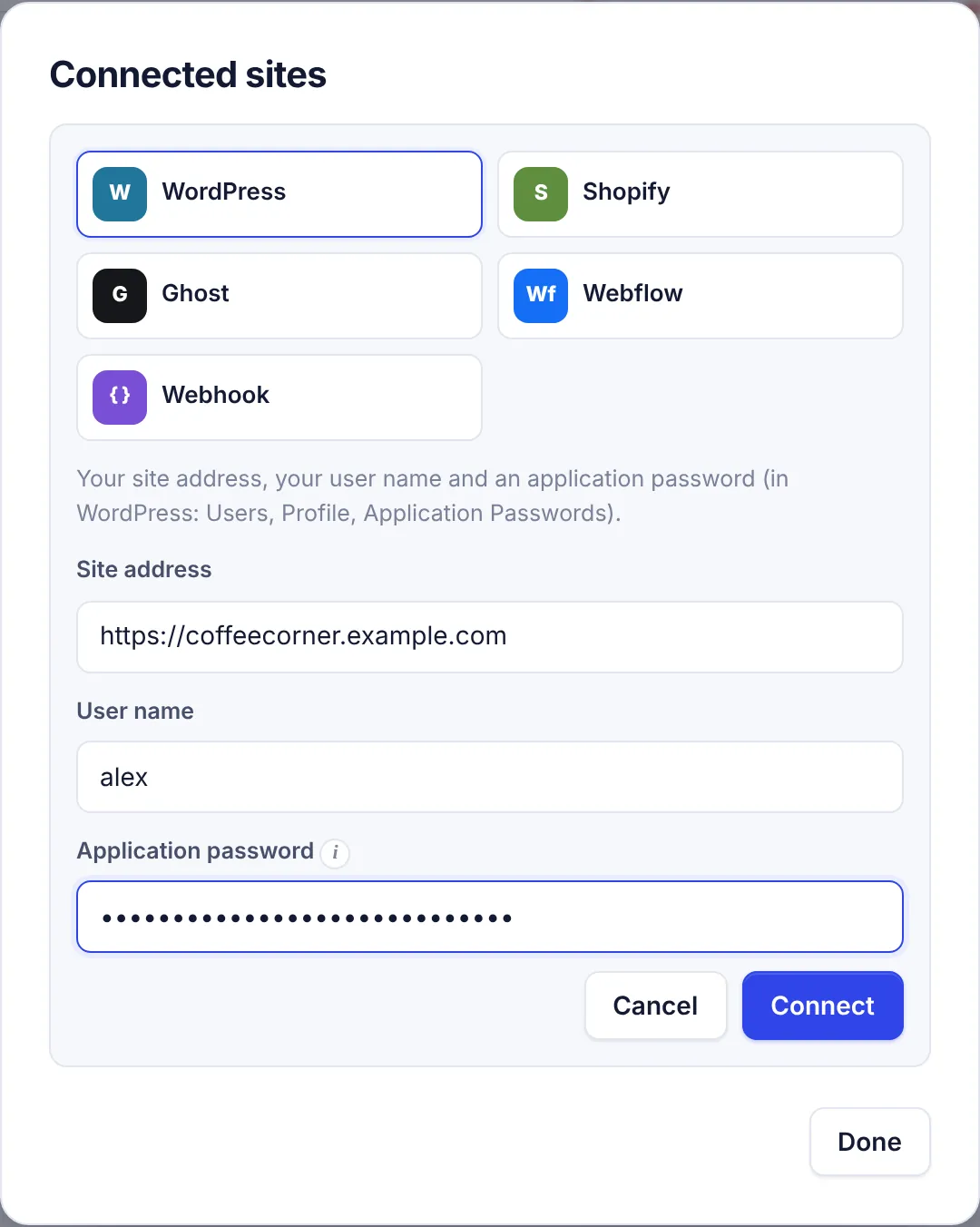
For each site you see its name, its platform and either when it was last checked ("checked 5 minutes ago") or the last error in red. The buttons are:
- Connect a site: pick a platform, fill in its fields and click Connect. SerpPal checks the details with the platform before saving them, so a wrong password is caught right away.
- Test: checks the saved details again and shows "Connected to" and the site's name, or the error.
- Edit (pencil): change the fields, then click Save and test. Here you can also give the site your own Name in SerpPal, for example "Main blog" or "Shop news", which is how it shows in the Site list when you publish. Secret fields (passwords, keys, tokens) show "Saved. Leave empty to keep it." Leave them empty to keep the saved value, or type a new one to replace it.
- Disconnect (trash can): removes the site. Posts waiting to go to it are canceled with the note "The site was disconnected". Posts already on the site stay there.
Some platforms ask one more question after the check, such as which Shopify blog or which Webflow collection to use. SerpPal shows a list, says "Pick where posts go, then save", and you click Save and test once more. If there is only one choice, it is picked for you.
Passwords, keys and tokens are stored on SerpPal's server and are never sent back to your browser, to team members or to AI assistants.
Good to know
- The article goes out as it is at publish time. A scheduled post uses the latest saved version, so you can keep editing until then.
- The title at the top is removed. Your site shows the post title itself, so SerpPal leaves out the article's first H1 to avoid a double title.
- Publishing again updates the same post. Sending the same article to the same site a second time changes the existing post instead of making a copy.
- Your post links back. When an article goes live and it has no target URL yet, SerpPal saves the post's address as the article's URL, which rank tracking can then use.
- AI assistants can publish too. With an API key, Claude, Cursor and other MCP clients can publish and schedule for you. See What is MCP.
Common questions
Can I publish one article to several sites? Yes. Publish it to one site, then open Publish again and pick another site. Each site gets its own post.
Does disconnecting a site delete my posts? No. Posts already on the site stay there. Posts that were waiting to go to it are canceled.
Can SerpPal delete a post from my site? No. Removing a post from the Publishing page only removes SerpPal's record. Delete the post in your site's admin if you need to.
Something went wrong. See Publishing troubleshooting for every error message and its fix.