Account settings
Change your name and password, switch between light and dark mode, sign out, and learn how SerpPal sessions work, all from the Account page.
The Account page holds your personal settings. Open it with Account in the sidebar (on a phone, open the menu first).
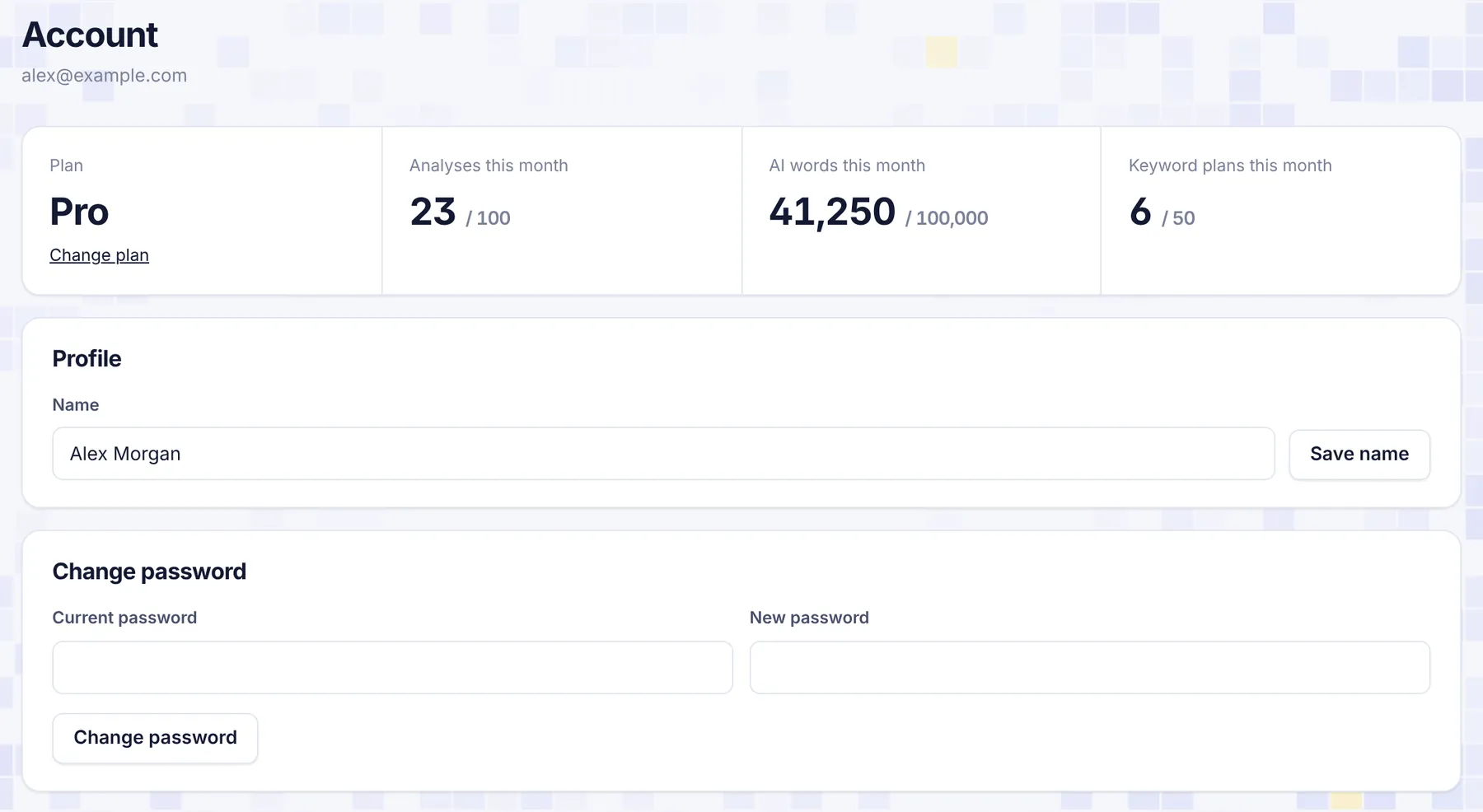
What's on the page
- Your email under the page title. This is the email you sign in with.
- Plan and usage: your plan with a Change plan link to Plan and billing, and how many analyses, AI words and keyword plans you have used this month.
- Profile: your name.
- Change password.
- API keys and MCP: keys for AI assistants. See API keys.
- Light and dark mode and Sign out, at the bottom.
Change your name
- Type your name in Name under Profile (up to 80 characters).
- Click Save name. You'll see "Name saved".
Your name is shown to people you work with, for example in a project's team list and on comments. It is also filled in for you on the card payment page.
Change your password
- Under Change password, type your Current password.
- Type a New password of at least 8 characters.
- Click Change password. You'll see "Password changed".
When you change your password, every other device signed in to your account is signed out. The browser you are using stays signed in. Use this if you signed in on a shared computer and forgot to sign out.
Messages you may see:
| Message | What to do |
|---|---|
| "Current password is wrong" | Type your current password again, checking Caps Lock. |
| "New password must be at least 8 characters" | Choose a longer password. A short sentence works well. |
Use a password you don't use anywhere else, and a password manager to remember it.
Forgot your password?
SerpPal has no self-service reset link yet. Write to [email protected] from the email address of your account and we'll help you get back in.
Change your email address
Your email can't be changed on the Account page. Email [email protected] from your current address and tell us the new one.
Light and dark mode
Click the Light / Dark switch at the bottom of the Account page, or in the sidebar. The choice is saved in your browser, so each browser or device remembers its own. Until you pick one, SerpPal follows your device's setting.
Sign out
Click Sign out at the bottom of the Account page, or the sign-out icon at the bottom of the sidebar. This ends the session in that browser.
Sessions and signing in
- You stay signed in for 30 days in each browser, then you are asked to sign in again.
- Each browser has its own session. Signing out in one doesn't sign you out in others.
- To sign out everywhere, change your password. All other sessions end at once.
- Too many wrong passwords: after 8 failed sign-ins from the same network in 15 minutes, sign-in pauses with "Too many attempts. Try again in a few minutes."
- "Wrong email or password" means the email isn't registered, the password is wrong, or the account was disabled. SerpPal doesn't say which, to protect accounts.
SerpPal uses one essential cookie to keep you signed in, and no advertising cookies. See Data and privacy.
Delete your account
You can ask us to delete your account at any time. See Data and privacy.