Quick start
Write your first SEO article with SerpPal in about ten minutes, from creating your account to analyzing a keyword, writing to a good score and publishing.
This guide takes you from a new account to a finished, optimized article. It takes about ten minutes, most of it writing.
1. Create your account
- Go to the sign-up page and enter your Name, Email and Password.
- Click Create account.
New accounts start on the Free plan. No card is needed. If you came from the pricing page with a plan in mind, SerpPal takes you to Plan and billing right after sign-up so you can pay for it.
If you only see Sign in and no "Create a free account" link, sign-ups are closed on this site right now. Contact support.
2. Analyze your keyword
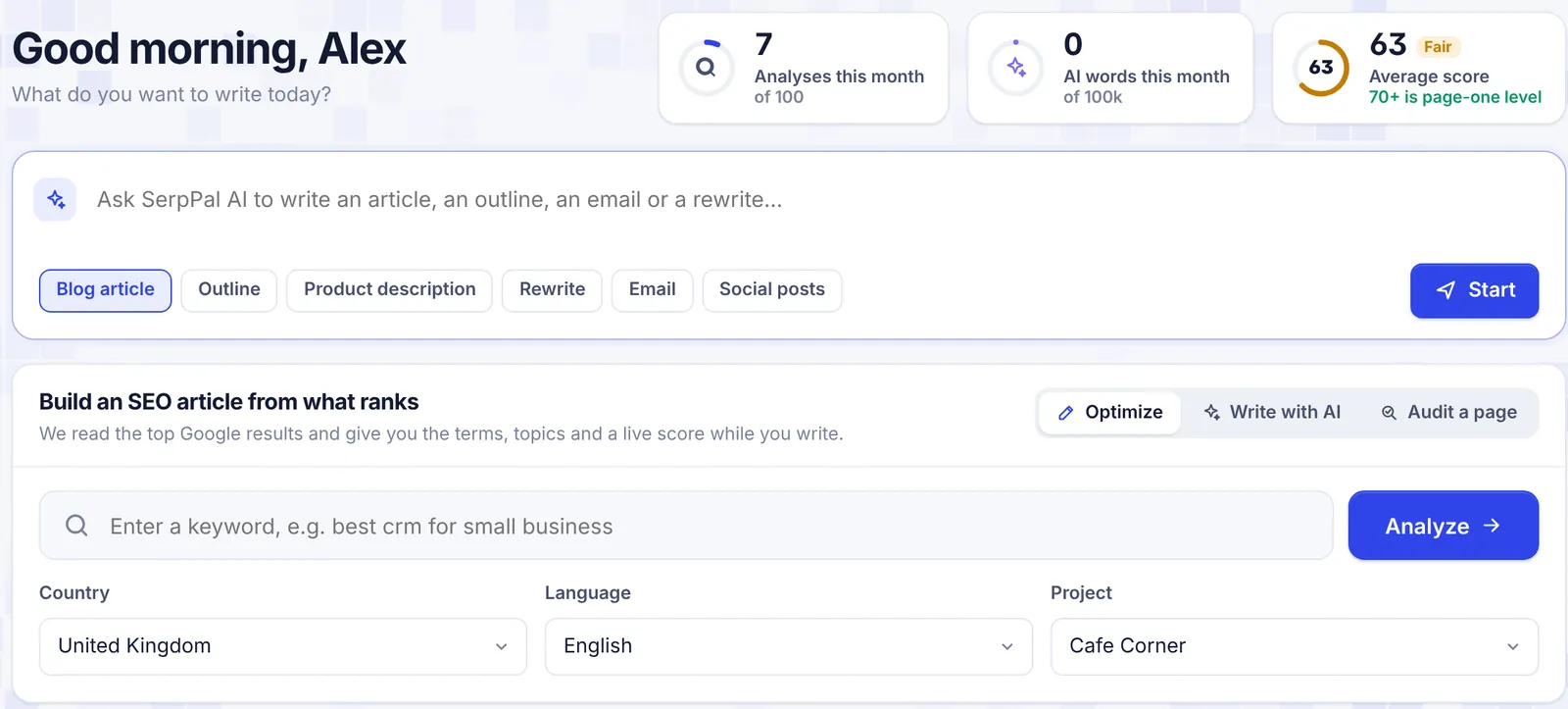
You land on the Dashboard. Find the panel called Build an SEO article from what ranks.
- Type the keyword you want to rank for, for example
best crm for small business. - Pick the Country and Language of the people searching. Results differ a lot between countries.
- Pick a Project. If you have none yet, leave My articles (created for you) and SerpPal makes a project called "My articles" for you.
- Click Analyze.
SerpPal now reads the top Google results. You see "Waiting for a free slot" and then "Reading the top results", with a short log of each step. This usually takes 1 to 2 minutes. You can leave the page; the analysis keeps running and appears under Recent articles when it is ready.
Want the AI to write the first draft? Choose Write with AI above the keyword box before you click. The button changes to Start writing, and the article wizard opens as soon as the analysis is ready. See Article wizard.
3. Read the brief
When the analysis is ready, the content editor opens. On the right you have the brief:
- Optimization: the terms to use and how often, with your term coverage.
- Insights: the score breakdown, target length and what to do next.
- Outline: the topics to cover and the headings top pages use.
- Questions: what people ask about the keyword.
- SERP: the pages you are competing with.
Reading the brief explains each part.
4. Write to a good score
Write in the editor on the left, or paste your draft. The content score at the top updates as you type. Aim for the target score shown on the gauge. As a rule of thumb, 70 or more is page-one level.
- Click a term in Optimization to insert it at the cursor.
- Click + next to a topic in Outline to add it as a heading.
- Use AI Writing at the top for an outline, a full draft or to work missing terms in.
SerpPal saves as you type. See Content score and Terms and topics.
5. Publish
When you are happy with the article:
- Click Publish in the editor's top bar.
- If no site is connected yet, connect WordPress, Shopify, Ghost, Webflow or a webhook first. You do this once per project.
- Publish now, save as a draft on your site, or schedule it.
Prefer to paste it yourself? Use Export to copy the HTML or download a file. See Publish and schedule and Import and export.
What next
- Set up a project for each website, with its own country, language and brand kit.
- Find more topics to write with the Content Planner.
- Invite a writer or editor to your project: Team members.
- Check how much of your plan you have used: Plans and limits.
Common questions
The analysis failed. Did I lose an analysis? No. A failed analysis does not count toward your monthly limit. Open it and click Try again, or try a slightly different keyword.
It says "Google results are not connected". The site's search data connection is not set up. This is a server setting, so contact support.
Can I analyze several keywords at once? Yes, from a project page (one keyword per line, up to 20) or from the Content Planner. See Analyze a keyword.