Citation generator
Paste a link, DOI or ISBN, or fill in the details, and get the reference and in-text citation in APA 7, MLA 9, Chicago, Harvard or IEEE.
The citation generator builds references for your assignments. Paste a web link, a DOI or a book's ISBN and it looks up the details for you. Or fill them in by hand. You get the reference for your reference list and the matching in-text citation, in APA 7, MLA 9, Chicago, Harvard or IEEE. Every source you add is kept in one list, so you can build the whole bibliography as you go.
Open Citation generator in the sidebar. It does not use any AI words.
Cite a source by link, DOI or ISBN
- Paste one of these into the search box at the top:
- a web page address, like
https://www.example.org/article; - a DOI, like
10.1038/s41586-020-2649-2(ahttps://doi.org/...link works too); - a book's ISBN, with or without dashes, like
978-0-14-103614-4.
- a web page address, like
- Click Cite.
- The details open in an editor. Check them: you see "Found it. Check the details, then add it."
- Fix anything that is wrong or missing, then click Add to list.
Where the details come from:
| You paste | SerpPal looks it up in |
|---|---|
| A DOI | The official DOI records (the publisher's own data) |
| An ISBN | Open Library, then Google Books |
| A web link | The page's own data: title, authors, site name and publish date. If the page carries a DOI (most journal pages do), the DOI record is used instead |
Enter a source by hand
Next to "Or enter by hand", click Website, Journal article or Book. You can switch the type at the top of the editor at any time.
The fields
| Field | Used for | Notes |
|---|---|---|
| Authors | All types | One per line, like "Jane Doe" or "Doe, Jane". For an organization, write its full name, like "World Health Organization". Leave it empty if there is no author |
| Page title, Article title or Book title | All types | Required. You see "Add a title" without it |
| Website | Website | The site's name, like "BBC News" |
| Journal | Journal article | The journal's name, like "Nature" |
| Publisher | Book | Like "Penguin" |
| Year | All types | Leave empty if there is none: the reference uses "n.d." (no date) |
| Month | Website, journal article | A number from 1 to 12 |
| Day | Website | A number from 1 to 31 |
| Edition | Book | A number, like 2 for "2nd ed.". Leave empty for a first edition |
| Volume, Issue, Pages, DOI | Journal article | Pages like "45-67" |
| ISBN | Book | |
| Link | All types | The page address |
| Accessed on | Website | The day you read the page. It starts as today. Harvard and IEEE show it |
Names with "van", "von", "de", "al" and similar stay with the family name, so "Ludwig van Beethoven" sorts under "van Beethoven". Names with words like University, Organization, Institute or Agency are treated as organizations and written in full.
While you type, the Preview at the bottom shows the reference in the current style. Click Cancel or the x to close the editor without saving.
Your reference list
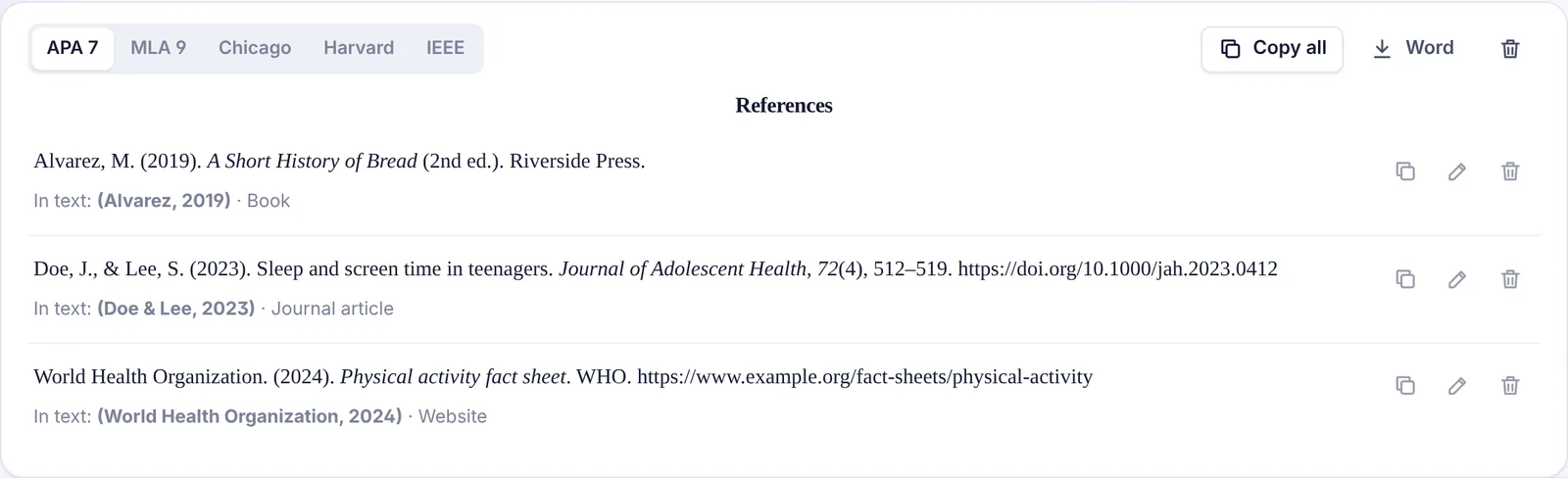
Under the editor is your list, with the heading your style uses:
| Style | List heading | In-text citation example |
|---|---|---|
| APA 7 | References | (Doe & Lee, 2023) |
| MLA 9 | Works Cited | (Doe and Lee 512) |
| Chicago | Bibliography | (Doe and Lee 2023) |
| Harvard | Reference list | (Doe and Lee, 2023) |
| IEEE | References | [1] |
Click a style at the top of the list to switch. Every reference, and its in-text citation, changes at once. MLA in-text citations include the first page when you entered pages. When there is no author, the in-text citation uses the first words of the title.
Order. APA, MLA, Chicago and Harvard lists are sorted alphabetically by the first author's family name (or by the title when there is no author, skipping "The", "A" and "An"). IEEE lists keep the order you added sources in, numbered [1], [2] and so on.
For each entry:
- the copy icon copies that reference as text;
- the pencil opens it in the editor (then click Save changes);
- the bin removes it.
For the whole list:
- Copy all copies the heading and every reference as text;
- Word downloads the list as a Word (.doc) file with hanging indents;
- the bin at the top clears the list after you confirm.
Your list and the style you picked are saved automatically. Next time you open the citation generator, they are still there.
Tips
- Always check looked-up details. Web pages often have missing or odd metadata, like a site name instead of an author or no date. Fix them in the editor before you add the source.
- Use the DOI for journal articles. It gives the most complete details: volume, issue, pages and all authors.
- Check your course's rules. Teachers sometimes ask for small changes to a style, like a different date format.
- Writing an essay with sources? The Essay writer adds citations and a reference list for you.
Troubleshooting
"Paste a link, a DOI or an ISBN" What you pasted is too short to look up.
"No book found with that ISBN. Fill in the details by hand." Check the number on the back of the book or its copyright page. Older and local books are sometimes missing from the book databases. Click Book and type the details.
"No record found for that DOI. Check it, or fill in the details by hand." Check for typos. A DOI always starts with "10.".
"Could not open that page" The page may need a login, block automatic readers, or be offline. Click Website and type the details.
The author shows as a website name The page did not list a real author. If the page names a person, type their name. If not, it is fine to leave the organization as the author.
My list is gone The list is kept per account. Make sure you are signed in to the same account.