Projects
Group your articles by website or client in projects, each with its own country, language, team, brand kit, sitemap and publishing. Create and manage them.
A project is a folder for the articles of one website or one client. Each project has its own default country and language, team, brand kit, sitemap, connected sites and rank tracking. A good rule: one project per website.
Open your projects with My projects in the sidebar.
The projects page
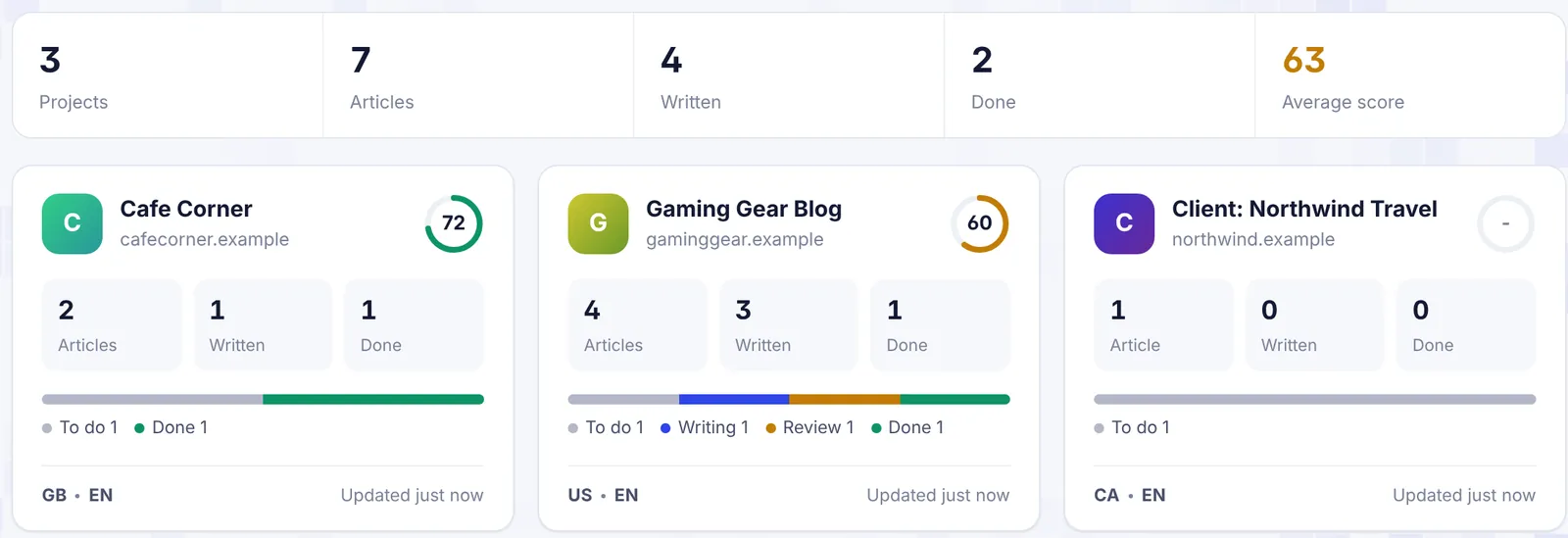
At the top is a summary of all your projects:
- Projects, Articles, Written (articles with 100 or more words) and Done;
- Average score of your written articles;
- Analyzing now, when analyses are running.
Each project has a card with:
- the project name and website, or "No website set";
- a Viewer or Shared label when someone else owns the project and added you;
- a score ring with the average content score of its written articles;
- Articles, Written and Done counts;
- a progress bar of the stages To do, Writing, Review and Done;
- the country code and language, for example "US · EN";
- "N analyzing" or "N failed" when relevant, and when it was last updated.
Projects are sorted by recent activity. When you have more than three, a Search projects box appears. It searches names and websites.
Create a project
- Click New project (top right, or the dashed card at the end of the list).
- Fill in:
- Name (required), for example the site's name or "Client: Northwind Travel".
- Website (optional): your domain, for example
example.com. Needed for the sitemap, the ranking chance and AI visibility. - Brand name (for AI visibility): the name people use for your brand, if it differs from the domain.
- Default country and Language: used to fill in the keyword forms.
- Click Create project.
The new project opens right away. You can change everything later in Project settings.
Never made a project? When you analyze from the dashboard with My articles (created for you), SerpPal creates a project called "My articles" for you. Rename it in Project settings whenever you like.
The project page
Click a card to open the project.
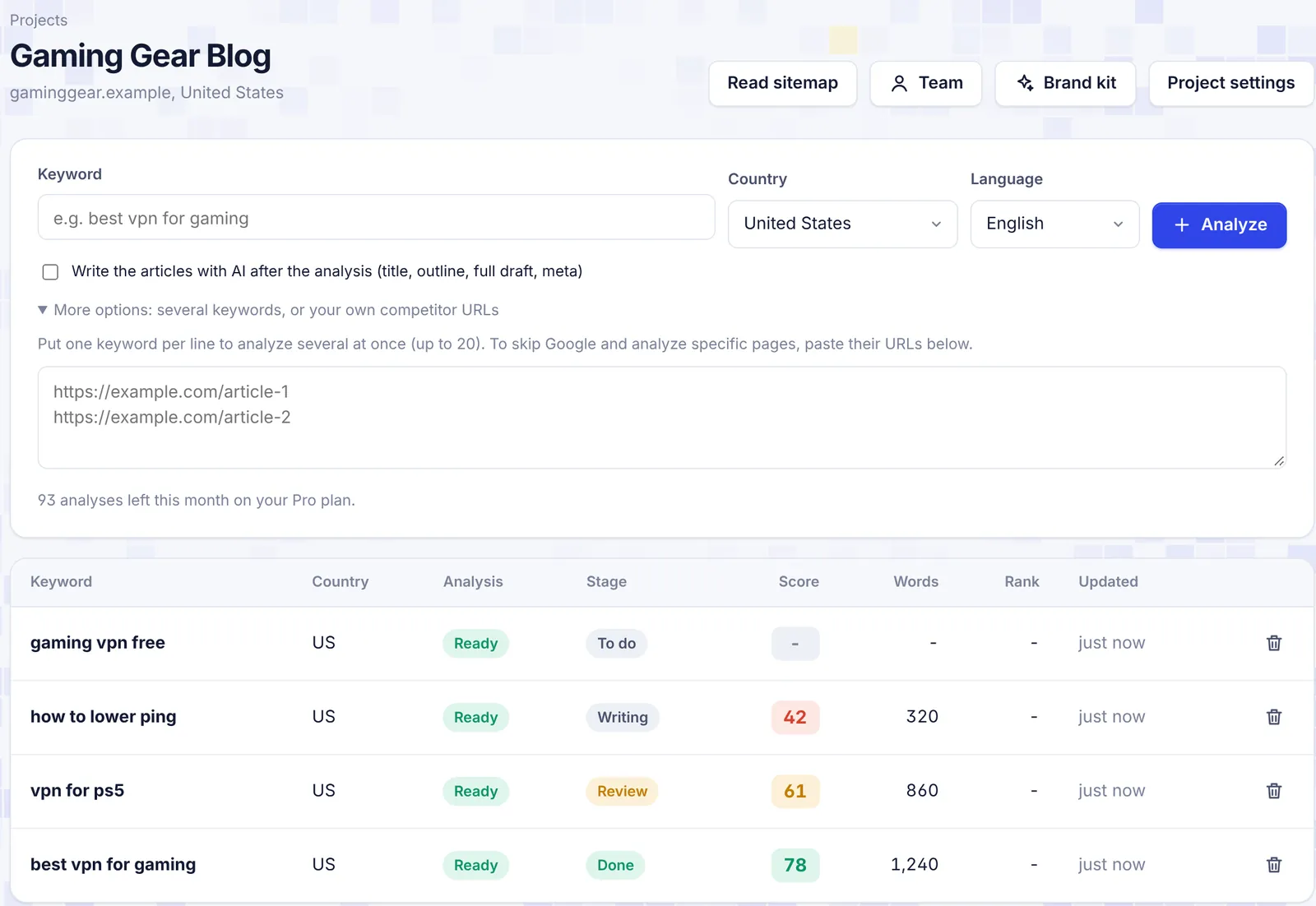
Header buttons
| Button | What it does | Who sees it |
|---|---|---|
| Read sitemap (or "N site pages") | Reads your site's pages for internal link ideas. See Sitemap and internal links. | Owner and editors |
| Team | Shows who has access and lets the owner add people. See Team members. | Everyone |
| Brand kit | Voice, audience and rules for the AI. See Brand kit. | Owner and editors |
| Project settings | Name, website, country, language, publishing and delete. See Project settings. | Owner only |
The keyword form
Analyze one or more keywords in this project. See Analyze a keyword.
The article table
Every analysis in the project, newest first, 25 per page:
| Column | Shows |
|---|---|
| Keyword | The keyword. Click the row to open the editor. |
| Country | The country code of the analysis. |
| Analysis | Waiting, Analyzing, Ready, Ready, from cache or Failed, plus the AI states when bulk writing is on. |
| Stage | To do, Writing, Review or Done. Change it in the editor. |
| Score | The article's content score, colored by how close it is to good. |
| Words | The article's word count. |
| Rank | The last Google position from rank tracking: "#4", "100+" (not in the top 100) or "-" (not checked). |
| Updated | When the article last changed. |
| Trash icon | Deletes the analysis and its article. |
While analyses or AI writing run, the table refreshes itself every few seconds.
Stages
Stages help you track work. Set them in the editor with the status picker next to "Content editor", or with the check mark button (Mark as done).
- To do: new analyses start here.
- Writing: someone is working on it.
- Review: ready for a second look. Bulk-written articles land here.
- Done: finished. Done articles count as finished on the dashboard's Published filter.
Moving articles between projects
Articles cannot be moved to another project. If you started one in the wrong project, analyze the keyword again in the right one and copy your text over (or use Export and Import in the editor).
Projects shared with you
When someone adds you to their project, it shows on your projects page with a Shared or Viewer label. Your role decides what you can do. Analyses and AI words you use there count on your plan. See Team members.
Common questions
How many projects can I have? There is no project limit. Your plan limits analyses and AI words, not projects.
Do I need a website to create a project? No. The website is optional. You need it for the sitemap, the ranking chance, publishing and AI visibility.
What does "Written" count? Articles with at least 100 words. Analyses you have not started writing are not counted, and do not pull down the average score.
"This page does not exist" when I open a project. The project was deleted, or the owner removed you from it.