Study sets
Turn a chapter, lecture notes or a PDF into study notes, flashcards and a practice quiz with answers. No material? Just type a topic.
Study sets turn your course material into three ways to learn it: study notes to read, flashcards to memorize, and a practice quiz to test yourself. Paste a chapter or your lecture notes, upload a PDF, or just type a topic.
Open Study sets in the sidebar.
Make a study set
- Give the set a name, for example "Biology chapter 4: Cells". If you import a file, its name is used when this is empty.
- Add your material:
- paste notes, a chapter or an article into the big box;
- or click Upload PDF, Word or text, or From a link. See Importing files and links.
- Optionally fill in Topic or focus.
- Choose the Level: School, College, University or Advanced.
- Choose the Language. Same as the text writes in the language of your material.
- Click what you want first: Study notes, Flashcards or Practice quiz.
The set opens and starts making what you chose. You can add the other two from their tabs afterwards.
You need at least 30 words of material, or a topic of a few words. Otherwise you see "Paste at least 30 words of material, or type a topic".
With material or with a topic only
- With material, everything comes from what you gave. The AI is told to use only what the material says and never invent facts, numbers or quotes. Topic or focus then tells it what to focus on, for example "causes of World War I".
- With a topic only, the set is made from well-established textbook knowledge. If something is uncertain or debated, it says so. Check it against your course, because your teacher may cover it differently.
Long documents
You can paste or import a lot of material (up to about 600,000 characters, a whole book). Material over about 70,000 characters (roughly 12,000 words) is sampled: evenly spaced parts from across the whole document are used, so the end is not ignored. For flashcards and quizzes you see "Long document: parts from the whole document were used". For the best coverage of a whole book, make one set per chapter.
Notes
The Notes tab gives you revision notes in a clear order:
- a heading for each main topic;
- short bullet points with the key ideas, facts, dates, formulas and steps;
- key terms in bold, each with a one-line definition;
- a Key terms list and a Quick recap of 4 to 6 points at the end.
Notes appear as they are written. Click Stop to end early. When done, you can Copy them, download them as Word, or click Remake for a new version (this replaces the old notes).
Flashcards
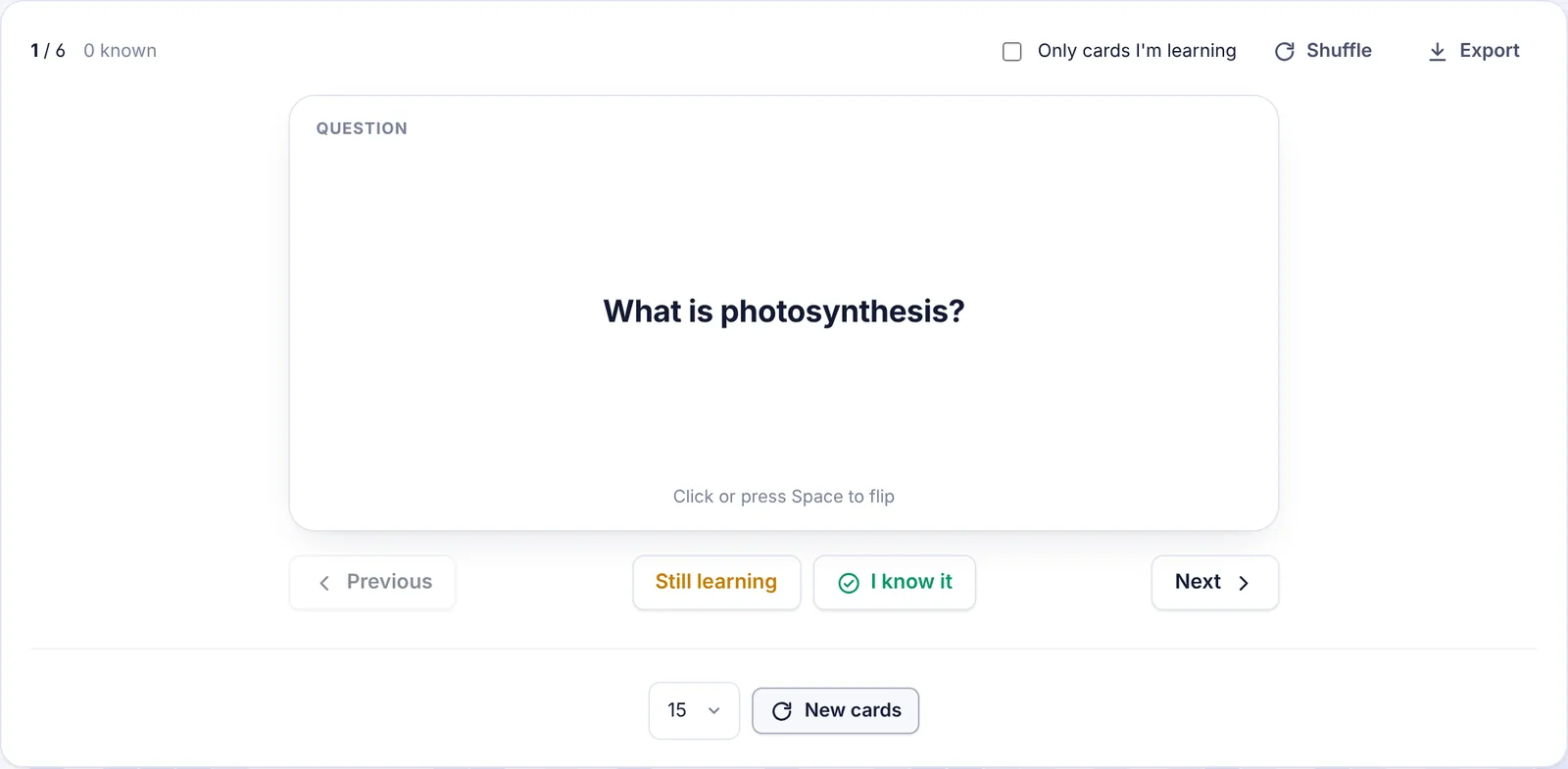
On the Flashcards tab, choose how many cards you want (10, 15, 20, 30 or 40; 15 is the default) and click Make flashcards. Each card has a short question or term on the front and a short, complete answer on the back.
To study:
- Flip a card: click it, or press Space.
- Move: Previous and Next, or the ← and → arrow keys.
- I know it marks the card as known and moves on. Still learning keeps it in your practice pile and moves on.
- Only cards I'm learning: tick this to practice only the cards you have not marked as known. When you know them all, you see "You know all N cards" and can click Study all cards to start over.
- Shuffle mixes the order.
- Export downloads the cards as a tab-separated text file that you can import into Anki or Quizlet.
The top of the card shows where you are (like "3 / 15") and how many you know.
To get a different deck, pick a number and click New cards. The new deck replaces the old one.
Which cards you marked as known is only remembered while the page is open. If you leave and come back, all cards start as "learning" again.
Practice quiz
On the Quiz tab, choose a difficulty and the number of questions, then click Make a quiz:
- Difficulty: Mixed difficulty (the default), Easy (recall of key facts), Medium (understanding and applying ideas) or Hard (analysis, comparison and tricky wrong answers).
- Questions: 5, 10, 15, 20 or 30 (10 is the default).
Each question has 4 options, labelled A to D, with exactly one right answer. Click an option to answer. You see right away whether it is Correct, or "Not quite. The answer is B.", with a short explanation. Click Next question, and on the last one See my score.
At the end you get:
- your score as a percentage and "7 of 10 right";
- a short note on how you did;
- Retry the N I missed to go over only the wrong ones;
- Take the whole quiz again;
- a Review list with each missed question, its right answer and the explanation.
Click New questions for a fresh quiz. It replaces the old questions.
Your study sets
Every set is saved automatically with its notes, flashcards and quiz. On the Study sets page, Recent lists your sets. Click one to open it. To delete a set, open it and click Delete: its notes, flashcards and quiz are removed.
AI words and limits
Notes, flashcards and quiz questions count toward your monthly AI words. Notes use the most, flashcards and quizzes less. See Plans and limits.
Tips
- Make notes first, read them, then test yourself with the quiz. Use the flashcards for terms and definitions.
- Use Focus to make a set about one part of a long chapter.
- Pick the right level. School gives simpler wording, Advanced deeper questions.
- Retry the ones you missed until you get them all, then make New questions to check you really know it.
Troubleshooting
"The AI did not return flashcards. Try again." or "The AI did not return quiz questions. Try again." Click the button again. If it keeps happening, try with less material or a clearer focus.
"The notes were cut off. Try a shorter text." The notes hit their length limit. Make sets from smaller parts of your material.
The set is about the wrong thing Add a Topic or focus, or remove material that is not part of the topic.
"Set not found" The set was deleted, or the link belongs to another account.