AI Chat
Ask SerpPal AI for an article, outline, email or rewrite, attach PDFs, Word files or photos, and send any answer to the Humanizer or AI checker.
AI Chat is a writing assistant you talk to, like ChatGPT, but built for content. Ask for a full blog article, an outline, a product description, an email or a set of social posts, and SerpPal AI writes the whole piece right away. Every chat is saved, so you can come back to it later.
You find it under AI Chat in the sidebar. You can also start a chat from the box on your dashboard.
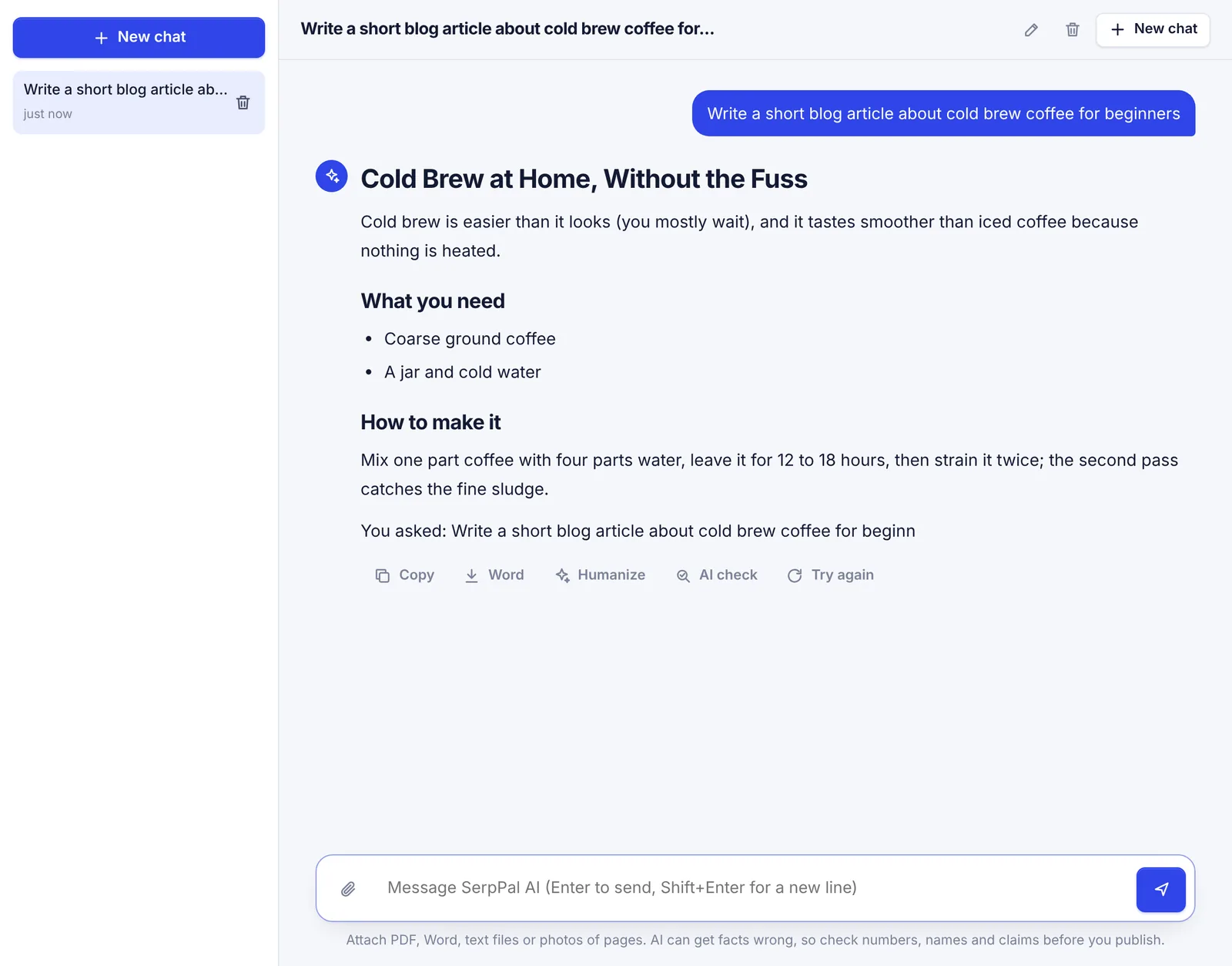
Start a chat
- Click AI Chat in the sidebar, or click New chat if a chat is already open.
- Type what you want in the message box at the bottom. Be specific: the topic, who it is for, the length and the tone.
- Press Enter to send. Press Shift + Enter for a new line without sending.
- The answer appears word by word. While it is being written you see Thinking... and then Writing..., with a Stop button next to it.
Not sure how to begin? On an empty chat, click one of the starter chips: Blog article, Outline, Product description, Rewrite, Email or Social posts. Each one fills the box with the start of a request, for example "Write a 1,200-word blog article about ". Finish the sentence and send it.
From the dashboard
Your dashboard has a box that says "Ask SerpPal AI to write an article, an outline, an email or a rewrite...". Type a request there (or click a chip) and press Start or Enter. A new chat opens and the answer starts at once.
What SerpPal AI is good at
SerpPal AI is made for writing and content. It handles:
- blog articles, outlines, titles and meta descriptions;
- product descriptions, landing page copy and ad copy;
- emails, newsletters and social posts;
- video scripts, rewrites, edits and translations of text;
- content ideas, keyword and topic ideas and content plans;
- questions about writing, SEO and using SerpPal.
A few things to know about how it answers:
- It writes the full piece. Ask for an article and you get the article, not a description of what it would write. It only asks a question first if your request is too vague to start.
- Articles have a clear shape. A title on the first line, section headings, short paragraphs, and lists or tables only where they help. Without a length, an article is about 1,000 to 1,500 words.
- Your instructions win. Tone, length, audience and format from your message come before its defaults.
- It replies in your language. Write in Spanish and the answer is in Spanish. If you write Bangla in English letters, it answers the same way.
- No made-up facts on purpose. It is told not to invent statistics, studies, quotes, prices or dates. It can still be wrong, so check numbers, names and claims before you publish.
What it will not do
SerpPal AI does not write or explain program code (scripts, HTML, CSS, formulas, SQL and so on). The one exception is short SEO markup for a page you are writing, like a meta title and description or FAQ schema. It also politely declines requests that are not about writing at all, such as solving maths homework or giving medical, legal or financial decisions, and offers a writing task instead.
Attach files and photos
You can give the AI material to work from: a report to summarize, notes to turn into an article, or a page from a book.
- Click the paperclip in the message box, or drag files onto the chat.
- Each file shows as a chip with its word count. While a file is being read, the chip says what is happening, for example Reading the photo.
- Type what you want done with the file and send. If you send a file with no message, the AI tells you in a few lines what the file is and asks what you want to do with it.
| What you can attach | Details |
|---|---|
| Documents | PDF, Word (.docx), .txt, .md, .csv and .html files |
| Photos of pages | JPG, PNG or WebP. Photos you pick together become one attachment, like "3 photos" |
| Files per message | Up to 3 |
| File size | Up to 18 MB per document |
| Words read per file | 5,000 on free plans, 25,000 on paid plans. A longer file is shortened and its chip says shortened |
Photos and scanned PDFs. The AI reads the text out of photos of pages. A PDF with no text layer (a scan) is read the same way, page by page. On free plans you can read up to 5 pages per photo set or scan, and up to 15 pages from photos an hour. Paid plans read up to 30 pages at a time and 120 pages an hour. If a scan is longer, only the first pages are read and you see a message like "Read the first 30 of 48 pages".
Pressed send while a file is still being read? That's fine. The message waits and sends itself as soon as the file is ready.
To remove a file before you send, click the x on its chip.
Work with an answer
Under each answer you have these buttons:
| Button | What it does |
|---|---|
| Copy | Copies the answer with its formatting, so headings and lists paste cleanly into Google Docs, Word or WordPress |
| Word | Downloads the answer as a Word (.doc) file named after its title |
| Humanize | Opens the Humanizer with the answer in the box, headings and lists included |
| AI check | Opens the AI checker and checks the answer right away |
| Try again | Writes a new version of the last answer (only on the latest answer) |
| Continue | Shows when an answer stopped early. The AI picks up exactly where it stopped |
If an answer is cut off, you see "This answer stopped before the end." That happens when you click Stop, when the answer hits the length limit, or when the AI service has a problem part way. Click Continue to finish it.
Links in answers open in a new tab, so your chat stays open.
Manage your chats
- Your chats are listed on the left, newest first, with the time of the last message. The list shows your 100 most recent chats. On a phone, tap the history button at the top left to see them.
- Chat names. A new chat is named after your first message. To rename it, click the pencil next to the title or double-click the title, type a new name (up to 120 characters) and press Enter. Press Esc to cancel.
- Delete a chat. Click the bin icon next to the chat in the list, or at the top of an open chat, and confirm. You then have a few seconds to click Undo before it is deleted for good.
- New chat. Click New chat. If an answer is still being written, stop it first.
How much the AI remembers
In a long chat, the AI reads your newest messages first, up to about 45,000 words of conversation. The oldest messages drop out of what it sees after that. For a fresh topic, a new chat works better than a very long one.
AI words and limits
Every answer counts toward your monthly AI words. Only the words the AI writes are counted, not your messages or files. Reading photos and scans has its own hourly page limit (see above). When your AI words run out, you see "You have used all ... AI words on your plan this month" and can send again after the monthly reset or after you upgrade. See Plans and limits and /pricing.
Troubleshooting
"AI chat is not connected" The site admin has not connected an AI provider yet. Contact support.
A file chip turns red The file could not be read. Common reasons: it is damaged, it is not really the type its name says, or it has no readable text. Remove it, then try saving it again as a PDF or Word file, or paste the text into the message.
"That file could not be read. Remove it or try another." You tried to send only a file that failed. Remove the red chip and attach another file, or type a message.
"You can read up to 15 pages from photos an hour on your plan." You hit the hourly limit for photos and scans. Wait a little, or paste the text in instead.
"Could not read the images." Try clearer, well-lit photos taken straight on, or fewer pages at a time.
The answer stopped with an error Your message is put back in the box (with its files), so nothing is lost. Send it again. If it keeps failing, wait a minute and try again.
Common questions
Can I pick which AI model answers? No. SerpPal picks the model for you.
Does the AI know about my project or brand kit? Not in AI Chat. Paste the details into your message. For copy that follows your brand voice automatically, use Templates.
Is my chat private? Your chats are only visible in your own account. See Data and privacy.
Can I turn a chat answer into a scored SEO article? Copy the answer and paste it into the content editor of a keyword analysis. See AI writing in the editor.