Team members and roles
Share a project with writers, editors and clients. Add people by email, choose Editor or Viewer, change roles, remove people or leave a shared project.
You can share a project with other people so they can write, edit, comment or just read. Each person you add gets one of two roles: Editor or Viewer. You stay the Owner.
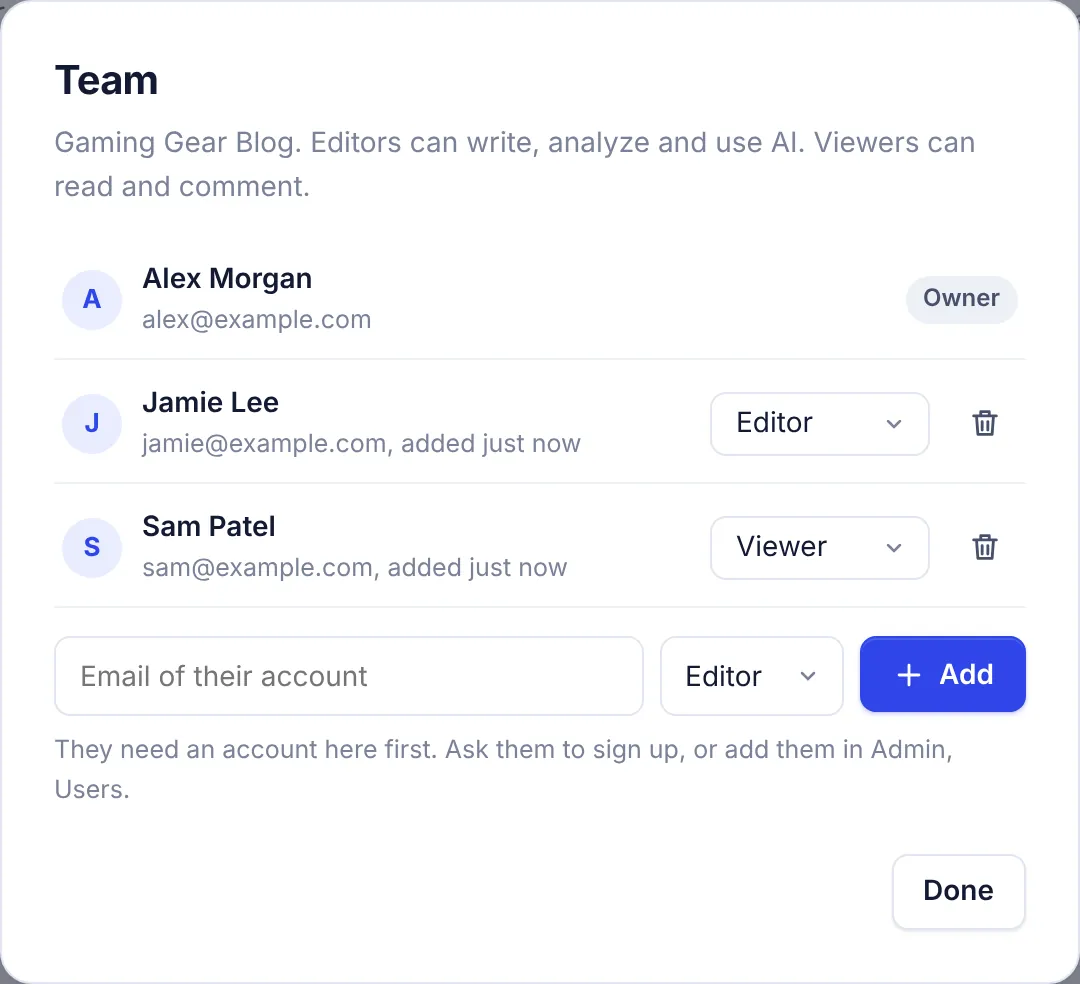
Add someone to a project
The person needs their own SerpPal account first. Ask them to sign up, then:
- Open the project and click Team.
- Type the Email of their account.
- Choose Editor or Viewer.
- Click Add.
You see "Added to the project". The project now appears on their projects page with a Shared label (or Viewer for viewers). They do not get an email, so let them know.
What each role can do
| Owner | Editor | Viewer | |
|---|---|---|---|
| Open the project and its articles, see scores and briefs | Yes | Yes | Yes |
| Comment on articles | Yes | Yes | Yes |
| Write and edit articles, change the stage | Yes | Yes | No |
| Analyze keywords and use AI in the project | Yes | Yes | No |
| Delete analyses | Yes | Yes | No |
| Read the sitemap, edit the brand kit | Yes | Yes | No |
| Publish and schedule posts | Yes | Yes | No |
| Run rank, ranking chance and AI visibility checks | Yes | Yes | No |
| Connect, edit or disconnect sites | Yes | No | No |
| Open Project settings, rename or delete the project | Yes | No | No |
| Add or remove people, change roles | Yes | No | No |
| Leave the project | No | Yes | Yes |
Viewers open articles in read-only mode. They see "View only: you can read, check the score and comment." The keyword form on the project page is hidden for them.
Change someone's role
Open Team and pick Editor or Viewer in the menu next to their name. It saves right away ("Role changed").
Remove someone
Open Team and click the trash icon next to their name. They lose access at once, including to articles they wrote in the project. Their articles stay in the project for you.
Leave a project
If someone added you to their project:
- Open the project and click Team.
- Click Leave next to your name.
The project disappears from your list. To get back in, the owner has to add you again.
Whose plan is used
Work counts on the account of the person who does it:
- When an editor analyzes a keyword in your project, it uses their analyses.
- When an editor uses AI in your project, it uses their AI words.
- Bulk writing counts on the account of the person who started the analyses.
So an editor needs a plan with enough analyses and AI words for the work you give them. See Plans and limits.
Working together
- Comments: select text in an article and choose Comment, or open the comments button in the editor. Everyone on the project, viewers included, can comment. See Comments.
- Stages: use To do, Writing, Review and Done to show where each article is.
- One person at a time: two people editing the same article at the same moment can overwrite each other's changes. Agree who works on what, and use versions to get earlier text back.
- Writers without an account: send them a writer's brief link instead of adding them to the project.
- Clients who only need to read: add them as Viewer, or share a read-only article link. See Sharing.
Troubleshooting
"No account with that email. Ask them to sign up first, or add them in Admin, Users." There is no active account with that email. Check the spelling, or ask them to sign up and use the same email.
"That is the project owner" You typed the owner's own email. The owner always has full access.
"Only the project owner can do this" Only the owner can add people, change roles and change project settings.
"You can view this project but not change it" You are a viewer. Ask the owner to make you an editor.
I added someone but they cannot see the project. Ask them to reload the projects page. Make sure you added the email they sign in with.