Publish and schedule
Publish an article now or at a set time, as a live post or a draft. Every field in the Publish dialog, how scheduling and retries work, and how updates work.
Once a site is connected to your project (see the overview), you can publish any article in that project from the editor.
Publish an article
- Open the article in the content editor.
- Click Publish at the top. SerpPal saves your latest changes first.
- Fill in the dialog (every field is explained below).
- Click the button at the bottom. It changes with your choices: Publish now, Send as draft, Schedule, or, for a post that is already live, Update on site.
When you publish now, a "Publishing..." message appears, then "Published on" and your site's name, or "Not published:" and the reason. The post is also listed on the Publishing page.
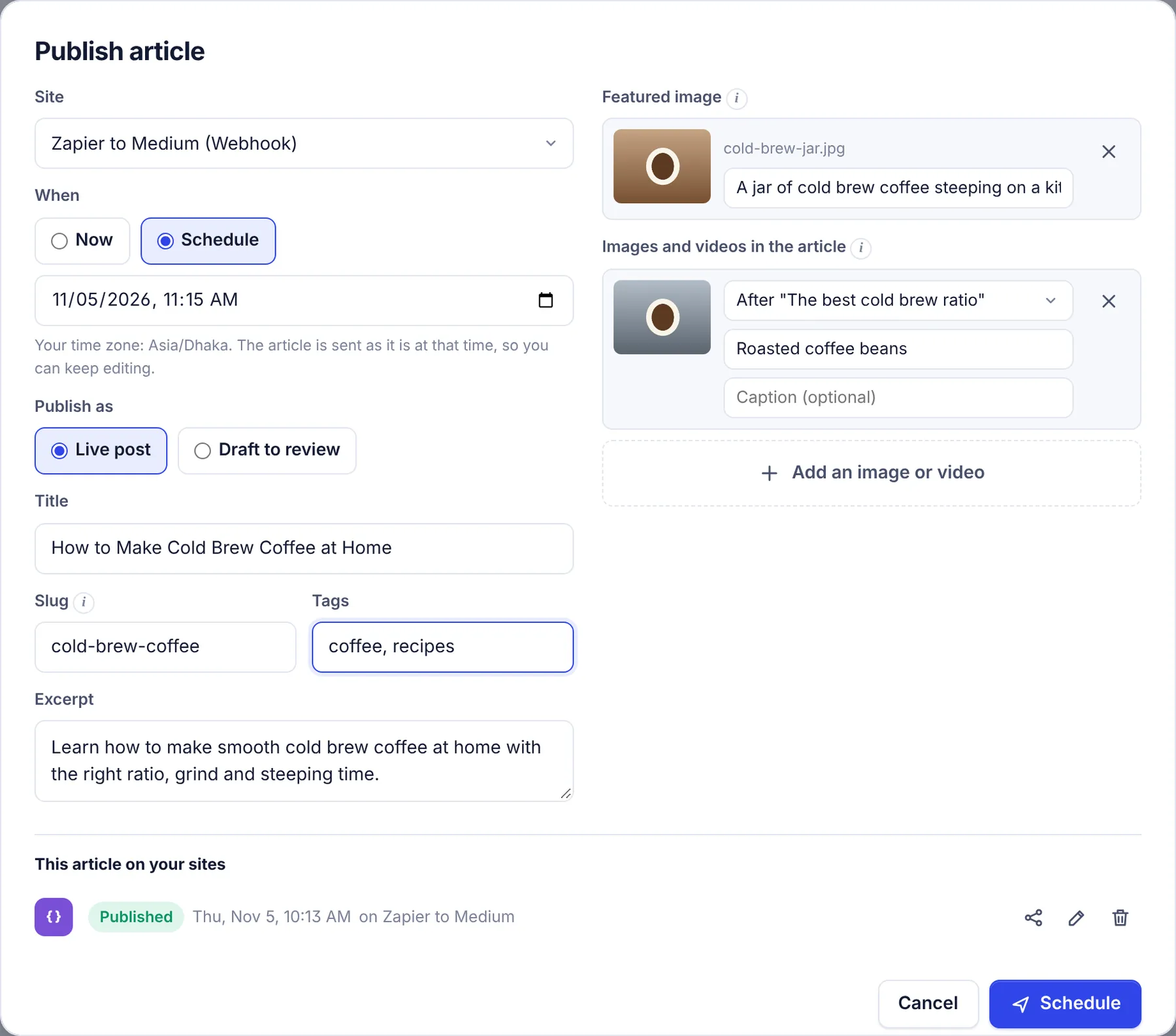
The fields
| Field | What it does |
|---|---|
| Site | The connected site to publish to. When you change an existing post, you can't change its site. |
| When | Now sends it right away. Schedule shows a date and time picker. For a post that is already live, Now reads Update now. |
| Publish as | Live post makes it public. Draft to review saves it as a draft on your site (on Webflow, a draft item; on a webhook, status is draft). |
| Title | The post title, up to 300 characters. It starts as the article's SEO title (or its keyword). |
| Slug | The end of the post's address, up to 200 characters. It starts from the keyword, like cold-brew-coffee. Leave it empty to let the site make one. |
| Tags | Tag names, separated by commas, up to 20. |
| Categories | Shown for WordPress only. Category names, separated by commas, up to 20. Missing ones are created. |
| Excerpt | A short summary, up to 1,000 characters. It starts as the article's meta description. |
| Featured image | The main image, shown in post lists and when the post is shared. Click Add a featured image and pick an image, then write its alt text. |
| Images and videos in the article | Click Add an image or video to place more media. For each one, pick where it goes (At the top, After a heading, or At the end), write the alt text (or a title for videos) and an optional caption. Up to 40 items. |
Images and videos are covered in detail in Images and videos.
At the bottom, This article on your sites lists the article's other posts, with buttons to open, change, retry, cancel or remove them.
Scheduling
- Choose Schedule next to When.
- Pick the date and time. The picker uses your computer's time zone, which is shown under it ("Your time zone: Europe/London").
- Click Schedule. The message "Scheduled for" and the time confirms it.
Rules for scheduled posts:
- The time must be in the future, and within the next two years.
- Scheduled posts go out within about a minute of their time. You don't need to keep SerpPal open.
- The article is sent as it is at that time. Keep editing after you schedule: the post uses the latest saved version of the text when it goes out. The title, slug, tags, excerpt and media are the ones you set in the dialog.
- One waiting post per article per site. If an article is already scheduled for a site, you'll see "This article is already scheduled for that site. Change or cancel that post instead." Use the pencil on that post to change it.
- If you pick a time that has already passed while you were filling in the form, SerpPal asks you to "Pick a time in the future".
Traveling or working with a team in other countries? The time is stored as an exact moment, so it goes out at the same instant for everyone. The Publishing page shows it in each viewer's own time zone.
What SerpPal does to the article
- The first H1 is removed. Your site prints the post title as the page heading, so the article's own H1 at the top would show twice. Other headings are kept.
- Images and videos are placed where you chose, and uploaded to your site's media storage where the platform has one.
- Nothing else changes. Links, lists, tables and formatting are sent as they are in the editor.
Change, update or cancel a post
Open a post's actions from the Publishing page or from This article on your sites in the dialog:
- Change (pencil) on a scheduled post: change any field or the time, then click Save schedule, or choose Now to send it right away.
- Update or change (pencil) on a published post: choose Update now and click Update on site to send the latest version of the article to the same post. Or choose Schedule to update it later.
- Cancel (x): stops a scheduled or failed post from going out. Nothing is removed from your site.
- Try again now (circular arrow): sends a failed or canceled post right away.
- Remove from this list (trash can): deletes SerpPal's record of a published, failed or canceled post. The post on your site is not deleted.
Republishing updates the same post
When you publish an article to a site where it was published before, SerpPal updates that post (same address, same id) instead of making a copy. This is true even if you start from Publish again rather than from the pencil. If the old post was deleted on the site, a new one is made.
SerpPal remembers the old post through its record on the Publishing page. If you remove that record with the trash can, publishing again makes a new post (except on WordPress, where the article itself remembers its post).
When publishing fails
- Temporary problems are retried. If the site is down, slow, overloaded (an HTTP 5xx or 429 answer) or can't be reached, SerpPal tries again after 5 minutes and again after 10 more. Meanwhile the post shows the error with "(trying again soon)". After 3 attempts in all, it is marked Failed.
- Refusals fail at once. If the site refuses the post (a wrong password, a missing permission, a duplicate slug, a deleted blog), retrying won't help, so the post is marked Failed right away with the reason. Fix the cause, then click Try again now.
- An interrupted publish is marked failed. If SerpPal is stopped in the middle of sending a post (for example during maintenance), it doesn't send it again blindly, because it might already be on your site. After 20 minutes the post is marked Failed with "Publishing was interrupted. Check your site before trying again." Look at your site first: if the post is there, remove the record; if not, click Try again now.
See Publishing troubleshooting for every error.
Other things that cancel or skip
- Disconnecting a site cancels its scheduled and failed posts.
- Deleting the article before a scheduled post goes out makes that post fail with "The article was deleted".
- Emptying the article makes it fail with "The article is empty". You also can't publish an empty article: "The article is empty. Write it first."
- Deleting a file from your media library before a scheduled post goes out: the post goes out without that file.
Publish from an AI assistant
Claude, Cursor and other MCP clients can publish and schedule for you with the publish_article tool, using the same rules. Times must include a time zone there, for example 2026-11-06T09:00:00+06:00. See Tools reference.