Project settings
Change a project's name, website, brand name, default country and language, connect sites for publishing, or delete the project and everything in it.
Project settings hold the basics of a project: its name, website, brand name, default country and language, and the sites you publish to. Only the project owner can open them.
Open project settings
- Open My projects and click the project.
- Click Project settings at the top right.
If you do not see the button, you are an editor or viewer on someone else's project. Ask the owner to make the change.
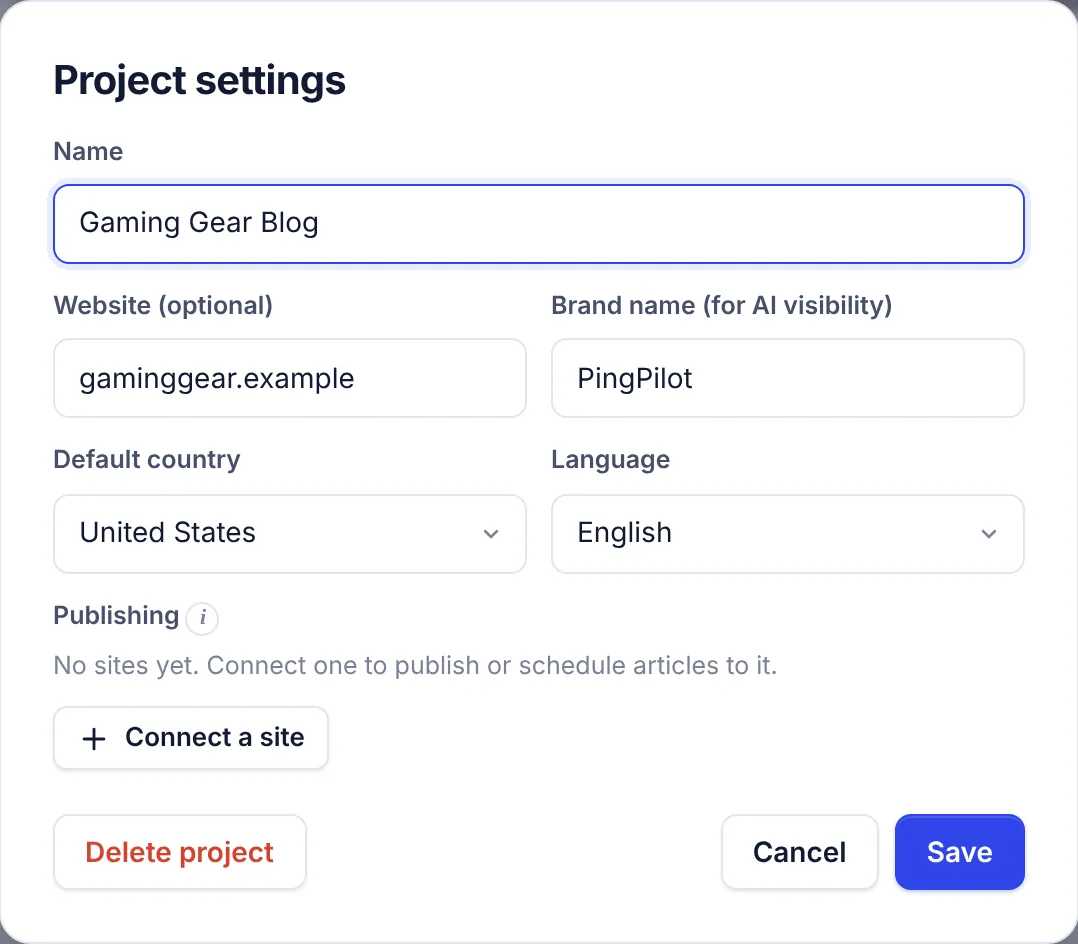
The fields
Name
The project's name, up to 80 characters. Shown on the projects page, the dashboard and in the editor's breadcrumb. It cannot be empty.
Website (optional)
Your site's domain, for example example.com or blog.example.com. You can type it with or without https://.
The website is used for:
- Read sitemap: SerpPal reads the sitemap on this domain. See Sitemap and internal links.
- Ranking chance: SerpPal compares this site with the sites on page one. See Rank tracking.
- AI visibility: answers that link to this domain count as a mention. See AI visibility.
- Brand kit: Learn from my site starts with this address.
- Links: the AI does not suggest outside links to your own domain.
Brand name (for AI visibility)
The name people use for your brand or product, up to 80 characters, for example "Acme" or "PingPilot". The AI visibility check looks for this name in AI answers. If you leave it empty, it uses the first part of your domain (for "acme.com", "acme").
Default country and Language
The country and language that fill in the keyword form on the project page. The dashboard also starts with the country and language of your most recently active project.
Only countries with Google keyword data are listed, and the languages follow the country. See Countries and languages.
Changing them does not change articles you already analyzed. Each article keeps the country and language it was analyzed with.
Publishing
The sites this project publishes to. You see each connected site with its type and when it was last checked, plus:
- Test: checks that the connection still works.
- The pencil icon: edit the connection.
- The trash icon: disconnect. Posts waiting to go to that site are canceled; posts already on the site stay there.
- Connect a site: add WordPress, Shopify, Ghost, Webflow or a webhook.
See Publishing overview and Connect WordPress.
Save your changes
Click Save. You see "Project saved" and the page refreshes. Cancel closes the dialog without saving. Changes in the Publishing area save on their own, separately from Save.
Delete a project
- Open Project settings.
- Click Delete project at the bottom left.
- Read the warning and click Delete project again.
Deleting a project removes, for good:
- every analysis and article in it, with their versions, comments and rank history;
- the site pages from the sitemap;
- the team: members lose access.
This cannot be undone. Analyses you used are not refunded. Before you delete, export any article you want to keep with Export in the editor. See Import and export.
Articles already published on your website are not touched. Deleting a project in SerpPal never deletes posts on your site.
Common questions
I changed the website. Do I need to read the sitemap again? Yes. Click Read sitemap on the project page so link ideas come from the new site.
Can an editor change the settings? No. Only the owner can open Project settings, delete the project or manage connected sites. Editors can read the sitemap, edit the brand kit and publish.
Can I transfer a project to someone else? Not yet. You can add them as an editor so they can work in it. See Team members.