Article wizard
Write a full SEO article in three steps with the article wizard: choose a title, shape the outline and add your own experience, then let the AI write it.
The article wizard is the fastest way to go from an empty editor to a complete, optimized first draft. You stay in control of the parts that matter most, the title and the outline, and the AI does the writing with the recommended terms built in.
Open the wizard
- In the editor, click AI Writing, then Article wizard: title, outline, article.
- Or open the AI tab and click Article wizard.
- On the dashboard, choose Write with AI and click Start writing. The wizard opens by itself as soon as the analysis is ready. See The dashboard.
The wizard has three steps: Title, Outline and Article.
Step 1: Choose a title
You see title ideas built from what ranks for your keyword. If there are fewer than three, the AI writes some right away.
- Click a title to pick it, or type your own in Or your own title. The number next to each idea is its length in characters.
- Optional: add Notes for the AI, for example "mention our free plan, friendly tone, UK spelling". These notes are used for the outline and the article.
- Click More ideas (or Generate ideas) for new suggestions. You get up to 10 ideas in the list.
- Click Next: outline.
If you have not picked or typed a title, you see "Pick or type a title first".
Step 2: Shape the outline
The AI writes an outline for your title, with sections that cover the topics top pages share plus angles to stand out. The article will follow it exactly, so this is the step to spend time on.
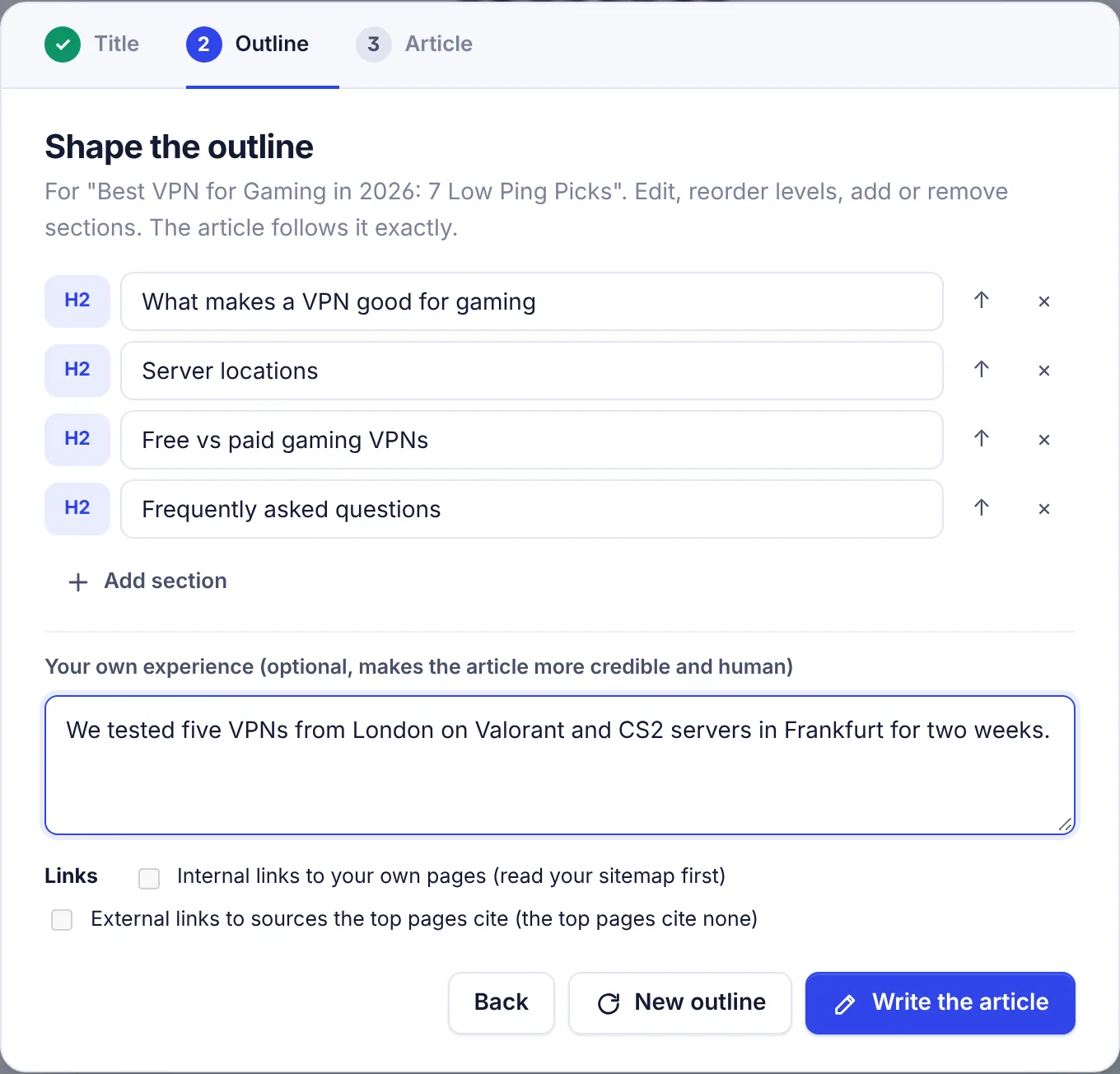
For each section you can:
- Edit the heading text right in the box.
- Click H2 or H3 to switch its level.
- Click the up arrow to move it up one place.
- Click x to remove it.
Click Add section to add a new H2 at the end. Click New outline to have the AI write a different one. Empty sections are dropped when you write.
Your own experience
The field Your own experience (optional, makes the article more credible and human) is where you add what only you know: what you tested, results from your own work, your honest opinion. For example: "We moved our support to X in 2025 and first replies dropped from 4 hours to 40 minutes."
The AI works your notes into the article in the first person where they fit ("When we tested...") and uses them only as you wrote them. It will not exaggerate them or invent more experience. This is the best way to make an AI draft genuinely yours. You can write up to 3,000 characters.
Links
- Internal links to your own pages: links to related pages on your site. You need to read your sitemap on the project page first, otherwise this option is greyed out with "(read your sitemap first)". See Sitemap and internal links.
- External links to sources the top pages cite: links to trusted outside pages that the top results link to in their own text. It is greyed out when the top pages cite none.
The AI may only link to these addresses. Your choices are remembered in this browser and also used by Write the full article.
Step 3: The AI writes the article
Click Write the article. If the editor already has text, you are asked "Replace your article?" first.
- A progress bar shows how far the draft has come. It usually takes a minute or two, depending on the length.
- You can keep the wizard open or close it. The article lands in the editor when it is done, and the editor stays locked until then so nothing you type is lost.
- Click Stop to cancel. Nothing in your article changes.
When the article is in, the wizard also writes the meta description. The title you picked in step 1 stays as it is. You see "Article written. Score" with your new content score.
What the AI uses
The wizard writes to your target length and uses:
- the recommended terms with their ranges, the topics and the questions from the analysis;
- the AI topic brief, including the angle to stand out;
- the names worth mentioning;
- your project's brand kit;
- the language of the analysis.
It writes in plain, human style, avoids stock AI phrases and em dashes, and is told never to invent statistics, prices, dates or quotes.
After the draft
- Read it from top to bottom. Fix anything that is not true for your product or audience.
- Check the score and the Optimization tab. Use Optimize the whole article if important terms are still missing.
- Check Human tone on the Insights tab, and humanize parts that read stiff. See Humanize in the editor.
- Add images, then publish.
Limits and costs
The wizard uses AI words for the title ideas, the outline, the article and the meta description. A full article uses roughly as many AI words as it is long. See Plans and limits.
Troubleshooting
"The AI returned no headings. Try again." Click New outline.
"Add at least one section" All headings are empty. Add or type at least one.
The article stops before the last section. Very long targets can hit the AI's length limit. You see "The AI stopped before the end. Check the last section." Select the last paragraph and use Expand selected text, or ask Ask AI to write the missing section.
The wizard is not in the menu. AI writing is not turned on for this site, or you have view-only access to the project.