Publishing page and media library
The Publishing page lists every post that is scheduled, published or failed across your projects, and holds your media library of images and videos.
The Publishing page, in the sidebar, is where you see every post SerpPal has sent or will send, across all the projects you can open. It also holds your media library: the images and videos you use in posts.
The tabs
| Tab | What it shows |
|---|---|
| Upcoming | Scheduled posts, soonest first, and posts being published right now. |
| Published | Posts that went out, newest first. Drafts sent to your site are here too, marked "as draft". |
| Failed | Posts that could not be published, with the reason. |
| All | Every post: upcoming ones first, then the rest, newest first. |
| Media library | Your uploaded images and videos. |
The number next to Upcoming, Published and Failed is how many posts are in that tab. Posts are grouped by day, like a calendar, and the list shows 20 at a time with page buttons at the bottom.
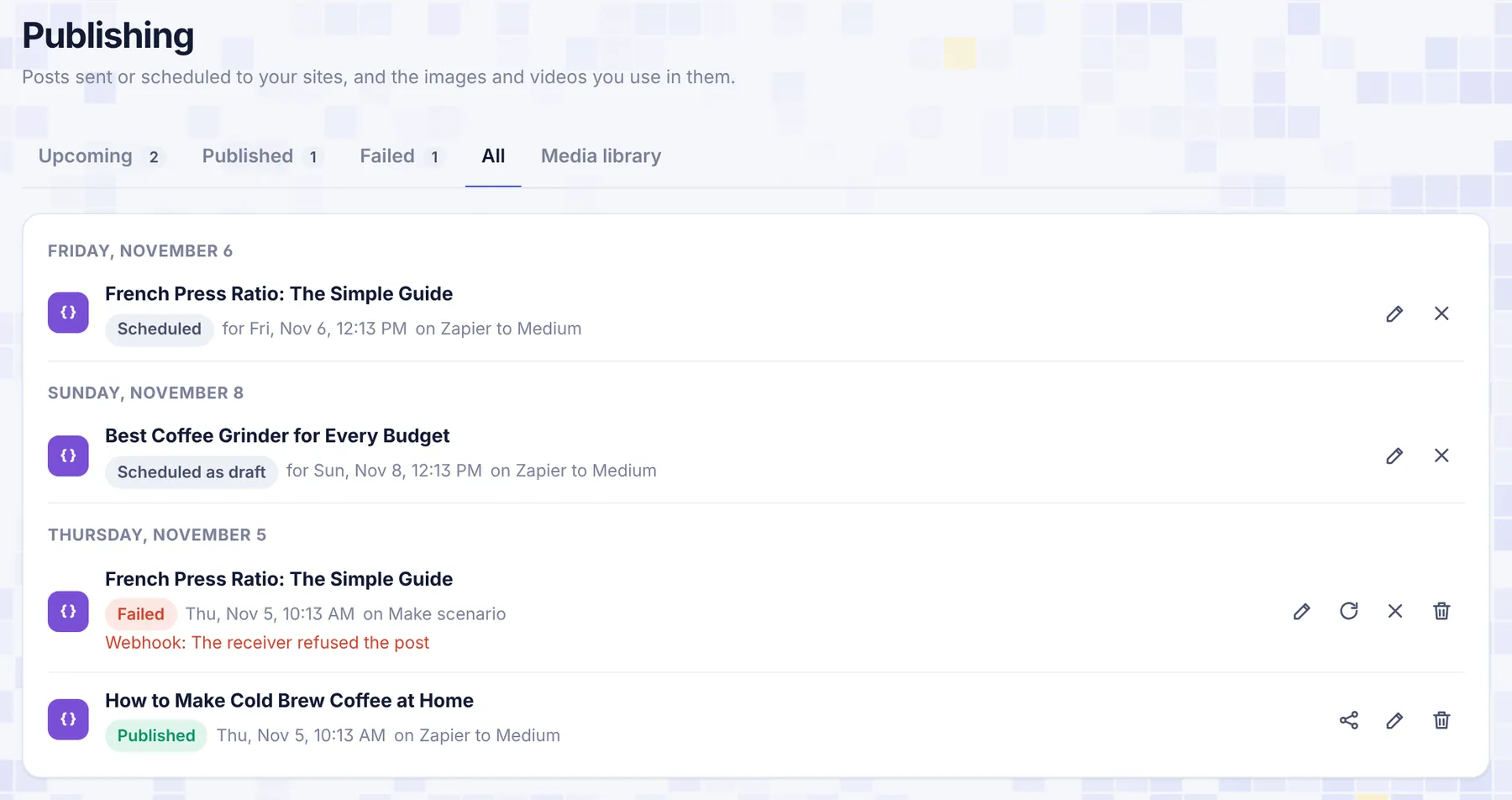
Reading a post line
Each line shows:
- the platform's badge and the post title (click the title to open the article in the editor);
- the status: Scheduled, Publishing, Published, Failed or Canceled, with "as draft" when it was sent as a draft;
- the time: when it is due ("for Fri, Nov 6, 12:13 PM") or when it went out, in your own time zone;
- the site's name ("on a removed site" if the site was disconnected);
- an error under it, if there is one. While SerpPal is still retrying, the error ends with "(trying again soon)".
The list refreshes by itself while a post is going out or is due in the next couple of minutes.
Actions
| Button | Shown for | What it does |
|---|---|---|
| Open on the site (share icon) | Published live posts with an address | Opens the post on your site in a new tab. |
| Change or Update or change (pencil) | Every post except one being published | Opens the Publish dialog to change the post, its time, or send an update. See Publish and schedule. |
| Try again now (circular arrow) | Failed and canceled posts | Sends it again right away. |
| Cancel (x) | Scheduled and failed posts | Stops it from going out. Nothing changes on your site. |
| Remove from this list (trash can) | Published, failed and canceled posts | Deletes SerpPal's record. The post on your site stays. |
Removing a published post's record also makes SerpPal forget which post it was. Publishing that article to the same site again then makes a new post instead of updating the old one (WordPress is the exception).
The media library
Open the Media library tab to manage your files.
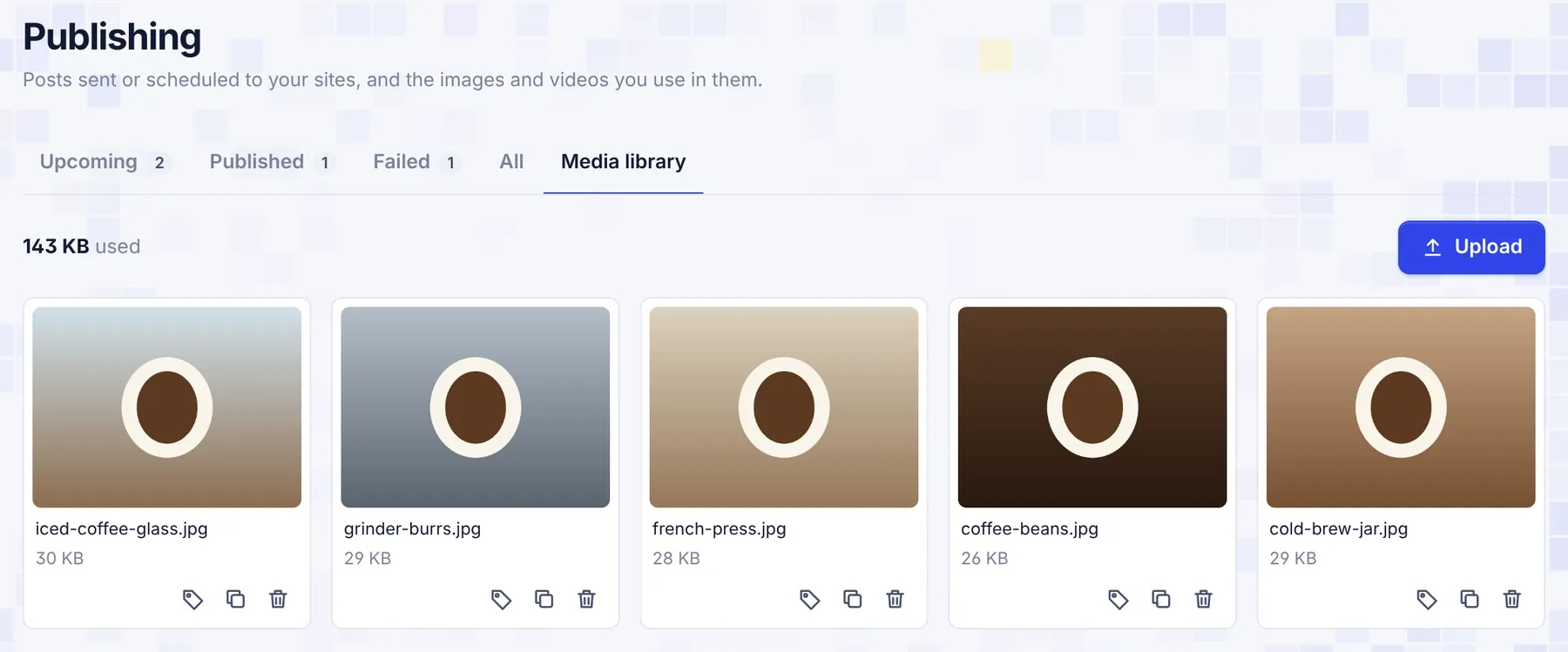
- Storage: the top shows how much you use, and on plans with a limit, a bar of used against your total. The bar turns red above 90%.
- Upload: click Upload and choose a file, drop one on the box, or paste a link on the From a link tab. Images up to 15 MB (JPG, PNG, WebP, GIF, AVIF) and videos up to 250 MB (MP4, WebM, MOV).
- Alt text (tag icon): describe what the image or video shows. It is used as the default alt text whenever you pick the file.
- Copy link (copy icon): copies the file's public address, for example to paste into another tool.
- Delete (trash can): deletes the file and frees its storage. Posts already published to WordPress, Shopify (images) or Ghost keep their own copy. Scheduled posts that use it go out without it. Posts that link to SerpPal's copy (webhooks, Webflow videos) lose the file.
Files are listed newest first, 24 to a page. Your media library is personal: it belongs to your account, not to a project, so team members don't see your files.
Files you add while publishing (in the Publish dialog) are saved in the same library, so you can reuse them later.
Common questions
I can't find a post a teammate scheduled. You see posts from every project you are a member of. Ask the owner to check that you are still in the project.
A post has been "Publishing" for a long time. Large videos can take a few minutes to upload. If SerpPal was interrupted, the post is marked Failed after 20 minutes with "Publishing was interrupted. Check your site before trying again."
Can I delete posts on my site from here? No. SerpPal never deletes anything on your site. Delete posts in your site's admin.