AI checker
Check how likely a text reads as AI-written, see which sentences are flagged and why, get an AI editor's opinion, and humanize it in one click.
The AI checker estimates how likely a text reads as AI-written. It gives you a score for the whole text, highlights the sentences that read most machine-made, and explains the patterns behind the score. The main check runs inside SerpPal and does not use any of your AI words.
Open AI checker in the sidebar.
Check a text
- Paste your text into Your text, or use the icons above the box to upload a PDF, Word or text file, or import a web page. Headings and lists you paste stay as they are.
- Choose the language of the text with the language pill at the bottom (English is the default).
- Click Check text.
The text needs at least 40 words. The word count is shown next to the button. You can check up to about 200,000 characters at once.
Read the result
The score
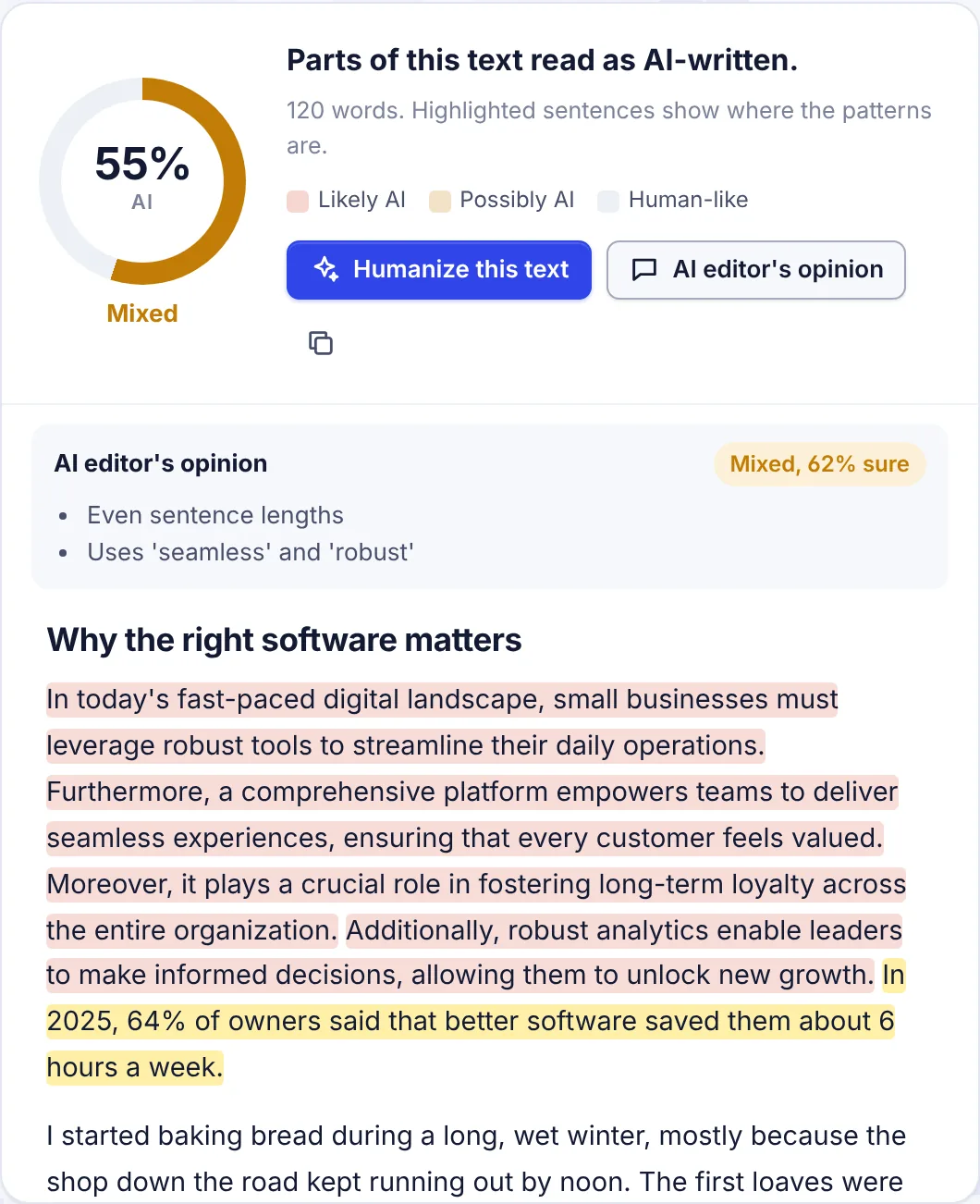
The round gauge shows a number from 0 to 100%, the estimated chance that the text is AI-written, with a label:
| Score | Label | What it means |
|---|---|---|
| 0 to 24% | Likely human | The text reads as written by a person |
| 25 to 59% | Mixed | Parts of the text read as AI-written |
| 60 to 100% | Likely AI | The text reads as mostly AI-written |
Next to it, a sentence sums up the result, for example "Parts of this text read as AI-written."
The score is an estimate based on writing patterns. It cannot prove who wrote a text. Very formal or very polished human writing can score higher than you expect. Read How AI detection works before you rely on it.
Highlighted sentences
Your text is shown again with each sentence marked:
- Likely AI (red): this sentence reads machine-made.
- Possibly AI (yellow): this sentence has some AI patterns.
- Human-like (no color): nothing stands out.
Hover over a highlighted sentence to see why it was flagged, for example "stock phrase: seamless", "stiff opening" or "participle tail (, ensuring / , allowing)". Headings are shown but not marked. Tables are shown but not scored, because they are data, not prose.
The four cards
Under the result, four cards group what the checker measured. Each has a bar and a level (Low, Medium or High). High means that part pushes the score toward AI.
- Word choice: words AI models favour, and words people use that models avoid.
- Sentence rhythm: how much sentence length and shape vary.
- Predictability: how expected each next word is.
- Structure: formulaic openers, lists and transitions.
Click the i next to the tip under the cards to see every measurement with its value.
AI editor's opinion
Click AI editor's opinion for a second view. An AI model reads your text like an experienced editor and judges the style only: rhythm, word choice, stock phrases, structure and voice. You get:
- a verdict: Reads as AI, Mixed or Reads as human;
- how sure it is, as a percentage;
- 3 to 5 specific observations, often quoting your text.
The editor reads the first 1,600 words or so. This option uses a small number of AI words, and it only shows when AI writing is turned on for the site. If it cannot give an opinion, you see "The AI editor could not give an opinion this time. Try again."
When the score and the editor disagree, treat the text as "worth a closer look" rather than a clear verdict either way.
What to do next
- Humanize this text sends the checked text, with its formatting, to the Humanizer.
- The copy icon copies the checked text with its formatting.
- Start with the highlighted sentences. They are the ones that read most like AI. Reword them yourself, or let the Humanizer do it.
History
Every text you check is kept. Click History at the top right to see your Recent checks, with their word counts, dates and scores. Click one to load it into the box and check it again. Checking the same text twice does not add a second copy.
Checks from other tools
Several tools send their text straight to the AI checker, and the check starts on its own:
- AI check under an answer in AI Chat;
- Detailed check on a finished essay in the Essay writer;
- the checker icon under a humanized text in the Humanizer;
- the checker icon under the output of the Paraphraser.
Limits
- At least 40 words per check.
- The main check is free: it does not use AI words and is not limited per month.
- AI editor's opinion uses a few hundred AI words. See Plans and limits.
Troubleshooting
"Add at least 40 words to check" Short texts don't give a reliable score. Add more text.
My own writing scored as AI It happens, especially with formal, polished or very even writing, with lists, and with text written by non-native speakers who follow textbook patterns. The score is an estimate, not proof. See How AI detection works.
The score for a non-English text seems low For other languages, the checker can only use rhythm and punctuation, not word choice, so its signal is weaker and scores are held back. Make sure you picked the right language before checking.
The score is different from another detector Every detector uses its own model and gives its own numbers. Use one tool consistently to compare versions of the same text.