AI writing in the editor
Every AI action in the content editor: write an outline or full article, optimize, improve, expand, add links, rewrite a selection and chat with Ask AI.
The content editor has AI built in. It knows your keyword, the recommended terms with their ranges, the topics and questions from the top pages, your project's brand kit and your article so far. So it writes for your keyword, not generic text.
You find the AI actions in three places:
- The AI Writing button in the header.
- The AI tab in the side panel, which also has the Ask AI chat.
- The menu that pops up when you select text in the article.
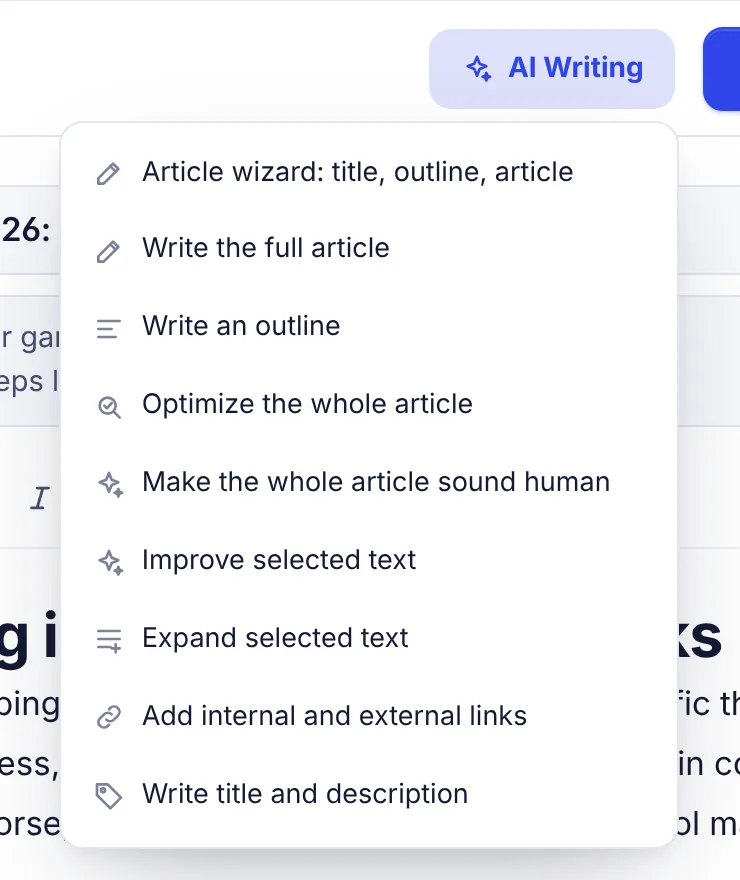
Before you start
- AI words: every AI action uses AI words from your monthly allowance. The words the AI writes are counted. The AI tab shows how many you have left this month. When they run out, you see "You have used all ... AI words on your plan this month" and a choice to upgrade or wait until your limits reset on the 1st of next month. See Plans and limits.
- One request at a time: if you start a second action while the first is running, you see "The AI is still working on the last request".
- The article is locked while the AI changes it, so nothing you type gets lost when the answer lands.
- Stop: while the AI works, the AI Writing button becomes Stop, and the AI tab shows a Stop button. Stopping changes nothing in your article ("Stopped. Nothing was changed.").
- Undo: every AI change is a normal edit. Press Ctrl + Z to undo it.
- Language: the AI writes in the language of the analysis.
- Brand kit: every action follows your project's brand voice, audience, products and word lists. Open it from More, then Brand kit. See Brand kit.
The AI Writing actions
Article wizard
Pick a title, shape the outline, then the AI writes the full article with the terms built in. This is the best way to start an article from scratch. See Article wizard.
Write the full article
Writes a complete article at your target length, using the recommended terms, topics and questions.
- If your article already has H2 headings, the AI follows them as an outline: it keeps your headings and their order and fills every section.
- If it has no H2 headings, the AI plans the structure itself. When the editor already has text, you are asked "Replace your article?" first.
- The finished draft replaces what is in the editor. Press Ctrl + Z to get your old text back.
- It opens with a short introduction that uses the keyword in the first sentence.
- It can add links to your own pages and to sources the top pages cite. It follows the link choices you last made in the article wizard (both are on by default).
Very long articles can hit the AI's length limit. Then you see "The AI stopped before the end. Check the last section." and you can finish the last part with Expand selected text or Ask AI.
Write an outline
Writes H2 and H3 headings that cover the topics top pages share plus angles to stand out, each with one short line about the section. It replaces what is in the editor (you are asked first). Edit the outline, then use Write the full article to fill it in.
Optimize the whole article
Works the missing terms, names, heading phrases and topics into your existing article. It keeps your headings, tables, lists and facts, and adds at most about 15% more words.
- Write at least 150 words first.
- Click Optimize the whole article (or Auto-insert on the Optimization tab).
- Confirm with Optimize.
- A message shows your score before and after, for example
Score 58 -> 72.
If nothing important is missing, you see "Nothing important is missing. Nice work." If the AI's version comes back more than 10% shorter, it is not applied, so you never lose text by accident.
Make the whole article sound human
Humanizes the whole article part by part. See Humanize in the editor.
Improve selected text
Select a passage first. The AI makes it read better and works in relevant terms that fit, keeping the meaning and roughly the same length (up to 30% longer). Without a selection you see "Select some text in the article first".
Expand selected text
Select a passage first. The AI adds one or two useful paragraphs right after it, on the same point.
Add internal and external links
Adds links on natural anchor text, without rewriting your article:
- Internal links go to related pages on your own site. They come from your sitemap, so read it first on the project page. See Sitemap and internal links.
- External links go to trusted outside sources that the top pages themselves cite.
The AI may only use those addresses. Any other link it adds is removed, and outside links open in a new tab. If the text changes by more than a few words, nothing is applied and you see "The AI changed the text instead of only adding links, so nothing was applied. Try again." You need at least 150 words. A message says how many links were added.
If there is nothing to link to, you see "No related pages or cited sources fit this article." or a hint to read your sitemap.
Write title and description
Writes an SEO title (50 to 60 characters, with the keyword) and a meta description (140 to 155 characters, ending with a reason to click) and fills in the Title and Meta fields. Your article text does not change.
The AI tab
The AI tab has the same actions as buttons with a short description of each, plus:
- AI words left this month (or "Unlimited AI words").
- Extra instructions (optional): a box for one-off instructions such as "friendly tone, mention our free plan, UK spelling". Type them before you click an action in the AI tab, and the AI follows them for that request.
- A live preview of the text while the AI writes.
For instructions you want every time, set them once in your Brand kit. The Article wizard also has a Notes for the AI field.
Selection menu
Select at least a few words in the article and a menu appears above them:

| Button | What it does |
|---|---|
| Improve | Reads better, with relevant terms worked in |
| Sound human | Humanizes just this part |
| Shorten | About 40% shorter, keeping key facts and terms |
| Expand | About 50% longer, with specific detail |
| Simplify | Plain, simple language and short sentences |
| Fix grammar | Fixes grammar, spelling and punctuation only |
| Tone | Friendly, Professional, Persuasive or Casual |
| More | Turn into a list, Turn into a table, or translate to Bangla, Spanish, French, German, Portuguese, Hindi, Arabic or Indonesian |
| Ask AI | Opens Ask AI with your selection quoted |
| Comment | Starts a comment on the selection. See Comments. |
The new text replaces your selection, and you see "Rewritten. Ctrl+Z to undo." Viewers and accounts without AI only see Comment.
Ask AI
Ask AI is a chat about your article, at the bottom of the AI tab. Open it with the chat icon in the header (AI assistant) or Ask AI in the selection menu.
- It knows your brief, your text and what you have selected, and remembers your last few messages.
- Ask for text ("Write an intro that mentions our free trial") or advice ("Which terms am I missing in the pricing section?").
- Press Enter to send and Shift + Enter for a new line.
- Under each answer, Insert at cursor puts it into your article where your cursor is, and Copy copies it as plain text.
- Clear empties the chat. The chat is not saved: it is cleared when you leave the editor.
More AI helpers
- AI quality review and AI search readiness: see Insights and checks.
- Better headings and the AI topic brief: see Outline, questions, links and SERP.
- AI writing for many keywords at once: see Bulk writing.
Troubleshooting
| Message | What to do |
|---|---|
| "Write or generate the article first, then optimize it" | Optimize and Add links need at least 150 words. |
| "The AI returned nothing. Try again." | The AI service had a hiccup. Run the action again. |
| "The AI answer was cut off before it finished, nothing was changed. Try again." | The answer was too long. Try again, or work on a smaller selection. |
| "Could not read the AI answer. Try again." | The title and description came back in the wrong format. Run it again. |
| "AI writing is not connected" | AI is not turned on for this site. Contact support. |
The AI is told never to invent statistics, prices, dates or quotes, but it can still be wrong. Check facts before you publish, and add your own experience. The Article wizard has a field for exactly that.