Versions and autosave
How the editor saves your work automatically, when versions are kept, how to save a version yourself and how to restore an older one safely.
You never need to remember to save. The editor saves your article a moment after you stop typing, and keeps older versions so you can always go back.
Autosave
About a second after you stop typing, the editor saves your title, meta description and article. Your current score and word count are saved with it, so your project page shows them too.
The save state in the top right of the editor tells you where you are:
| State | Meaning |
|---|---|
| Saved | Everything is saved. |
| Unsaved changes | You have typed since the last save. It saves in a moment. |
| Saving... | A save is in progress. |
| Not saved, retrying | The connection dropped or the server was busy. The editor tries again every few seconds until it works. Keep the page open. |
| Not saved | The save was refused, for example because you no longer have edit access, or the article is too large. A message explains why. |
If you try to close the tab or leave the page while changes are not saved yet, your browser asks you to confirm. When you move to another page inside SerpPal, your last changes are sent before the editor closes.
An article can hold up to about 1,000,000 characters of HTML. That is far more than any normal article, but very large pasted pages with many embedded images can hit it. Then you see "Not saved: Article is too large".
Save and keep a version
Click Save in the header, or press Ctrl + S (Cmd + S on a Mac). This saves right away and keeps a version called "Saved by you". Do this before big changes you might want to undo later.
When versions are kept
Versions are kept automatically at these moments:
| Version name | When |
|---|---|
| Autosave | When you save and the last version is more than 10 minutes old. It holds the article as it was before your newest changes. |
| Saved by you | When you click Save, press Ctrl + S, or click Save a version now. |
| Before restoring | Right before you restore an older version. |
| Before making it sound human | Right before the AI humanizes the whole article. |
| Before AI writing and Written by AI | When bulk AI writing writes the article, so any text that was there is kept. |
| Before an edit from an AI assistant | When an AI assistant connected through MCP changes the article. See What is MCP. |
Each article keeps its 40 most recent versions. Older ones are deleted automatically.
View and restore versions
- Click the Versions button (clock icon) in the header.
- The list shows each version's name, date and time, word count and score, newest first.
- Click Restore next to the version you want.
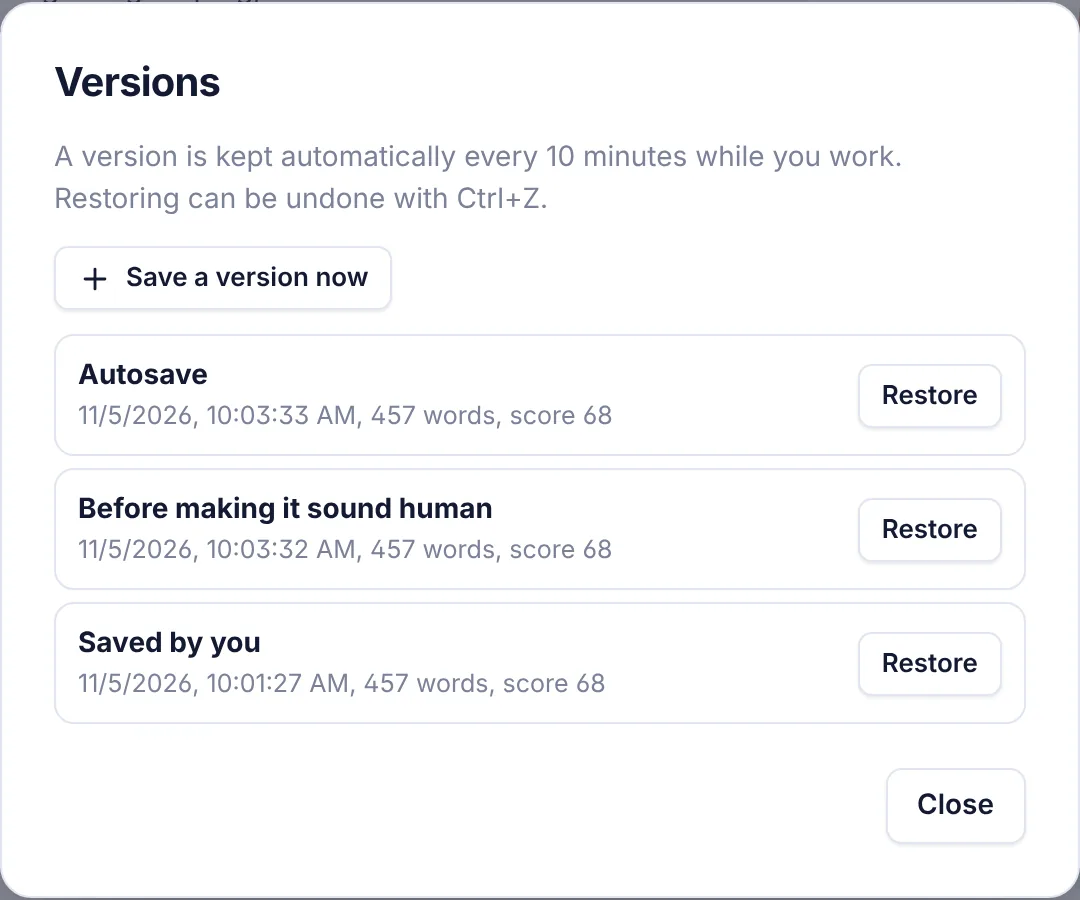
Restoring brings back the version's title, meta description and article. Before it does, the editor saves your current article as a version called "Before restoring". So restoring is always safe: you can go back again from the list, or press Ctrl + Z right after.
To keep the current state as a version, click Save a version now in the same box.
Undo and redo
For small changes, use Undo and Redo in the toolbar, or Ctrl + Z and Ctrl + Shift + Z. Undo also works for AI changes, imports and restores. Undo history is cleared when you leave the editor, but versions stay.
Tips
- Click Save before you try something big, such as a new outline, a full AI draft or an import. The AI and import ask before they replace text, but a named point in the list is easier to find later.
- Versions show the score at that moment, so you can see whether an edit helped.
- Teammates with edit access see the same versions. Viewers can see the list but cannot restore.
Common questions
Can I name a version? Not yet. Versions are named by what created them.
Can I compare two versions side by side? No. Restore one to look at it, then restore "Before restoring" to go back.
Why does Save say "Nothing to save yet"? The article is empty, so there is no version to keep yet.
Is the content score saved? Yes, with every save. Your project page and dashboard show the last saved score and word count.