
On this page
- What is an SEO title in WordPress?
- How to change the SEO title tag with a WordPress SEO plugin
- How to set default SEO title templates in your SEO settings
- How to change the SEO title without a plugin
- How to optimize your WordPress SEO title for clicks
- Why Google shows a different title
- Frequently asked questions (FAQ)
To set the SEO title in WordPress, open the post in the editor, find the SEO panel of your WordPress SEO plugin (Yoast SEO, Rank Math, AIOSEO or SEOPress), type the new title into its SEO title field and click Update. Without a plugin, WordPress builds the title automatically from the post title and your site title.
This short tutorial covers where that field is in each popular tool, how to set default title templates for the whole WordPress site, how to change the homepage title, and how to write a title that earns clicks.
Key takeaways
- The SEO title (also called the meta title or title tag) is what search engines like Google usually show as the blue link in search results. It can differ from the post title and the H1.
- WordPress has no SEO title field of its own. You set it with an SEO plugin or a small code filter.
- Set a template once for all posts, then change the title by hand only on posts that matter.
- Keep titles around 50 to 60 characters, lead with the target keyword, and make each one unique.
What is an SEO title in WordPress?
An SEO title is the text inside the HTML <title> tag of a page, and it should accurately sum up the topic in a concise line. A good meta title helps searchers pick your result. Browsers show it in the tab, and search engines usually use it as the clickable headline in the SERP. It is one of the meta tags that tell Google what the page is about, and a clear one helps people decide to click, which affects your click-through rate (CTR) and your visibility for the search queries you care about.
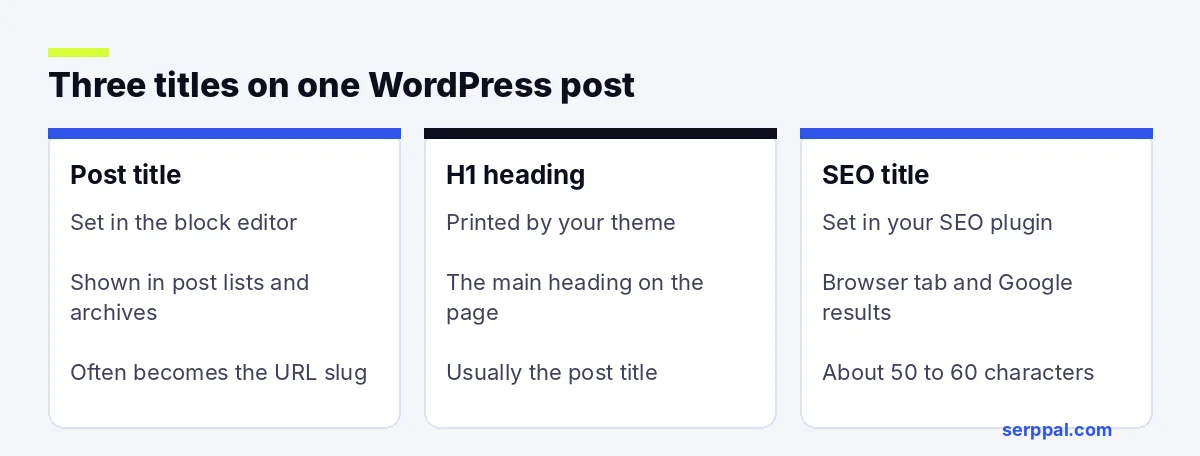
WordPress has three different "titles", and it helps to keep them apart:
| Title | Where you set it | Where it shows |
|---|---|---|
| Post or page title | The big field at the top of the block editor | On the post, in lists, in the URL slug by default |
| H1 | Your theme, usually from the post title | The main heading on the page |
| SEO title | Your SEO plugin, or a template | Browser tab and search results |
The SEO title can be the same as the post title, but it doesn't have to be. A blog post titled "Our favorite bread recipes" might use the SEO title "Easy Sourdough Bread Recipes for Beginners | Northside Bakery" to match what people actually search.
If you write in SerpPal and publish to your WordPress site from the editor, the content score already checks your SEO title and meta description against the pages that rank for your keyword.
How to change the SEO title tag with a WordPress SEO plugin
The steps are almost the same everywhere: open the post, find the SEO box, edit the field, save. You don't need to open the WordPress dashboard settings for this. Here is where the field lives in the four most common SEO tools for WordPress.
Yoast SEO
- Open the post or page in the editor.
- Scroll to the Yoast SEO box under the content, or click the Yoast icon at the top right.
- In the Search appearance section (labeled Google preview in older versions), click the SEO title field.
- Delete the default variables or keep them, and type your title. Yoast shows a colored bar under the field: green means the length is good.
- Click Update.
Yoast also has a Focus keyphrase field. Set it to your primary keyword and Yoast checks whether the keyphrase appears in the SEO title, the meta description and the text. It's a reminder, not a ranking factor.
Rank Math
- Open the post and click the Rank Math score button at the top of the editor.
- On the General tab, click Edit Snippet.
- Type your text in the Title field. Rank Math counts characters and pixels as you type and shows a live snippet.
- Close the box and click Update.
AIOSEO (All in One SEO)
- Scroll down to AIOSEO Settings below the editor.
- On the General tab, edit the Post Title field. You can mix your own text with smart tags such as the site title.
- Click Update.
SEOPress
- Scroll to the SEO metabox below the editor.
- Open the Titles settings tab and type your title in the Title field.
- Click Update.
If you use a page builder
With Elementor, Divi or another builder, the SEO tab is usually inside the builder's own settings panel, or you can edit it from the normal WordPress editor screen. Changing a heading inside the builder does not change the title tag.
How to set default SEO title templates in your SEO settings
You don't want to write every meta title by hand. Each plugin's SEO settings let you customize a template that fills in titles automatically for posts, pages, categories and tags.
- Yoast SEO: navigate to Yoast SEO, then Settings, then Content types. Pick Posts and edit the SEO title template.
- Rank Math: go to Rank Math, then Titles & Meta, then Posts.
- AIOSEO: go to All in One SEO, then Search Appearance, then Content Types.
- SEOPress: go to SEO, then Titles & Metas, then Single Post Types.
A good default is the post title, a separator and the site name, for example "How to Fix a Leaky Tap | Home Repair Guide". These tools use variables to generate it, such as %%title%% %%sep%% %%sitename%% in Yoast or %title% %sep% %sitename% in Rank Math.
How to change the homepage SEO title
If your homepage is a static page, open that page (you can see which one under Settings, then Reading) and edit its SEO title like any other post. If your homepage shows your latest posts, set it in the homepage settings of your plugin instead. Rank Math has a Homepage tab under Titles & Meta, and Yoast has a Homepage section under Settings.
The name of your website lives in Settings, then General. That is also how you rename a WordPress site: change the Site Title field and save.
How to change the SEO title without a plugin
WordPress creates the title tag on its own when your theme supports it. By default it uses the post or page title, a separator and your site name. To customize it without an extra plugin, add a filter in a child theme's functions.php file or a small site-specific plugin:
add_filter( 'document_title_parts', function ( $parts ) {
    if ( is_single() ) {
        $parts['site'] = 'Home Repair Guide';
    }
    return $parts;
} );
This works for site-wide patterns, but it's clumsy for per-post titles. If you want a unique meta title on each post, an SEO plugin is the simpler route. Never paste a second <title> tag into header.php: two title tags confuse search engines.
How to optimize your WordPress SEO title for clicks
Setting it is the easy part. Writing a good one takes a little more thought, and optimizing it is cheap compared with most SEO work. A strong title helps your click-through rate even when your ranking stays the same. Use these rules:
- Lead with the target keyword. Put the primary phrase people search near the start, where it won't get cut off.
- Keep it concise. Google cuts titles at about 600 pixels on desktop, which is usually 50 to 60 characters.
- Be specific. Numbers, a year-free promise or a clear format ("checklist", "examples", "for beginners") tell people what they get.
- Match the search. Wording that accurately describes the blog post builds relevance and keeps people from bouncing back.
- Make each one unique. Duplicates across your blog compete with each other.
- Put the brand last. Your site name helps recognition but rarely earns the click on its own.
Before you publish, paste your title and description into a free SERP preview tool to see where they get cut off. For more on crafting them, read our guide to title tag SEO.
Add the meta description too
The meta description sits right under the SEO title field in every plugin: in the Yoast SEO box, in the Rank Math snippet editor, on the AIOSEO General tab and on the SEOPress Titles settings tab. Some tools can generate a draft for you, but write your own if you can. It does not change rankings, but it is your chance to add meta text that sells the click and fills out your metadata. Aim for about 150 characters that sum up the post. Our guide on writing meta descriptions has examples.
Why Google shows a different title
Sometimes you set a title and Google shows something else. Google may rewrite a title link when the title is too long, stuffed with keywords, the same across many posts, or doesn't match the content. Google explains this in its documentation on influencing title links.
If your new title doesn't show up at all, check these indicators:
- View the page source and search for
<title>. There should be exactly one. - Clear your page cache and CDN cache.
- Make sure two SEO tools aren't active at the same time.
- Request indexing in Google Search Console and give it a few days.
Once the change is live, watch clicks and CTR in Search Console over the next few weeks. Compare the CTR before and after, for the same queries, so you know whether it helped optimize the result and whether the new metadata matches what people search.
Frequently asked questions (FAQ)
Where do I find the SEO title in Yoast?
Open the post, scroll to the Yoast SEO box below the content (or click the Yoast icon in the top bar), and open the SEO tab's Search appearance section. The SEO title field is the first box there.
How long should a WordPress SEO title be?
About 50 to 60 characters. Google truncates by pixel width rather than characters, so a title with many wide letters gets cut sooner. The length indicator in your plugin gives a good estimate.
Is the SEO title the same as the H1?
Not necessarily. The H1 is the heading on the page, usually your post title. The SEO title is what appears in the browser tab and search results. They can be the same, but you can use a shorter, more search-focused SEO title.
How do I add meta tags in WordPress without a plugin?
You can add them with a filter or a hook in a child theme, but it takes some code and is easy to break. For most WordPress websites, an SEO plugin is the safer way to manage these meta tags and other metadata on your website.