On this page
- What a 404 error means in Google Search Console
- Decide whether the 404 needs fixing
- Find and inspect affected URLs in GSC
- Fixing URLs that should still exist: common causes
- Redirect moved or retired pages appropriately
- Remove broken internal links and sitemap entries
- Handle 404s that are in your sitemap
- Understanding 404s and SEO impact
- Validate fixes and understand how the list updates
- Prevent recurring 404 errors
- Conclusion
- Frequently asked questions
How to fix 404 errors in Google Search Console, in one sentence: open Indexing > Pages, click Not found (404), and sort the URLs into three groups: pages that should exist (restore them or fix the link), pages that moved (301 redirect to the closest equivalent), and pages that are gone for good (leave the 404 and remove the links pointing at it). Then click Validate fix and give Google a few days to recrawl. Most 404s in the list need no action at all; the ones that do are the URLs with traffic, backlinks or a place in your sitemap.
This guide explains what the Not found errors are telling you, how to find and inspect the affected URLs on your website, which fix each kind of 404 needs, why the 404s in your own sitemap always need attention, what 404s do and do not do to your SEO, and how to stop new ones appearing after every site change.
Key takeaways
- A 404 means the server returned a "not found" response for a URL Google tried to crawl. It is a status code, not a penalty.
- Fix a 404 when the page should exist, has traffic or backlinks, or is in your sitemap. Leave it when the page was removed on purpose and nothing replaces it.
- Redirect only to a genuinely equivalent page. Redirecting everything to the homepage creates soft 404s, which are worse.
- Validation asks Google to recrawl; it does not make the URL disappear from GSC immediately. Allow days to weeks.
- Most 404s come from old external links, misspelled URLs and migrations. Internal links and sitemaps are the parts you control, and monitoring them is the real fix.
What a 404 error means in Google Search Console
When Googlebot requests a URL and your web server returns the HTTP status 404 Not Found, the requested webpage does not exist as far as the search engine is concerned, and Search Console records the URL under Not found (404) in the Pages report (older interfaces called it the Coverage report, and many guides still say "coverage errors"). The list is every URL Google tried to fetch and could not, whether Google found it in your sitemap, in a link on your site, in a link from another site, or in its own memory of pages that used to exist.
That last source is why the list is often full of ancient URLs. Google keeps retrying pages it once knew for a long time, and each request returning a 404 keeps the URL there. Google's own documentation on HTTP status codes says that 404 errors do not harm your site's ranking and that a page removed on purpose should return 404 or 410. The list is an inventory for you to triage, not a to-do list to clear; a 404 response indicates a missing webpage, nothing more.
404 vs soft 404 vs 410
| Status | What the server says | What Google does | When to use it |
|---|---|---|---|
| 404 Not found | The URL does not exist | Drops the URL from the index after repeated 404s | Removed pages with no replacement; typos; broken links |
| 410 Gone | The URL existed and was deliberately removed | Drops it, usually a little faster | Content you removed on purpose and want gone quickly |
| Soft 404 | Server returns 200 OK but the webpage says "not found" or is empty | Treats it as a 404 and flags it as an issue | Never on purpose; fix the template to return a real 404 response |
| 301 redirect | The URL moved permanently | Transfers the old URL's signals to the new one | Moved or merged pages with a real equivalent |
Decide whether the 404 needs fixing
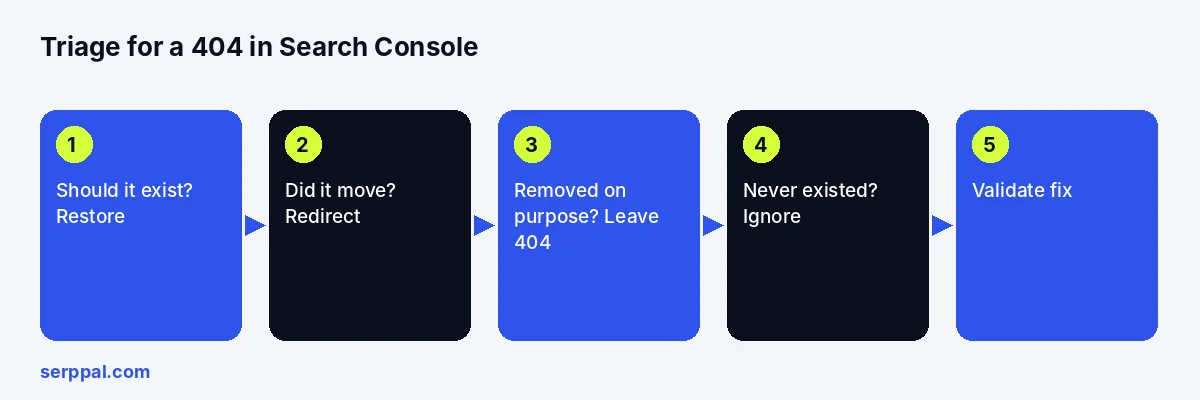
Go through the list and ask one question per URL: should this webpage exist? The reasons a 404 can occur fall into four groups.
- Yes, it should exist. Someone deleted it, renamed the slug, changed a category structure or broke a template. Restore the page or correct the URL. Highest priority.
- It moved. The content lives at a new address. Set a 301 redirect from the old URL to the new one. High priority if the old URL has backlinks or traffic.
- It was removed on purpose and nothing replaces it. Leave the 404 (or return 410). Remove any internal links and sitemap entries pointing at it. No further action.
- It never existed. A bad URL in an external link, a scraped website that mangled your URLs, a bot guessing paths. Ignore it unless the mistyped URL gets real traffic, in which case a redirect to the right page costs nothing.
Not all Not found (404) errors are worth fixing
Three things make a 404 worth your time: visits (check the URL in your analytics), backlinks (check it in Search Console's Links section, as in our backlinks guide, or in a backlink tool, and note which sites are linking), and presence in your sitemap or internal links. A 404 with none of those is a URL no user is requesting; redirecting it adds a redirect rule to maintain and gains nothing. Spend the effort on the handful that matter.
Find and inspect affected URLs in GSC
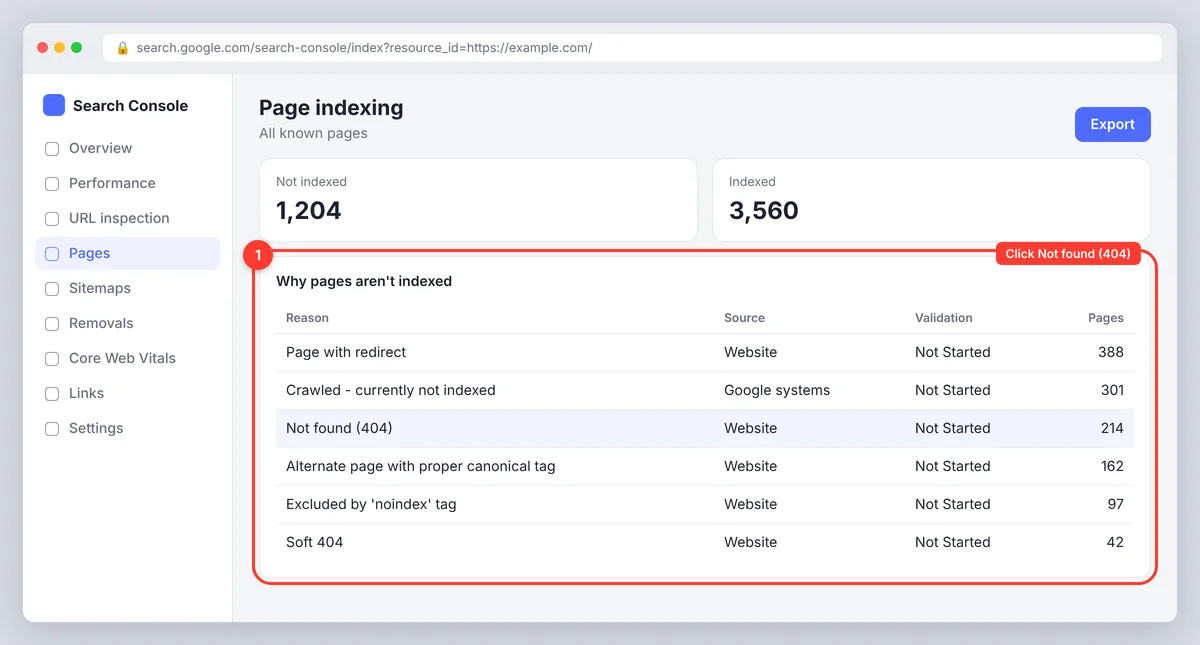
- In Search Console, open Indexing > Pages (Google's Page indexing report help explains every reason in the list).
- Scroll to Why pages aren't indexed and click Not found (404). You see the count, a trend chart and up to 1,000 example URLs. Export the list if there are many.
- Click a URL, then Inspect URL. The URL Inspection tool shows when Google last crawled it, how Google found it (Referring page, when known) and the current status.
- Click Test live URL to see what the server returns right now. A URL that was fixed yesterday still shows as 404 in GSC until Google recrawls it; the live test tells you whether the fix is in place. Test on a mobile device as well as desktop if your website serves different templates.
- Check the referring page to identify the source. If the broken link is on your own website, that is the fix; if it is on a separate website, decide whether a redirect is worth it.
For a reporting view that puts Search Console next to your content, SerpPal's Search Console connection shows clicks, impressions and positions per page and flags pages losing clicks, which is often the first sign a URL has started returning a 404. The GSC data arrives two days behind, so it is a monitoring tool rather than an alarm.
Fixing URLs that should still exist: common causes
A webpage that should be live but returns a 404 response has one of a few causes:
- The page was deleted or unpublished. Restore it from the CMS trash or a backup.
- The slug or permalink changed. Change it back, or redirect the old slug to the new one. In WordPress, check Settings > Permalinks after a migration; a changed permalink structure can 404 every post at once.
- A category, tag or parent page was removed and child URLs depended on it.
- Case, trailing slash or www mismatch.
/Blog/Postand/blog/postare different URLs on most servers. Make one canonical and redirect the other. - A plugin, theme or deploy broke routing. Roll back, then redeploy.
- A misspelled link. The webpage exists; the link to it contains a mistake. Fix the link.
The web server is not running
If many URLs failed in the same window and now work, the web server was down, the domain's DNS was misconfigured, or a firewall blocked Googlebot when it crawled. Confirm the timing with your host, fix the cause, and let GSC refresh; these 404s resolve themselves once the server responds normally. If the whole domain returned errors for days, check the Crawl stats section under Settings for the pattern.
Test the fixed URL in a browser and with Test live URL before validating.
Redirect moved or retired pages appropriately
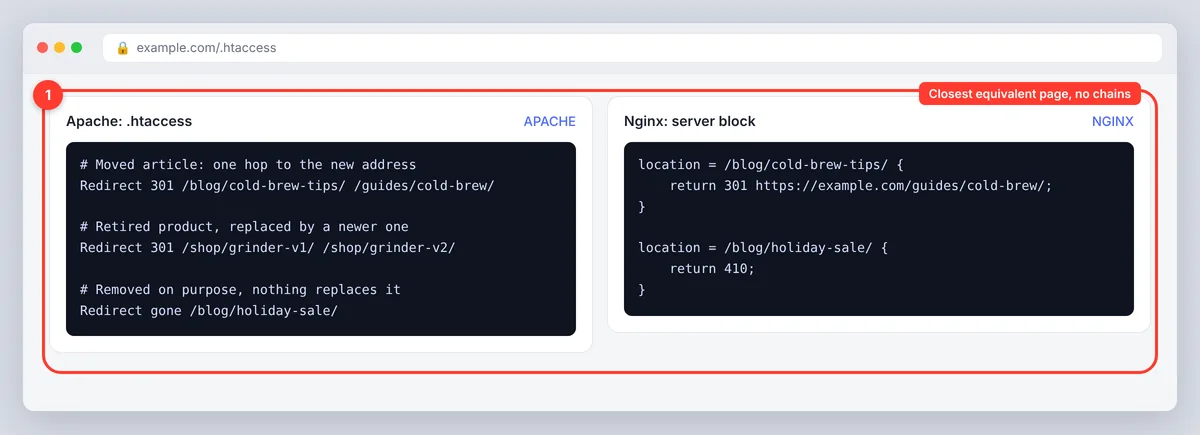
Use a 301 redirect, the permanent kind of redirection (Google's guide to redirects covers every type), when a page moved or was merged into another page that answers the same need. The destination should be the closest equivalent: the new URL of the same article, the product that replaced the discontinued one, the category page for a removed product. Redirecting hundreds of unrelated old URLs to the homepage does not preserve their value; Google treats irrelevant redirection as a soft 404, and a user who lands on a homepage they did not ask for leaves.
Set redirects at the server (.htaccess on Apache, the config on Nginx), in your hosting panel, or with a redirect plugin in WordPress. Avoid chains (A to B to C) and loops; after creating a redirect, request the old URL and confirm the redirected request lands in one hop on a page that returns 200.
Remove broken internal links and sitemap entries
The 404s you control completely are the broken links your own website creates. For each URL you are leaving as a 404:
- Search your site for links to it (your CMS search, a crawler, or the Referring page in URL Inspection) and update or remove them. Navigation menus, footers and old blog posts are the usual places.
- Remove it from the XML sitemap. A sitemap should list only URLs that return 200.
- Check canonical tags and hreflang entries that might still point at it, and any pages linked from email templates or social profiles.
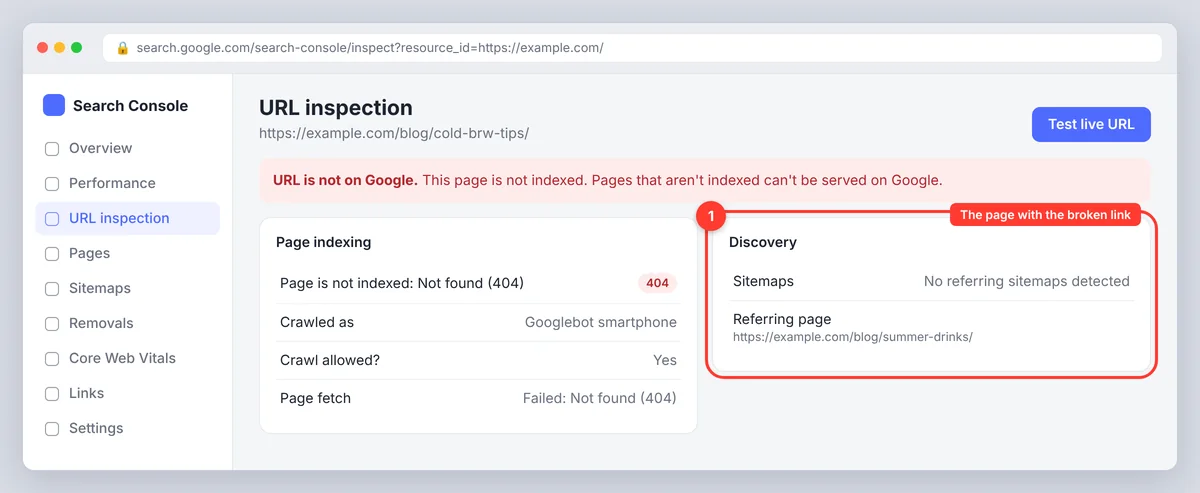
Broken links to pages on separate websites cannot be fixed from your side; if the linked page matters, redirect it on yours.
SerpPal reads your sitemap to suggest internal links while you write, which is one way to keep new articles from linking to pages that no longer exist.
Handle 404s that are in your sitemap
The old Coverage report had a separate "Submitted URL not found (404)" error, and many guides still use that name. In today's Page indexing report, submitted and unsubmitted 404s share the one Not found (404) reason. To see the ones you submitted, change the filter above the chart from All known pages to All submitted pages, or pick a single sitemap.
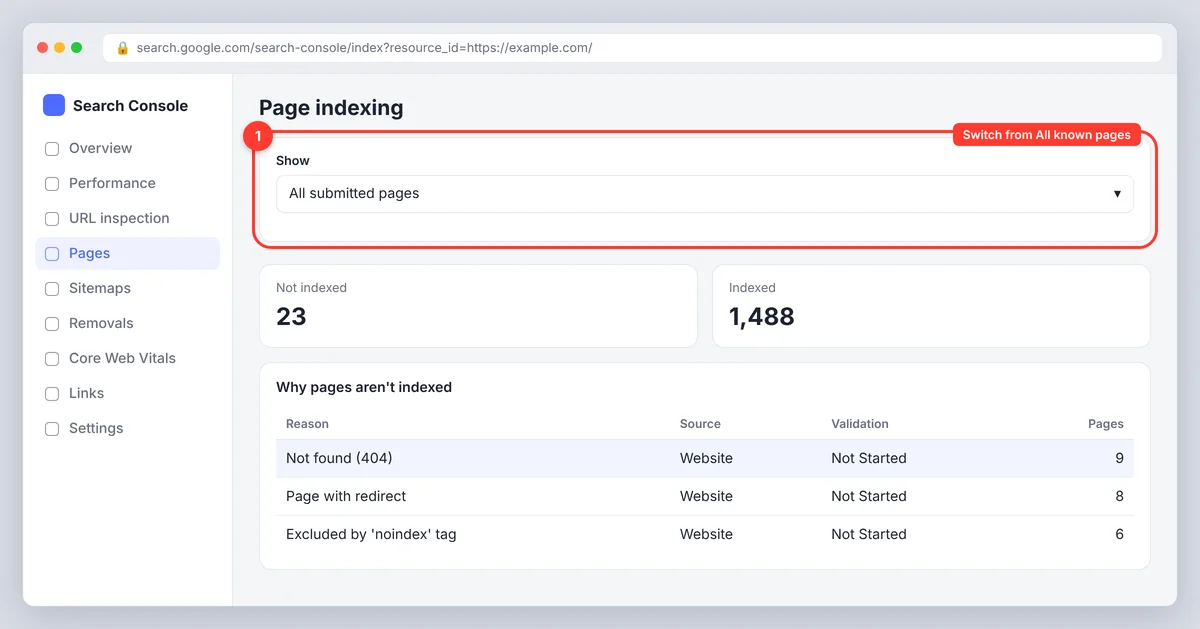
A 404 in that view means you told Google the page exists and the server disagrees. It always needs resolving, because it wastes crawl budget and indicates a sitemap nobody maintains. Either restore the page, redirect it, or remove the URL from the sitemap and resubmit the sitemap in Indexing > Sitemaps. Sitemaps generated by a plugin usually fix themselves once the page is deleted properly rather than left in draft or trash.
Understanding 404s and SEO impact
A 404 by itself does not lower your rankings or your presence in search results; Google has said so repeatedly, and every website has them. What hurts is the collateral damage: a valuable page returning 404 loses its rankings because it is gone; internal links to 404s waste the crawl and frustrate readers; a sitemap full of 404s makes Google trust your sitemap less; and a redirect of everything to the homepage creates soft 404s that Google does flag. Fix the pages that matter, clean up what you link to, and treat the rest of the Not found errors as noise. Search engine optimization is not served by chasing a zero.
Validate fixes and understand how the list updates
After fixing a group of URLs, open the Not found (404) issue and click Validate fix. Google recrawls the example URLs over the following days. The issue shows Started, then Looking good, Passed or Failed, and each URL shows Pending, Passed or Failed. Validation does not speed up crawling much and it does not remove URLs from GSC on its own; a URL you have correctly left as a 404 will keep appearing until Google stops trying it, which can take months. That is fine. A validation marked Failed means at least one URL still returned 404 when Google checked; inspect it, test the live URL and start validation again.
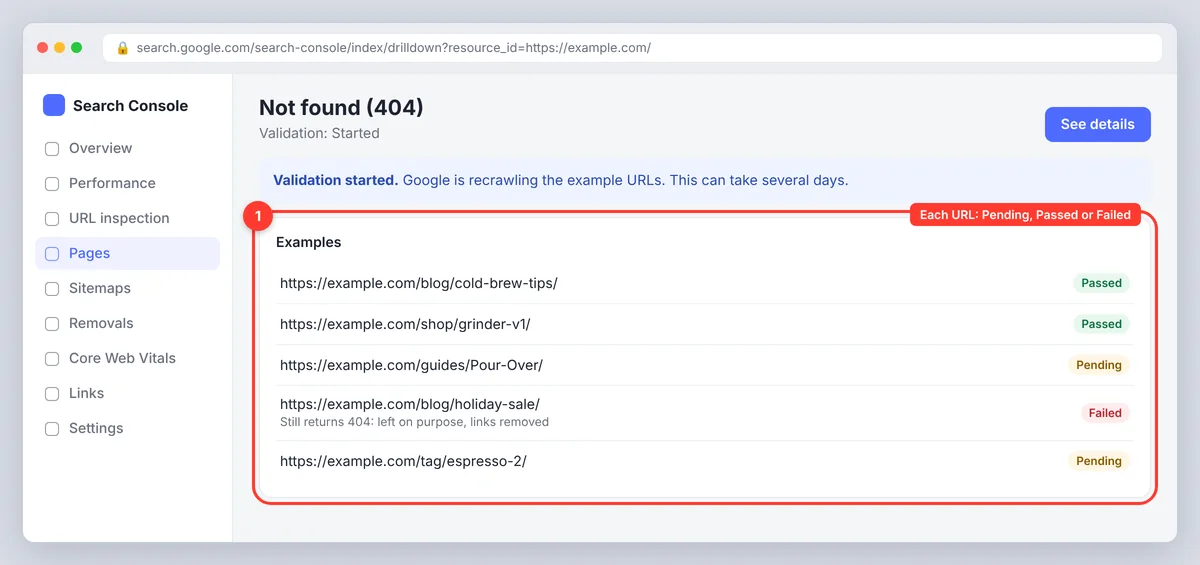
There is no fixed time for a 404 to disappear. Fixed URLs usually clear within a few days to a few weeks, depending on how often Google crawls your website. Monitoring the trend chart is more useful than watching individual URLs.
Prevent recurring 404 errors
- Before a migration or redesign, export every indexed URL and map each one to its new address. Test the redirects on staging.
- After publishing or deleting content, check the sitemap regenerated and no menu links point at the removed page.
- Audit internal links every few months with a crawler, and watch the Pages report for new 404s after each deploy.
- Watch analytics for 404 page views. Visits to the 404 page tell you which broken URLs real people are hitting, which is the best prioritization signal there is.
- Monitor GSC monthly. New Not found errors after a deploy usually point at one template or one menu, which is quick to fix while it is fresh.
How to create a custom 404 Not Found page
Start creating one in your CMS or theme: most platforms have a 404 template. Keep it helpful rather than clever: a short line saying the page was not found, a search box, links to the most relevant sections, and the main navigation. It is essential that the template returns a real 404 status in the HTTP response header; a "not found" page that returns 200 is a soft 404 and causes more issues than it solves. Check it with Test live URL or your browser's network tab after creating it.
Conclusion
Most 404 errors in Google Search Console are noise. Identify the few that matter (traffic, backlinks, sitemap), restore or redirect those, remove your own broken links, validate, and move on. The webpage that should exist is the only kind of 404 worth losing sleep over.
Frequently asked questions
Is a 404 error bad for SEO?
Not by itself. Google says 404s do not hurt a site's ranking, and removed pages should return 404 or 410. The damage comes from valuable pages that should exist returning 404, from internal links and sitemaps that point at missing pages, and from redirecting everything to the homepage, which creates soft 404s.
How long does a 404 error stay in Search Console?
Until Google recrawls the URL and finds it fixed, usually days to a few weeks for a fixed URL. A URL you have left as a genuine 404 can stay listed for months, because Google keeps retrying pages it once knew. That is normal and needs no action.
Should I redirect every 404 to my homepage?
No. Redirect a 404 only to a page that genuinely replaces it. Google treats a redirect to an unrelated page as a soft 404, and visitors who asked for a specific page and got the homepage leave. Pages removed on purpose should return 404 or 410.
What happened to "Submitted URL not found (404)"?
It was a separate error in the old Coverage report. The current Page indexing report lists all 404s under Not found (404); set the filter to All submitted pages to see the ones in your sitemap. Those always need fixing, because you are telling Google the page exists while the server says it does not: restore the page, redirect it, or remove the URL from the sitemap.
Is a 404 error my fault?
Often not. Old links from other websites, misspelled links, scrapers mangling URLs and bots guessing paths all produce 404s you did nothing to cause. The ones that are yours to fix are broken internal links, deleted pages that should exist, and sitemap entries for pages that are gone.