On this page
- Before you start: who can add a user to GSC?
- How to add a user to Google Search Console: step-by-step
- Google Search Console access levels: owner vs user roles
- How to add an owner to Google Search Console
- Giving access to an agency, freelancer or SEO tool
- Managing Search Console users: remove users or revoke access
- Common problems when adding a user
- Security best practices for ownership and credentials
- Search Console access vs Google Analytics access
- Conclusion
- Frequently asked questions about Search Console access
To add a user to Google Search Console, open the property, go to Settings in the left menu, click Users and permissions, then Add user, enter the person's email and choose Full or Restricted permission. That's the whole process, and it takes under a minute, whether you're granting view-only access to a client or adding an owner for a new agency. The rest of this guide covers what each permission level allows, how to give someone owner access, how to grant access to an agency or an SEO tool, how to remove a user, and how to fix the common errors ("you need to be an owner", "unverified owner", the person can't see the property).
Key takeaways
- Only a verified owner can add users; a Full user can see everything but can't manage access.
- Three access levels: Owner, Full and Restricted. Pick view-only access for anyone who only needs to read reports and dashboards.
- Owners are added from the same screen; a delegated owner has the same rights as the verified owner who added them.
- The new user must log in with the exact account you entered, then pick the property from the dropdown menu.
- Review the users list every few months and remove users who have left; access doesn't expire on its own.
Before you start: who can add a user to GSC?
Only a property owner can add, remove or change users in Google Search Console (GSC). If you don't see Users and permissions under Settings, or the Add user button is greyed out, you don't have the highest level of access and will need to ask one of the property owners to do it, or to make you an owner first.
You also need the other person's email address, and it must belong to a valid Google account. That can be a Gmail address or a Google Workspace address on a company domain. An email that isn't attached to Google's platforms won't work; the person has to create an account with that address (or use an existing one) before you add them. There's no cost involved: a Google Search Console account is free, and so is every user seat.
How to add a user to Google Search Console: step-by-step
Step 1: Log in to your Search Console account and open the property
Logging into Search Console is the same as any Google login: go to search.google.com/search-console and sign in with the owner credentials. Use the property selector at the top left to choose the website you want to share. If you manage several properties (a domain property and a URL-prefix property, or several sites), access is granted per property, so repeat these steps for each one the person needs.
Step 2: Open property settings, then Users and permissions
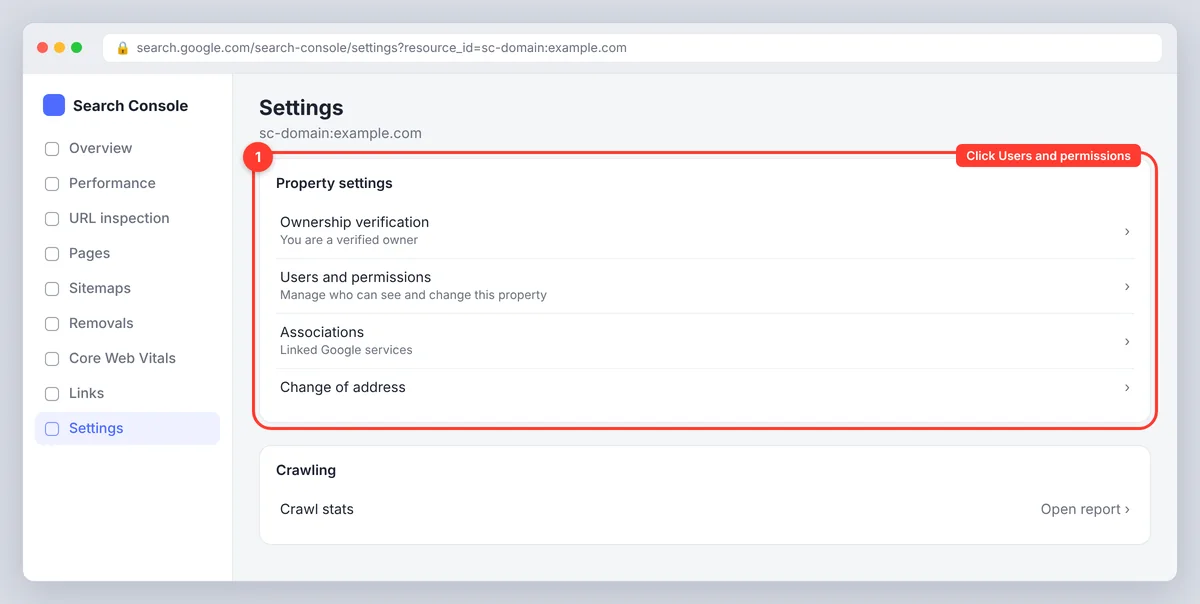
Scroll to the bottom of the left-hand menu and click Settings. The property settings page lists ownership verification, users and permissions, associations and the change of address tool. Click Users and permissions. You'll see every account that currently has access, their permission level and whether they're a verified or delegated owner.
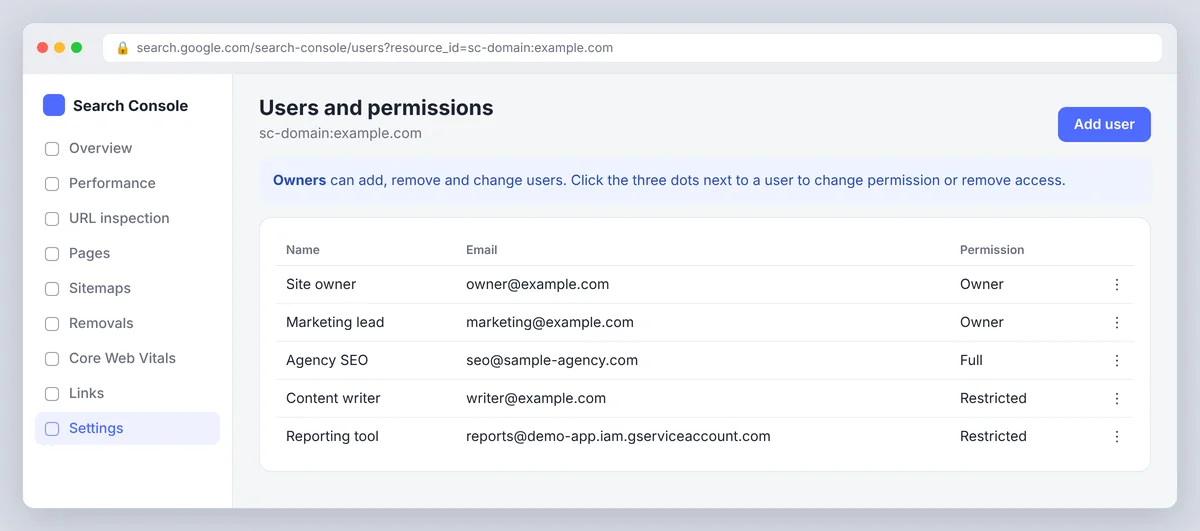
Step 3: Click Add user
Click the blue Add user button in the top-right corner of the users list. A small dialog opens with two fields: the email address and the permission.
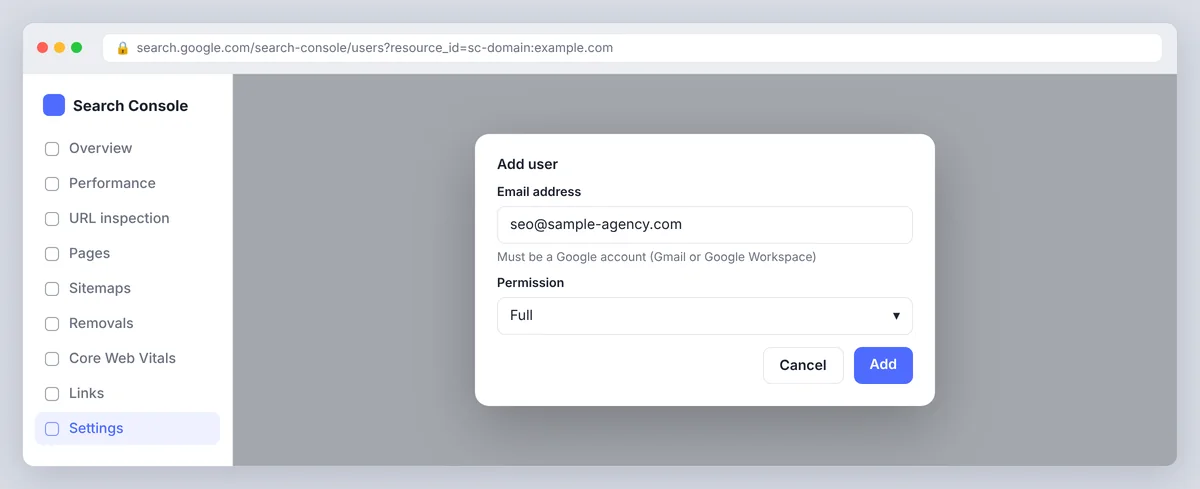
Step 4: Enter the email address and choose a permission level
Type the person's email exactly as they use it to log in. Then assign a level: choose Full or Restricted (owner access is handled slightly differently; see below). Click Add. The new user appears in the list immediately; there's no invitation to accept.
Step 5: Tell the new user where to find the property
Google sends the new user an email, but it's easy to miss. Tell them to log in to Search Console with that same login and pick the property from the property selector dropdown. The GSC property appears under their account without any further setup. If it doesn't, the most common cause is that they're signed in with a different account in the same browser.
Google Search Console access levels: owner vs user roles
Search Console has three access levels, and choosing the right one is the only real decision on the Add user screen. The user roles and restrictions are the same on every website.
| Permission | Can view all reports and data | Can take actions | Can manage users | Typical use |
|---|---|---|---|---|
| Owner | Yes | Yes (all) | Yes | Site owner, head of marketing, lead SEO |
| Full | Yes | Yes, most (submit sitemaps, request indexing, validate fixes) | No | In-house SEO, agency, developer |
| Restricted (view-only) | Yes | No | No | Writers, clients, reporting tools, stakeholders |
A few details that aren't obvious from the table:
- View-only users see most of the same data. The lowest level doesn't hide the main reports; it blocks actions such as submitting a sitemap, requesting indexing, validating a fix or changing settings. For anyone who only needs the performance report and the keyword data in it, it's the right level.
- Full users can't add users. They can do almost everything else, including removing URLs temporarily and checking how Google crawls and indexes pages. User access management, the change of address tool and some other settings stay with owners. Google's permissions help page lists every action by level.
- Owners come in two kinds. A verified owner proved ownership with a DNS record, HTML tag, uploaded file, Google Analytics or Google Tag Manager. A delegated owner was added by a verified owner and has identical rights, but delegated ownership depends on the verified owner who granted it; if that owner is removed or their website verification fails, delegated owners added by them lose access too.
How to add an owner to Google Search Console
On the same Users and permissions page, click Add user, enter the email and choose Owner from the permission dropdown. The person becomes a delegated owner straight away and can add and remove users themselves.
If you want the person to be a verified owner instead (so their access doesn't depend on yours, which matters when an agency relationship ends or a founder leaves), they need to verify the property themselves. Under Settings, Ownership verification shows the methods available. For a domain property they add a TXT record at the DNS provider; for a URL-prefix property they can use the HTML file upload, add a meta tag to the home page, or verify through a Google Analytics or Tag Manager account they already have access to. Google's verification documentation lists the exact requirements for each method.
You can also modify an existing user's level: click the three dots next to their name and choose Change permission.
Giving access to an agency, freelancer or SEO tool
The same process covers people and software. A few practical rules:
- Agencies, freelancers and digital marketers: add them as Full users with their own work accounts. Don't share your owner credentials; a shared password can't be revoked per person and breaks when someone leaves.
- Clients and stakeholders: give them view-only access so they can check reports without accidentally submitting a change.
- Reporting and SEO tools: most tools connect through Google sign-in (OAuth) and read data as the user who authorized them, so the account doing the connecting needs at least view-only access to the GSC property. Tools that pull data through the Search Console API work the same way. In SerpPal, for example, you connect a project to Search Console with your own Google login, and the app then shows which searches each article already appears for; see connecting Google Search Console.
- Service accounts: if a developer is building an integration, they'll ask you to add a service account email (it ends in
.iam.gserviceaccount.com) as a view-only or Full user. That's normal; it's an account that belongs to the application rather than a person.
Managing Search Console users: remove users or revoke access
Open Settings, then Users and permissions, find the person in the list, click the three dots on the right and choose Remove access. The change is immediate. You can remove users at the Full and view-only levels and delegated owners; you can't remove a verified owner this way.
Disassociate a confirmed property owner
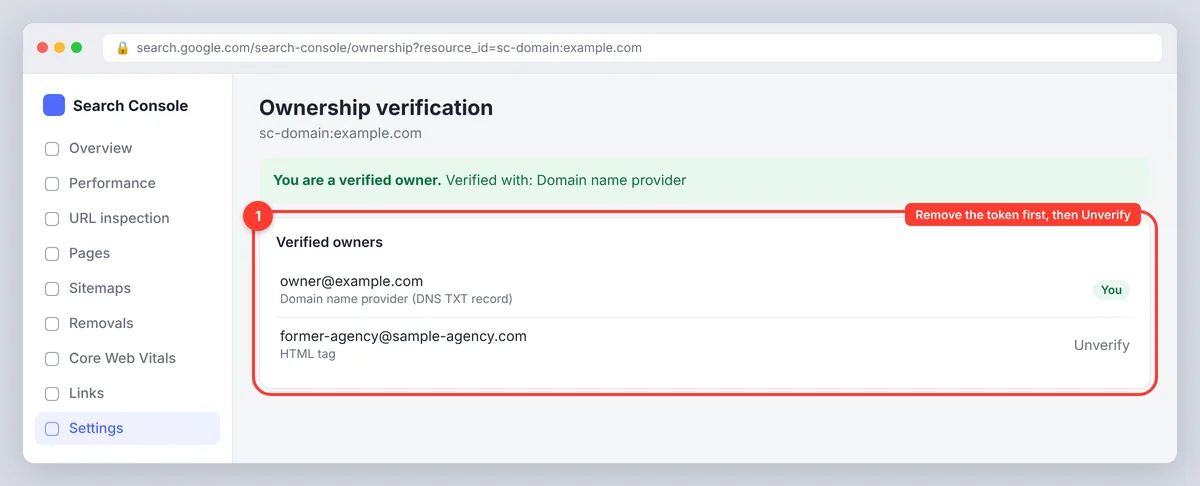
To remove a verified owner, first remove their verification token (delete their DNS record, uploaded file or meta tag), then use Unverify next to their name on the Ownership verification page. Both steps are needed; if the token stays in place, Google will re-confirm the owner the next time it checks. If you can't find who added a delegated owner, the users list shows the verifying owner's name in the owner's row. This is how to manage property owners when a founder, developer or old agency still appears in the list.
Common problems when adding a user
- "You don't have permission to add users." You're not an owner. Ask one of the property owners to add the person or to make you an owner.
- The new user can't see the property. They're logged in to a different account. Have them check the avatar in the top-right corner of Search Console and switch. Also confirm you added the right property: a domain property and a URL-prefix property for the same site are separate.
- "This email address isn't associated with a Google account." The person needs a valid Google account with that address, or can give you one they already use.
- Owner access vanished. A delegated owner loses access when the verified owner who added them is unverified or removed. Add a new verified owner before removing an old one.
- Property shows as unverified. The verification token (DNS record, uploaded file, meta tag) was removed during a website migration or theme change. Re-add it and click Verify again; users attached to the property come back with it.
- Too many users. Each property allows up to 100 users across all access levels. If you're close, remove users from old agencies and former staff.
- Settings menu is missing. You may be looking at Google Analytics or another Google tool rather than Search Console. Search Console's Settings link is at the bottom of the left-hand menu, on every property.
Security best practices for ownership and credentials
- Keep at least two verified owners, ideally one of them a role-based company account that doesn't leave when a person does.
- Give the lowest level that does the job. Writers and clients rarely need more than view-only access to the website's data.
- Review the users list quarterly and remove former staff, former agencies and tools you no longer use.
- Prefer personal work accounts over shared credentials, so you can revoke access per person.
- Keep a note of which Google Search Console account verified each website, so you know whose token the delegated owners depend on.
- When a project changes hands, make the new owner a verified owner before the old one is removed.
Search Console access vs Google Analytics access
Search Console and Google Analytics are separate products with separate permissions. Adding someone to Search Console doesn't give them Analytics access, and vice versa, even when the two are linked. Analytics (GA4) manages users at the account or property level under Admin, with Viewer, Analyst, Marketer, Editor and Administrator roles plus optional data restrictions for cost and revenue metrics. Search Console only has property-level access and the three levels above; there's nothing to configure at account level. If an agency needs both, add them in both places. Google Cloud Console is a third, unrelated product: "give someone access to Google Cloud Console" means IAM roles on a cloud project, nothing to do with search data. Search Console itself is free (it used to be called Google Webmaster Tools, and some older guides still use that name); the only requirement for any user is a Google account.
If your website runs on WordPress, the SEO plugin that verified the property (by adding the HTML tag) doesn't manage users either; user access is always granted inside Search Console. Once the right people are in, the data pays off quickly: the performance report shows which keyword each page ranks for (see keyword research with Search Console), the Pages report shows what Google crawls and indexes, and the Links report shows who links to you (see checking backlinks in Search Console).
Conclusion
Adding a user to Google Search Console takes a minute: Settings, Users and permissions, Add user, then the email and the permission level. Give people the lowest level that does the job, keep at least two verified owners, and review the list every few months so former staff, agencies and tools don't keep access they no longer need.
Frequently asked questions about Search Console access
Can a Full user add another user to Google Search Console?
No. Only owners (verified or delegated) can add, remove or change users. Full users can view all data and take most actions, such as submitting sitemaps and requesting indexing, but not manage access.
Does the new user get an invitation to accept?
No. Access is granted immediately when you click Add. Google sends a notification email, but the user doesn't need to accept anything; they sign in to Search Console with that account and select the property.
What is the difference between a verified owner and a delegated owner?
A verified owner proved control of the site with a verification method such as a DNS record or HTML file. A delegated owner was added by a verified owner and has the same rights, but loses access if the verified owner who added them is removed or unverified.
Can I add someone without a Gmail address?
Yes, as long as the address is attached to a Google login. Google Workspace addresses on company domains work, and anyone can create a Google account using an existing non-Gmail email.
How many users can a Search Console property have?
Up to 100 users per property, counting owners, Full and Restricted users together.