On this page
- Why GSC is a keyword research tool (and how it differs from keyword research)
- Connect your Google Search Console account and open the performance tab
- Five ways to find keywords and traffic in the GSC Queries report
- Filters and comparisons worth learning
- Read the metrics correctly
- Turn GSC data into an SEO strategy
- Keyword research vs GSC search terms: side-by-side comparison
- Other GSC reports that feed keyword research
- Conclusion
- FAQs: GSC keyword research and SEO strategy
Google Search Console (GSC) keyword research is the only kind that starts from your own Google data: the exact queries people typed before Google showed your site, how often you appeared, how often they clicked and where you ranked. No other keyword tool has that. This guide shows how to set up your Google Search Console account, read the performance tab, the five filters that turn GSC into a keyword research tool, how to find page-two keywords, missing keywords and cannibalization, and how to turn what you find into an SEO strategy that grows organic traffic.
Quick summary: using GSC for content SEO to increase organic traffic
- GSC shows real queries, impressions, clicks, CTR and average position for your site. It's free and the data is Google's own.
- The best opportunities are queries at positions 6 to 20 with lots of impressions: you're close, and one better page can move you up.
- Filter the performance report by page to see which keywords a page already ranks for, then add the ones it doesn't use yet.
- GSC only shows queries you already appear for. Pair it with a keyword research tool to find what you don't rank for at all.
- Export the search console data to a spreadsheet or connect it to your SEO tool so the keyword data sits next to the content you're optimizing.
Why GSC is a keyword research tool (and how it differs from keyword research)
Most keyword research tools estimate search volume from a third-party database. GSC reports what actually happened: for every query where your site appeared in Google search results, it records impressions, clicks, click-through rate and average position. That makes GSC the best source for three questions no other SEO tool answers reliably: which keywords you already rank for, which ones are close to the first page, and which pages compete with each other.
It has one limit: it only knows about searches where your site showed up. For keywords you don't rank for at all, you still need a keyword research tool. Used together, GSC tells you where to improve and the keyword tool tells you where to expand. That's the difference between keyword research and GSC search terms: research finds demand you could capture; GSC shows demand you already touch.
Connect your Google Search Console account and open the performance tab
If your site isn't in GSC yet, sign in to Google Search Console with a Google account, add a property and verify ownership (DNS record, HTML file, Google Analytics tag or your CMS's built-in option). Owners can grant permissions to colleagues by email address (each needs their own Google account), so an agency doesn't need your login. Verification is a one-time step per property, and you can add more properties to the same Google account later. Some data only starts to build up once the property exists, so add it early even if you won't use it for months. Then open Performance in the left menu and choose Search results. Google's Performance report help defines every metric if you want the official wording.
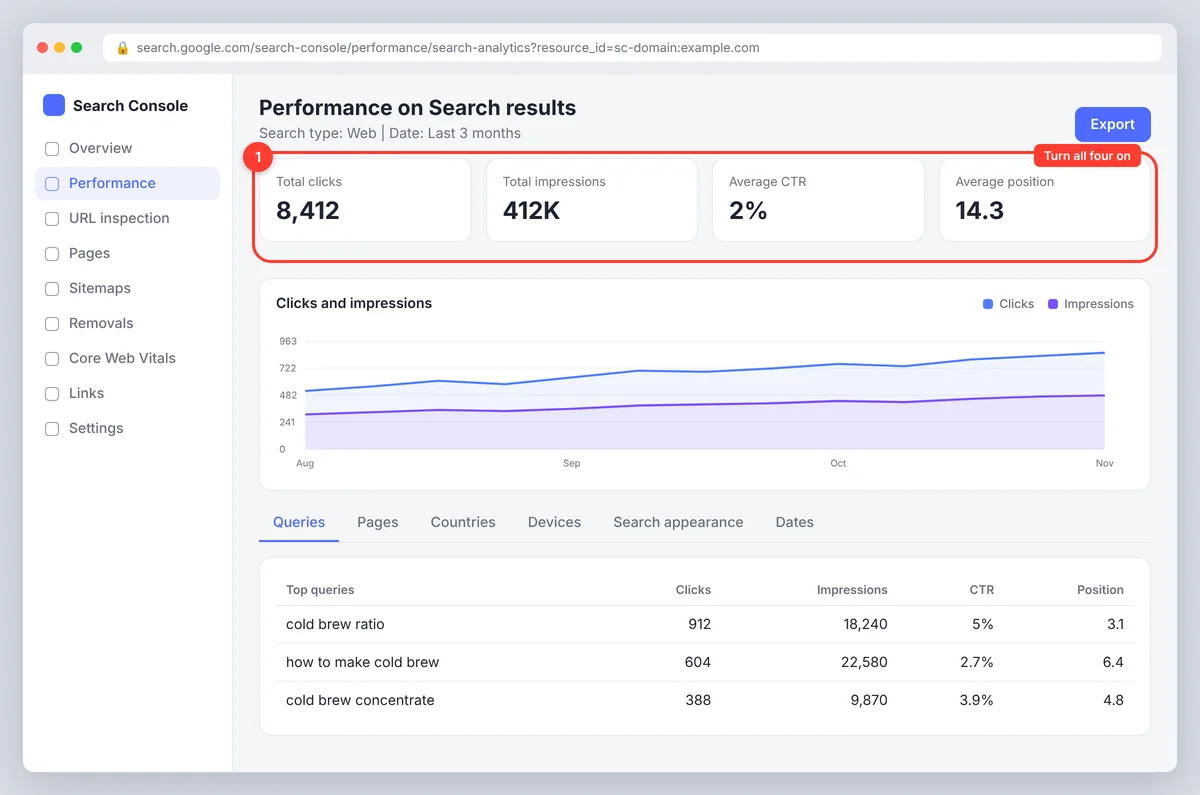
At the top you'll see four metrics you can toggle on: total clicks, total impressions, average CTR and average position. Turn all four on. Below the chart, the Queries tab lists the queries (GSC's name for keywords), and the Pages, Countries, Devices and Search appearance tabs slice the same data. Set the date range to the last 3 months for a stable view, or 16 months for seasonal patterns. Everything below is about analyzing this one report, because it holds the performance metrics that matter for keywords.
Five ways to find keywords and traffic in the GSC Queries report
1. Page-two rankings: positions 6 to 20
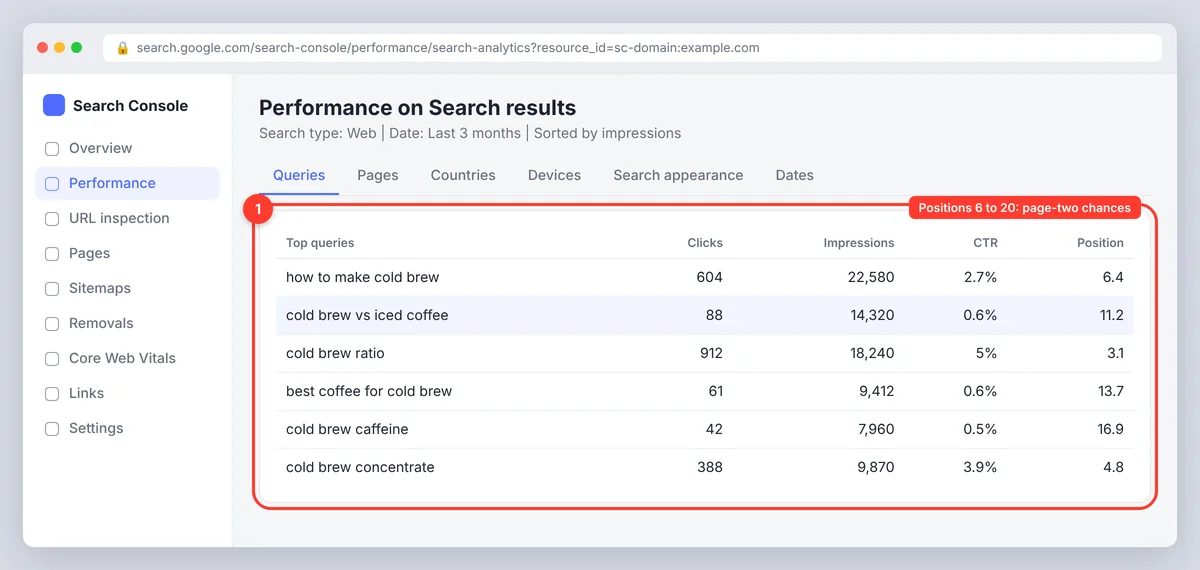
Sort the Queries tab by impressions, then look for queries with an average position between 6 and 20. These are keywords Google already considers your page relevant for, but not relevant enough for the top five. They're the cheapest ranking gains available: the page exists, the authority exists, and usually it just needs better coverage of the topic. Add a filter on position (greater than 5) and impressions (more than 100, adjusted for your site's size) to see them in one list, then select the ones with commercial or informational intent that fits the page. Low impressions at high positions are a different signal: the keyword may simply have little demand.
2. Keywords a URL ranks for but doesn't use
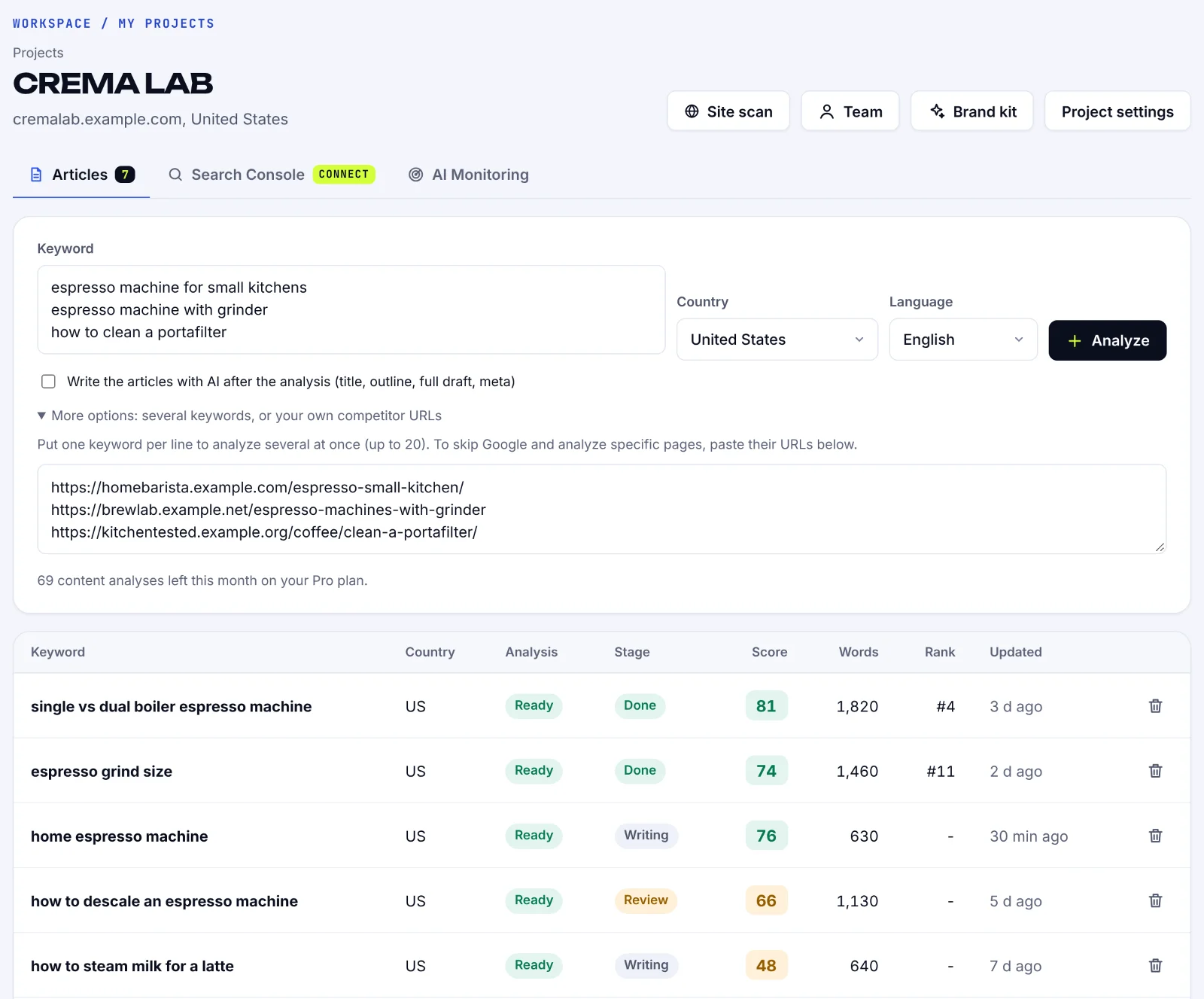
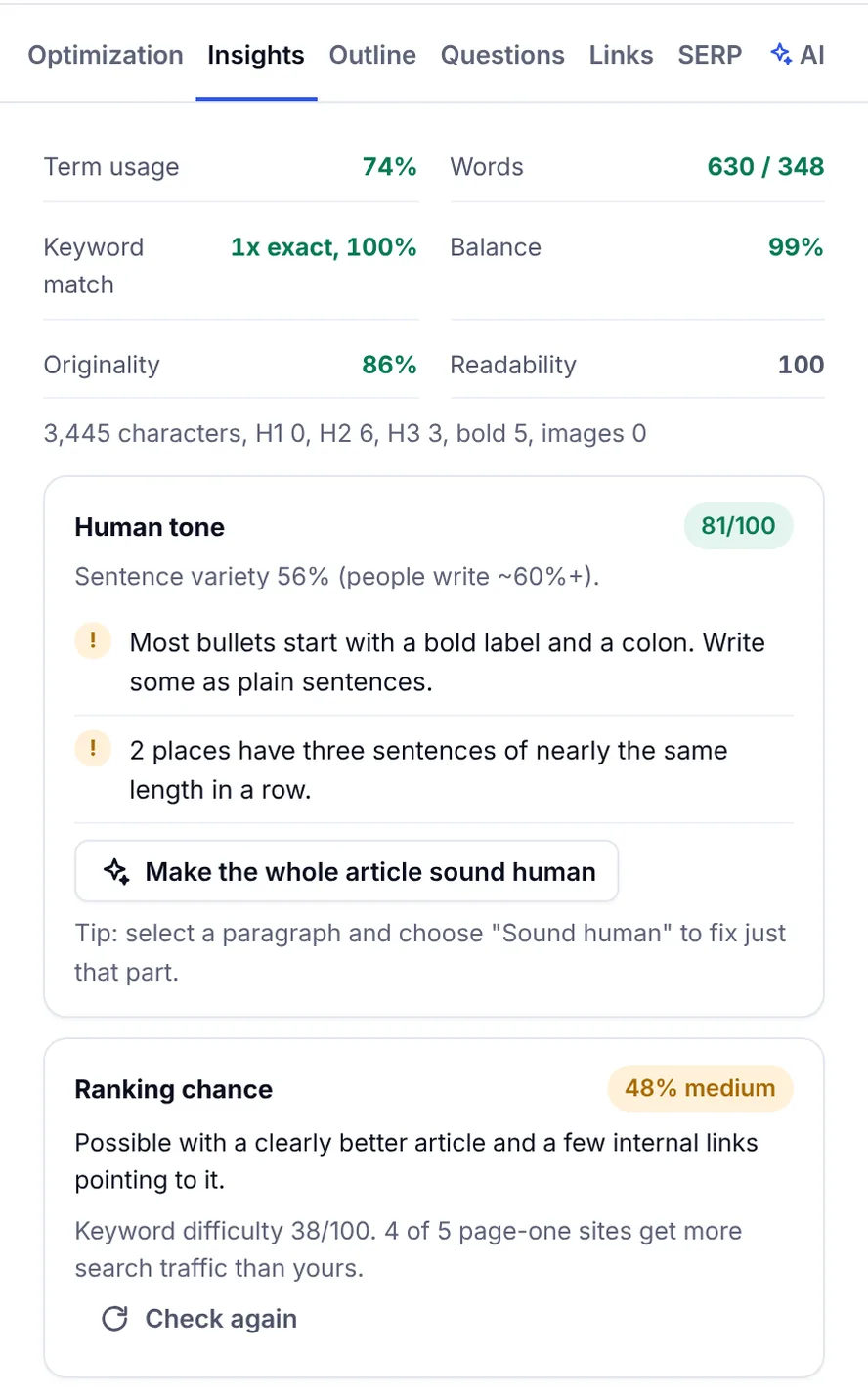
Click a URL in the Pages tab, then switch to Queries. You now see every search term that URL appears for. Scan for terms that aren't in the page's text at all. Google is ranking you for them on the strength of related content; using the phrases explicitly, in a heading or a paragraph that answers that specific query, often moves the page up several positions, because the content now matches what searchers typed. In SerpPal's editor, the Search Console card on the Insights tab does this automatically and marks those search terms not in article.
3. High impressions, low CTR: identify underperforming pages quickly
Filter for queries with many impressions and a CTR well below what the position should earn (position 3 normally gets around 10% or more). The page ranks but the snippet doesn't win the click. Optimize the meta titles and descriptions so they align with the query's wording and promise the answer; on-page optimization of the snippet is the fastest organic traffic gain in SEO because no ranking change is needed. Underperforming pages with a keyword mismatch, where the title promises one thing and the query asks another, show up here too.
4. Question search terms and long-tail keywords
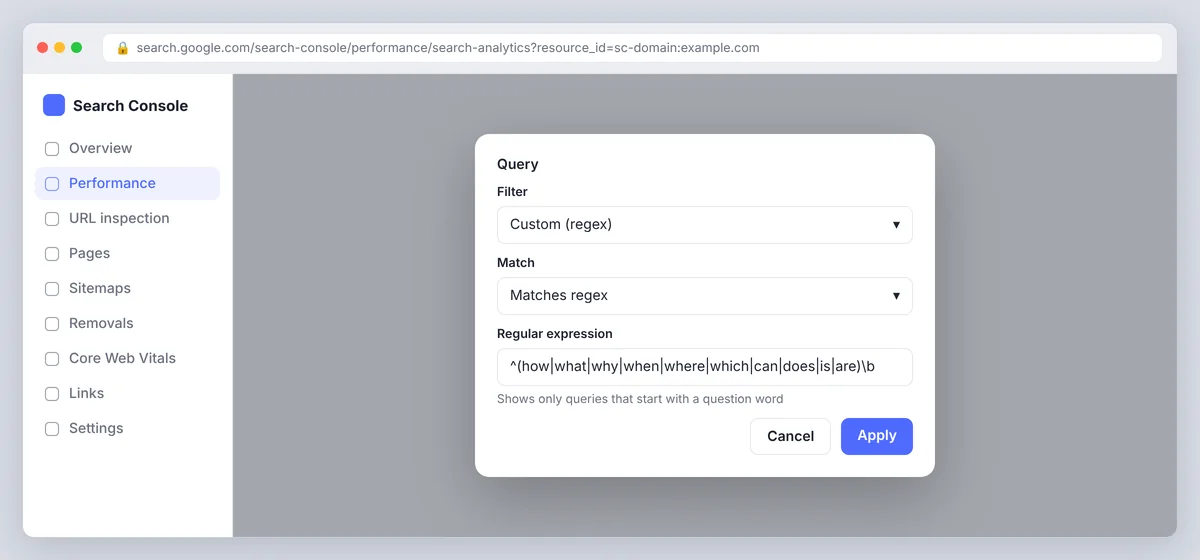
Use the query filter with a regular expression to pull out questions: ^(how|what|why|when|where|which|can|does|is|are)\b. Each one is a potential H2 or a question to answer at the end, and many will be long-tail keywords no keyword tool lists because the volume is too low to estimate. If you appear for them at all, answering them directly is usually enough to rank, and the search intent behind a question is rarely ambiguous.
5. Cannibalization: two pages, one keyword
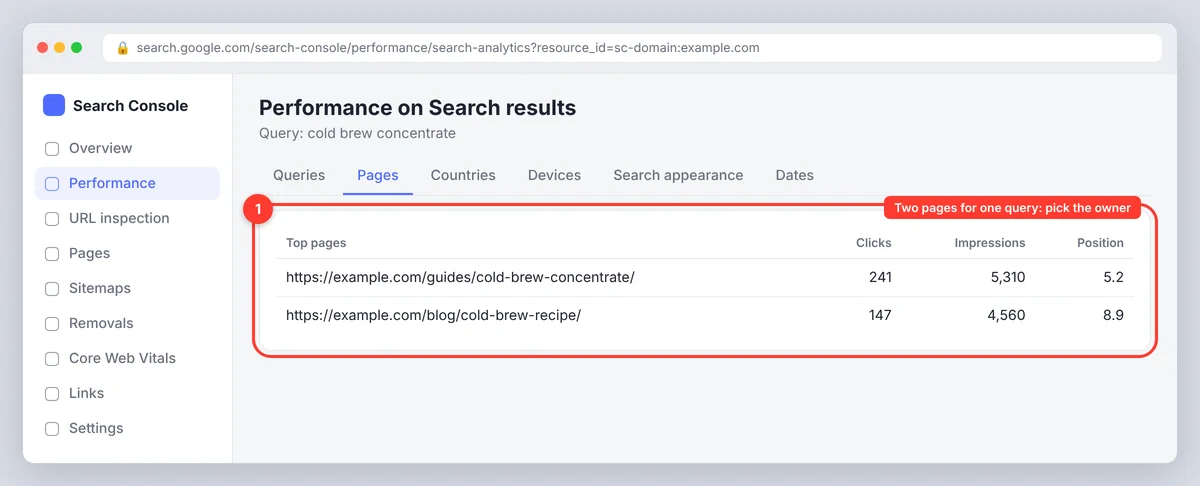
Click a search term, then switch to the Pages tab. If two or more of your URLs appear for the same keyword, they're competing. Decide which page should own the query, strengthen it, and either redirect the other, merge it, or re-target it to a different term. SerpPal's project view lists these as competing pages so you don't have to click through one by one.
Filters and comparisons worth learning
| Filter | What it finds |
|---|---|
| Query contains [brand] | Brand searches; exclude keywords like these to see non-brand performance |
| Query doesn't contain [brand] | Your real organic keyword footprint |
| Page exact URL | All keywords for one article |
| Position greater than 10 | Page-two and beyond opportunities |
| Country equals [country] | Keywords by market for international sites |
| Compare: last 28 days vs previous period | Pages and queries losing clicks, which need a refresh |
| Search appearance | Which queries trigger rich results, such as review snippets or videos |
AI Overviews and AI Mode are not a Search appearance filter. Since mid-2026 Google has been rolling out a separate Generative AI performance report to some properties, which shows impressions (not clicks) from those features by page, country and date. If your property has it, check which of your pages appear there; the same impressions are also counted in the main report.
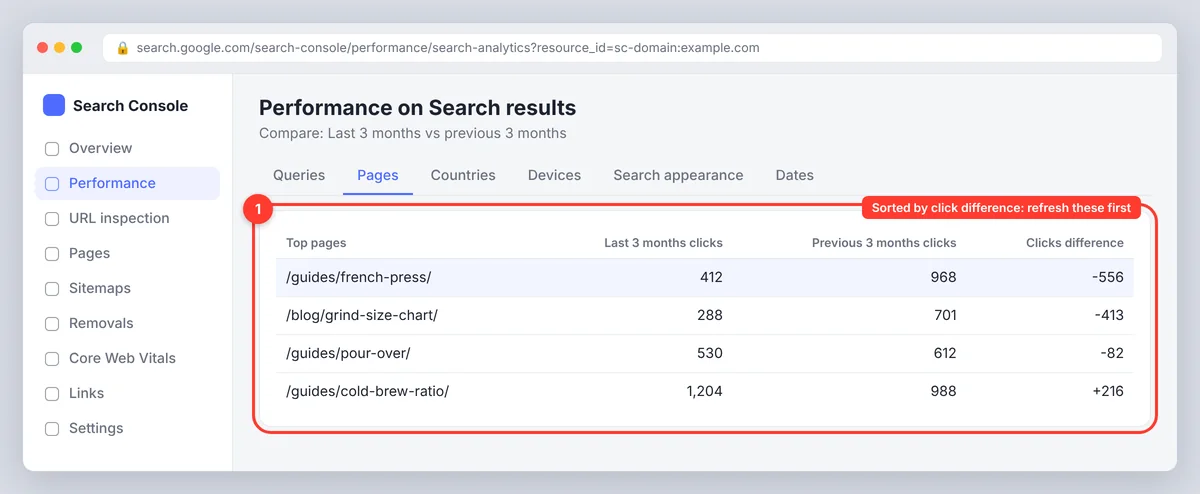
The comparison view deserves a habit, and it's the quickest way to navigate a large site's data. Run "last 3 months vs previous 3 months" once a month, sort by click difference, and you have a list of pages that are decaying before the drop shows in revenue.
Read the metrics correctly
- Impressions count every time your URL was in the results the user loaded, even if they had to scroll far down the page, so impressions measure visibility, not attention. High impressions at position 40 mean demand, not success.
- Average position is averaged across all impressions and all your URLs for that query. A page at 2 and another at 30 average to 16. Check per page.
- CTR depends on the SERP: a query with an AI Overview, ads and a video carousel leaves less for position 1 than a plain results page.
- Data lag is about two days, and GSC samples and anonymizes rare queries, so the sum of the rows is lower than the total.
- Keyword ranking changes are noisy week to week. Judge trends over 28 days or more, and judge pages by conversions as well as clicks. A page performing well on impressions and badly on clicks is a title problem, not a ranking problem.
Turn GSC data into an SEO strategy
Keyword research is only useful if it changes what you publish, and an SEO strategy is only as good as the content it produces. Don't let Google data go to waste; a practical loop:
- Export the Queries tab (top right, Export) to Google Sheets or a CSV, or connect Search Console to your writing tool.
- Tag each search term: page-two, not-in-article, low CTR, question, cannibalized, new topic.
- For page-two and not-in-article keywords, open the page, analyze the keyword against the current top results, and add the words, headings and answers the page is missing.
- For low CTR, rewrite the title and meta description, then refine again after a month if the metrics haven't moved.
- For questions, add an FAQ or a section that answers them in the first sentence.
- For new topics with impressions but no good page, create one, map it in your keyword plan and add internal links to it from the pages that already rank.
- Re-check in four to six weeks with the comparison view. This is data-driven SEO: every change traces back to a query and a number.
Connect your Google Search Console account to SerpPal in a project (read-only) and it shows the clicks, impressions, CTR and position for the last 7 days, 28 days or 3 months, with the page-two chances and losing pages already picked out, so you can click Analyze on a query and start the article from the same screen. The Search Console guide explains the setup. A rank tracker fills the gap left by GSC's two-day lag and its averaged positions: SerpPal's rank tracking checks where a published article sits in Google, on demand or every week.
Keyword research vs GSC search terms: side-by-side comparison
| Google Search Console | Keyword research tools | |
|---|---|---|
| Data source | Google's own records for your site | Third-party estimates for any site |
| Keywords you don't rank for | No | Yes |
| Search volume | Impressions (yours only) | Estimated monthly volume |
| Keyword difficulty | No | Yes (estimated) |
| Competitor keywords | No | Yes |
| Cost | Free | Free tiers to paid plans |
Use GSC first for improvement, then a keyword research tool such as SerpPal's Content Planner for expansion: give it the topics where GSC shows demand and it returns keyword opportunities with volume, difficulty and search intent you can't yet see because you don't rank for them. That's how a content strategy grows from the search data instead of guesses.
Other GSC reports that feed keyword research
The performance tab isn't the only useful part of GSC, though it's the most comprehensive. The Pages (indexing) report shows which URLs Google has indexed; a keyword can't rank on a page that isn't. URL Inspection checks a single URL: enter the URL you want to research, adjust the search settings if needed, and it reports index status and lets you request indexing after an update. Sitemaps confirms Google can find new pages. The Links report shows your backlinks and internal links, so you can point more internal links at the page-two URLs you're pushing. Core Web Vitals and the enhancements reports flag technical SEO and markup issues (spot issues with product-related markup or review markup) that affect how your keywords appear in SERPs. None of these replace the search terms data, but checking them when a page stalls is often what explains it.
Conclusion
Google Search Console is the best keyword research tool for the pages you already have, because the data is your own. Start with page-two queries, missing terms and low-CTR titles, fix the pages they point to, and check the results a month later. Then use a keyword research tool for the topics you don't rank for yet.
FAQs: GSC keyword research and SEO strategy
Can I do keyword research with Google Search Console alone?
For improving content you already have, yes, and it's the most accurate data you'll get for how your keywords are performing. For finding new topics you don't rank for, no; it only reports searches where your site appeared. Most teams use it alongside a keyword tool, and the combination is the basis of a sound SEO strategy.
How do I see which keywords a specific page ranks for?
Open Performance, click the Pages tab, click the URL, then switch to the Queries tab. The list is every search term that page appeared for in the chosen date range, with clicks, impressions, CTR and position.
Why does GSC show fewer clicks than Google Analytics?
GSC counts clicks from Google search results only, anonymizes rare queries and lags about two days. Google Analytics counts sessions from all sources. The two never match exactly, so compare trends, not totals.
What is a good average position to target?
Queries at positions 6 to 20 with real impressions are the best targets: the page already ranks and a content improvement can boost it. Positions beyond 30 usually need a new or substantially rebuilt page.
How often should I check GSC for keywords?
Monthly for the comparison view and page-two list, and whenever you update an article, so you can add the search terms it already appears for. Rankings move slowly; a monthly rhythm catches the trend without the noise.