On this page
- What the Google Search Console URL Inspection tool does
- How to use the URL Inspection tool step by step
- URL Inspection tool report: understanding each section of the data
- Crawl and indexing troubleshooting: how to debug "URL is not on Google" statuses
- Request Indexing: what it can and can't do, and the usage quota
- URL Inspection tool vs the Pages report (Index Coverage) vs Sitemaps
- A simple post-publish routine
- Indexed but not ranking: why the tool says "on Google" and analytics says otherwise
- Rendered page, JavaScript and rich results checks
- URL Inspection API: how the Search Console API extends the data
- Search Console URL Inspection: SEO tips and limits worth knowing
- Conclusion
- Frequently asked questions
The URL Inspection tool in Google Search Console shows you how Google sees one specific page: whether it's indexed, when it was last crawled, which canonical Google chose, whether mobile and structured data checks pass, and it lets you ask Google to index a new or updated URL. To use it, paste a full URL into the search bar at the top of Search Console (or click the magnifier icon next to a URL in any report) and read the verdict. This guide explains each section of the report, how to use the live URL test, when the indexing button helps and when it doesn't, and how to fix the most common statuses such as "Discovered, currently not indexed" and "Crawled, currently not indexed".
Key takeaways
- The URL Inspection tool reports on one URL at a time, for properties you've verified, and shows the indexed version, not the live page, unless you run a live test.
- Asking Google to index a page is a nudge, not a command. It works best for new or substantially updated pages and is limited to a small daily quota per property.
- "URL is not on Google" has many causes: noindex, a different canonical URL, a crawl block, a redirect, a soft 404 or simply low priority. The status in the report tells you which.
- For many URLs at once, use the indexing reports (Pages) and a sitemap; the inspection tool is for debugging individual pages.
- Check the inspection tool after publishing, after major edits and after any fix you want Google to re-evaluate.
What the Google Search Console URL Inspection tool does
Google Search Console's URL Inspection tool pulls the data Google already holds about a page from the Google index and presents it as a report. The URL inspection tool provides detailed answers to questions a desktop crawler on your own machine can't: is this page in the Google index, which URL does Google treat as the canonical URL, when did Googlebot last visit, and what did it find when it rendered the page? It also offers a live test that fetches the page right now, which is how you check whether a fix has worked before Google recrawls on its own schedule.
What it doesn't do: it won't inspect a URL on a property you don't own, it won't tell you where the page ranks in Google search results, and it won't show you a list of indexing issues across the web site. For site-wide indexing coverage you use the Pages report; for rankings and queries you use the Performance report (search analytics). Search appearance reports cover rich results across the site, and Removals handles content removals. The inspection tool is the microscope, not the map, and its insights are per page.
How to use the URL Inspection tool step by step
Step 1: Open Search Console and enter the specific URL
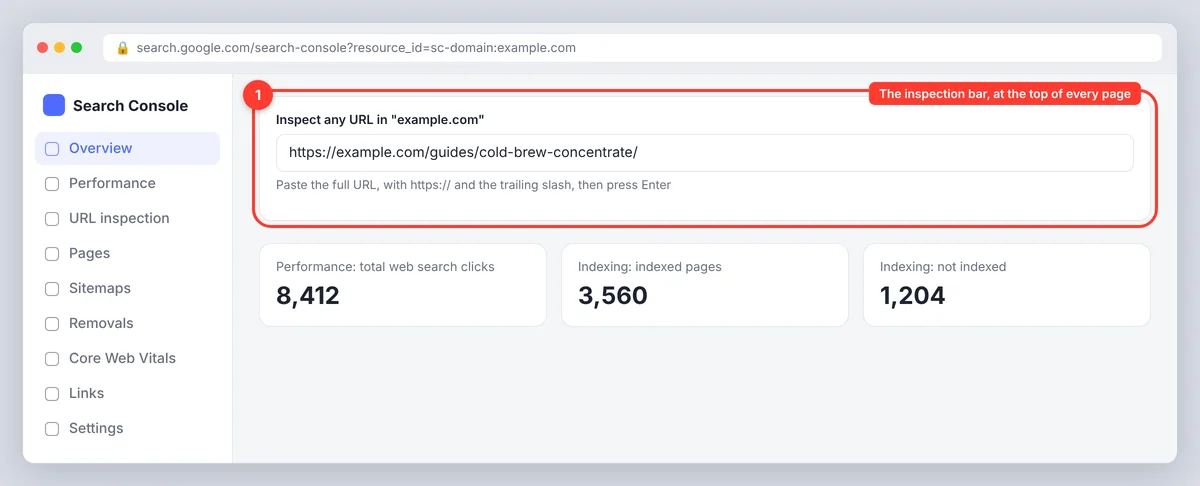
Sign in to Google Search Console, select the property that contains the page, and paste the complete URL (including https:// and any trailing slash) into the inspection bar at the top of every page. The URL must belong to the current property: a page on a subdomain won't inspect from a URL-prefix property that doesn't cover it. You can also click the magnifying-glass icon next to any URL in the Performance, Pages or Sitemaps reports to inspect it directly.
Step 2: Read the verdict and the status
After a few seconds you'll see one of three headline results for the inspected URL:
- URL is on Google. The page is indexed and can appear in Google search results. That doesn't mean it ranks for anything, only that it's indexable and eligible.
- URL is on Google, but has issues. Indexed, but one of the enhancements (structured data, video, AMP) has errors or warnings. The status is still indexed; the issues affect search appearance, not indexability.
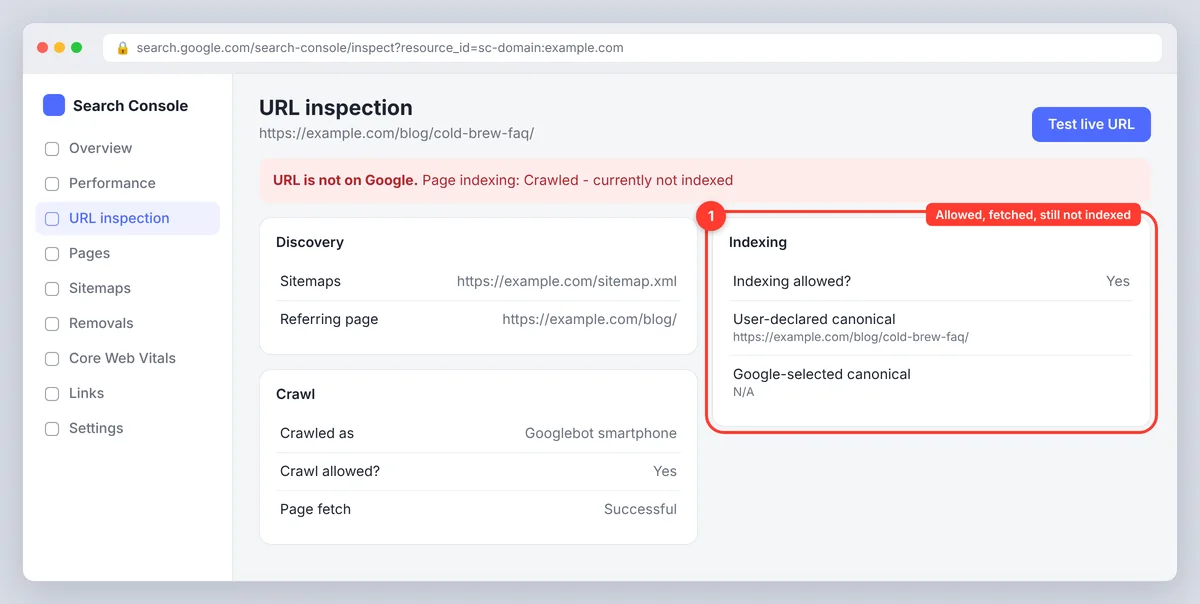
- URL is not on Google. Not indexed. The status line underneath specifies why, and the sections below explain each one.
Step 3: Expand the Page indexing section
This is the detailed part. It shows discovery (the referring sitemap and the referring page Google discovered it from), crawl (last crawl date, the Googlebot type, smartphone or desktop, whether crawling was allowed and whether the fetch succeeded), and indexing (whether indexing is allowed, the canonical you declared and the canonical Google selected). Any mismatch between "user-declared canonical" and "Google-selected canonical" is worth a look, because it means Google is showing a different URL than the one you intended.
Step 4: Test the live URL if you've changed something
Click Test live URL. Google fetches the page immediately and runs the same checks against the current version. Use View tested page (or View crawled page on the indexed result) to see the rendered version of the HTML, a screenshot and the HTTP response, including any resources that couldn't load. If the live test passes while the indexed version shows a problem, your fix is in place and you can ask for a recrawl.
Step 5: Click Request Indexing when it's warranted
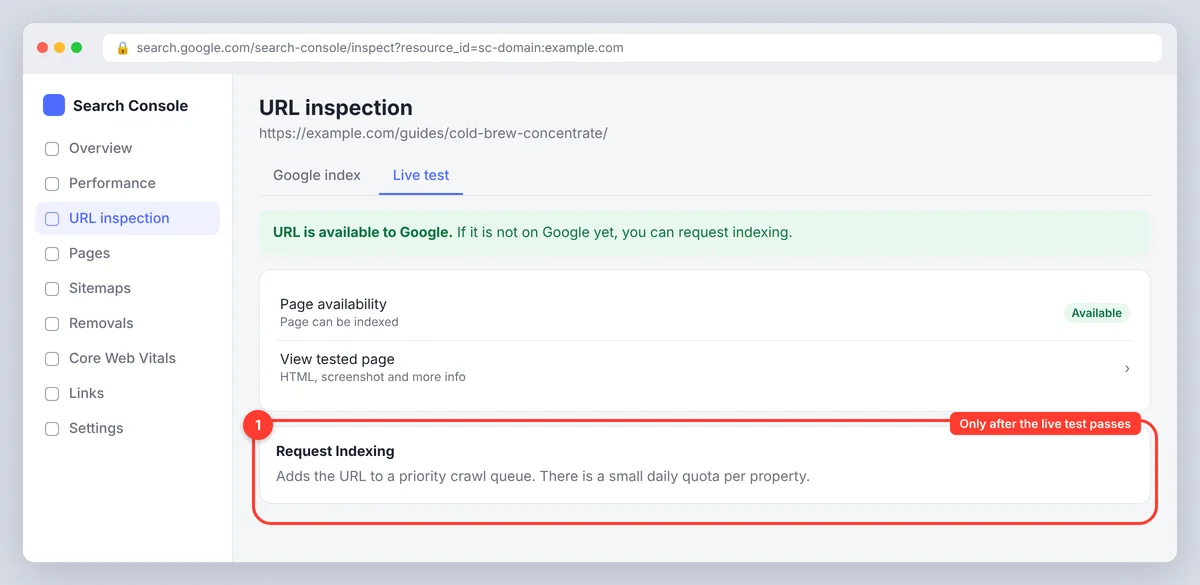
Click Request Indexing. Google runs a quick live test, then adds the URL to a priority crawl queue. There's a daily quota per property (Google doesn't publish the exact number, but it's small, in the tens), so prioritize pages that matter: a new article, a page you've substantially rewritten, a fix for a page that was wrongly excluded. Submitting an unchanged page does nothing useful and burns quota.
URL Inspection tool report: understanding each section of the data
| Section | What it tells you | What to check |
|---|---|---|
| Discovery | Sitemaps that include the URL; referring page Google found it from | Is the URL in your sitemap? Is it linked internally? |
| Crawl | Last crawl date, crawler type (smartphone or desktop), crawl allowed, page fetch result | Blocked by robots.txt? Fetch failed? Last crawl very old? |
| Indexing | Indexing allowed, user-declared canonical, Google-selected canonical | Noindex present? Canonical mismatch? |
| Enhancements | Structured data, video, AMP, breadcrumbs | Errors that block rich results |
| Live test | Current fetch, rendered HTML, screenshot, HTTP headers, blocked resources | Does the fix show in the live version? |
Crawl and indexing troubleshooting: how to debug "URL is not on Google" statuses
- Discovered, currently not indexed. Google knows the URL exists but hasn't crawled it. Usually a priority or crawl budget issue. Improve internal links to the page, make sure it's in the sitemap, and give it time. One indexing submission can help; repeated ones won't.
- Crawled, currently not indexed. Google crawled the page and chose not to index it, often because the content is thin, duplicated or very similar to other pages. Improve the page rather than submitting it again and again.
- Excluded by noindex tag. The page carries a noindex meta tag or X-Robots-Tag header. Remove it if indexing is intended, then run a live test and send the URL through again.
- Blocked by robots.txt. A disallow rule stops Googlebot from fetching the page. Edit robots.txt so you allow Google to fetch the page, confirm with the live test, then ask for a recrawl. A disallow rule prevents Google from fetching, but it doesn't remove an already indexed page; only noindex resolves that.
- Alternate page with proper canonical tag. This URL points to a different canonical URL, and Google indexed that one instead. Expected for parameter URLs and duplicate pages; a problem only if the canonical is wrong.
- Duplicate, Google chose different canonical than user. You declared one canonical, the Google canonical is another. Check for near-identical duplicate content, inconsistent internal links or redirects.
- Page with redirect. The URL redirects. Inspect the destination instead; its status is the one that matters.
- Soft 404. The page returns 200 but looks empty or like an error page to Google. Add real content or return a proper 404 or 410.
- Not found (404) or Server error (5xx). Crawl errors like these mean the page was unavailable when Googlebot called. Fix the page or the server, run the live test, then ask for a recrawl.
Request Indexing: what it can and can't do, and the usage quota
The button tells Google that a URL is worth a prompt crawl. It doesn't guarantee indexing, doesn't speed up ranking, and doesn't override a noindex tag, a robots.txt block or a canonical pointing elsewhere. If the page has a real problem, fix the problem first; the inspection report identifies issues for you. Typical turnaround is anything from minutes to a few days. If a page stays out of the Google index after one or two submissions and a clean live test, the issue is quality or duplication, and more clicks won't change the outcome.
For bulk needs (a new section of a site, a migration, a few hundred updated pages) don't click through URLs one by one. Submit or resubmit an XML sitemap under Sitemaps in Search Console (the fetch date next to it confirms Google read the file), make sure the new pages are linked from existing indexed pages, and watch the Pages report for the counts to move. The sitemap tells Google what exists; internal links tell it what matters.
URL Inspection tool vs the Pages report (Index Coverage) vs Sitemaps
| URL Inspection | Pages (indexing) report | Sitemaps | |
|---|---|---|---|
| Scope | One URL | Whole property | URLs you list |
| Best for | Debugging a single page, verifying a fix, asking for a crawl | Spotting patterns: how many pages are excluded and why | Telling Google which URLs exist and when they changed |
| Can trigger a crawl | Yes (indexing button) | Only via Validate fix on an issue | Indirectly, by submitting an updated sitemap |
| Shows live data | Yes, with the live test | No, index snapshot | No, last read date |
A simple post-publish routine
- Publish the page and make sure it's in your XML sitemap and linked from at least one indexed page (a category page, a related article, the home page).
- Inspect the URL. If it says "URL is not on Google" with no error, use the indexing button once.
- Check again in two or three days. If it's indexed, move on. If it's "Crawled, currently not indexed", improve the content and the internal links before trying again.
- After any significant update, inspect, run the live test to verify the change is visible to Google, and ask for a recrawl so the fresh version replaces the old one sooner.
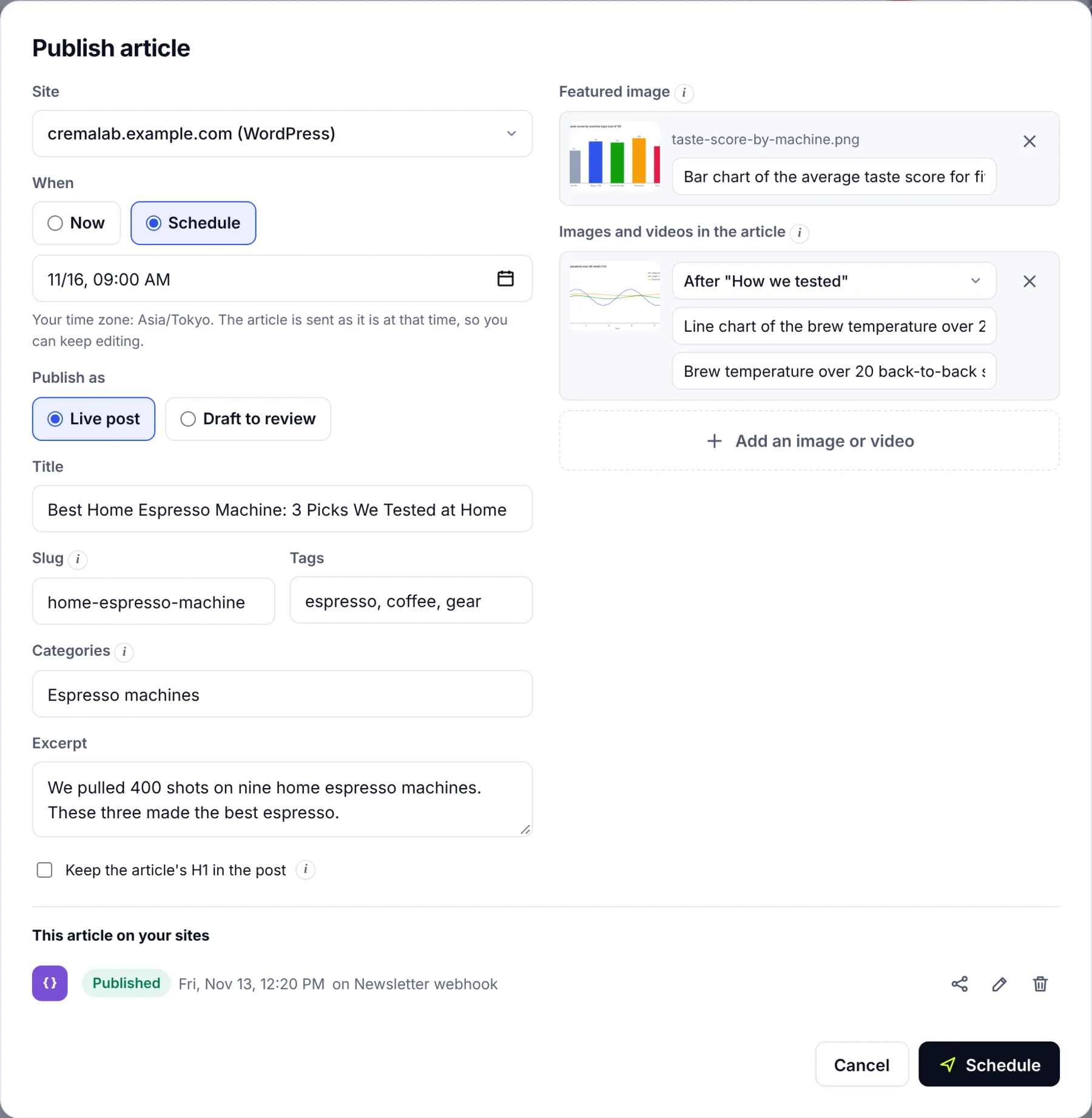
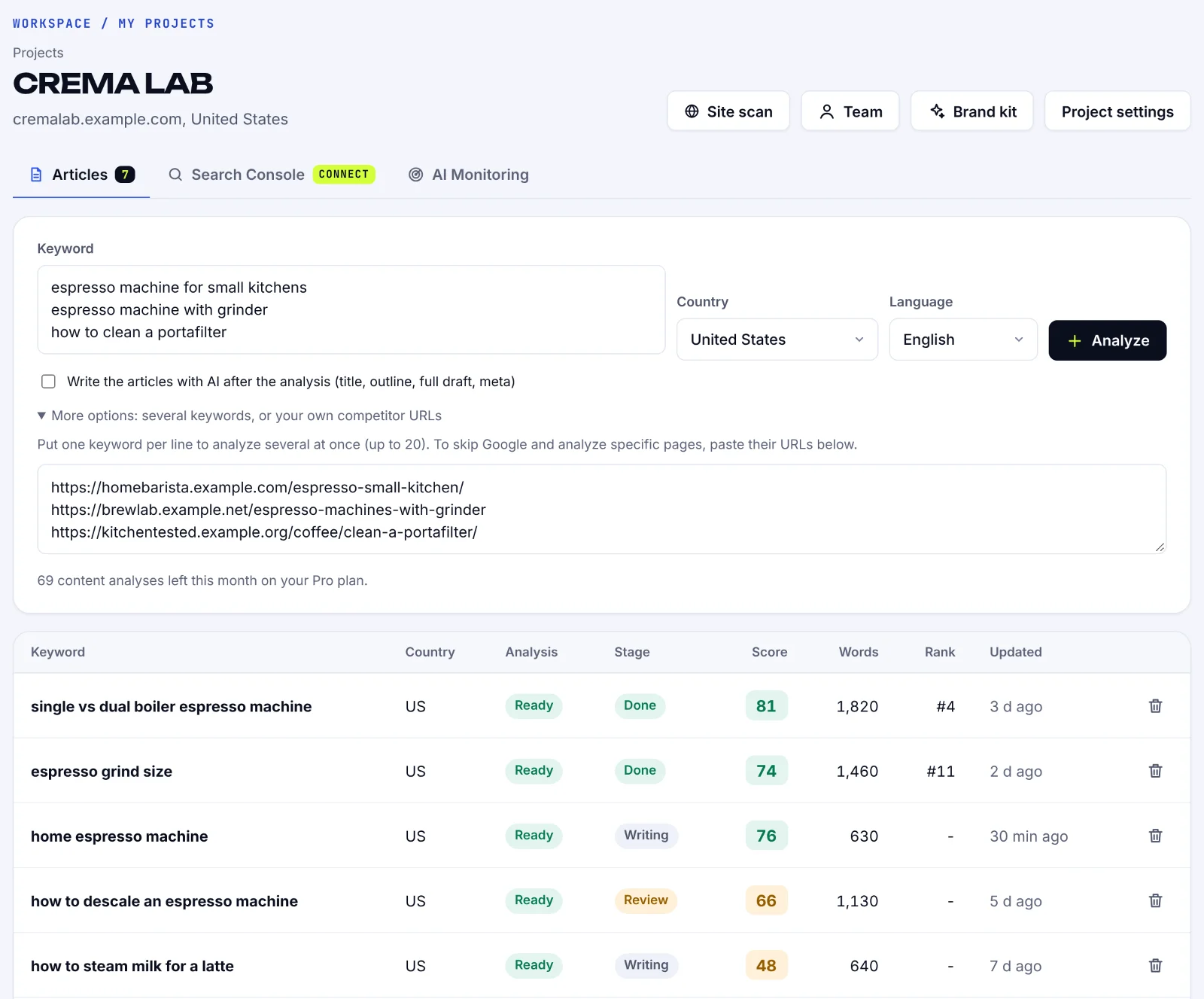
If you publish from a content tool, this routine starts earlier. SerpPal, for example, publishes articles to WordPress and connects to Search Console, so a project page shows which searches each article already appears for; see connecting Google Search Console and publishing to WordPress. The inspection step itself still happens in Search Console; no tool can trigger indexing on your behalf outside Google's own quota.
Indexed but not ranking: why the tool says "on Google" and analytics says otherwise
"URL is on Google" is a pass on eligibility, nothing more. A page can be indexed and still sit on page five, because indexing and ranking are different systems. If an indexed page gets no impressions in Google search results, check the Performance report for the queries it does appear for and your web analytics for the traffic it gets, compare it with the pages that rank for your target search, and look at the usual causes: the content doesn't match what searchers want, stronger pages cover the topic better, the page has few internal or external links, or the site has a manual action (check the Manual Actions report under Security and Manual Actions). The inspection tool can't diagnose any of that; it only confirms the page is in the running. For the SEO side, compare your page with the pages that do rank: SerpPal's analysis reads the top search results for a keyword and lists the terms, headings and questions they share, which is the gap you need to close. Our guide to keyword research with Search Console covers finding those queries.
Rendered page, JavaScript and rich results checks
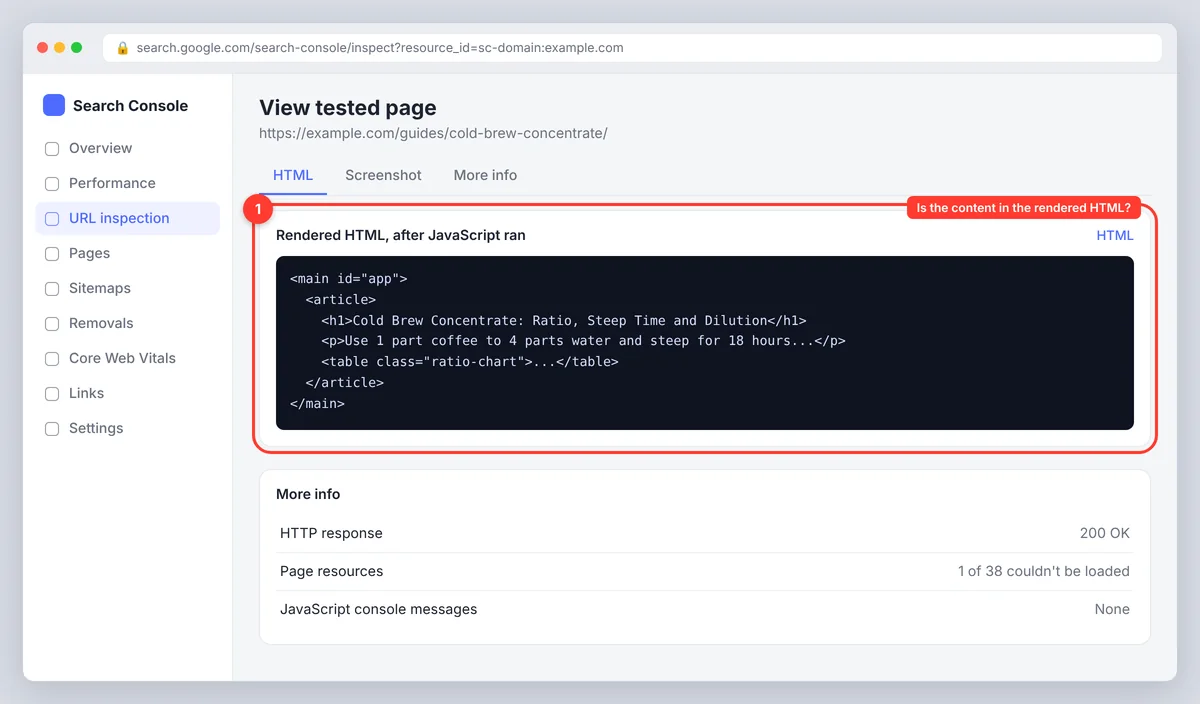
The live test's View tested page panel is the closest you can get to seeing through Googlebot's eyes. The HTML tab shows the rendered DOM after JavaScript ran, so if your content loads client-side you can confirm it's actually there. The Screenshot tab shows the rendered viewport. More info lists the HTTP response headers, the page resources Googlebot couldn't fetch (often third-party scripts or assets blocked by robots.txt) and JavaScript console messages. Below the main verdict, the Enhancements section reports structured data: "Rich results detected on the page" lists each valid item (breadcrumbs, FAQ, product, recipe, article), and errors here explain why a rich result isn't showing. If your pages carry video, the video indexing status card says whether Google found and indexed the video. AMP pages get their own card too. For recipe sites, the recipe card is where missing cook times and images show up, and fixing them is how you optimize for recipe rich results on results pages.
URL Inspection API: how the Search Console API extends the data
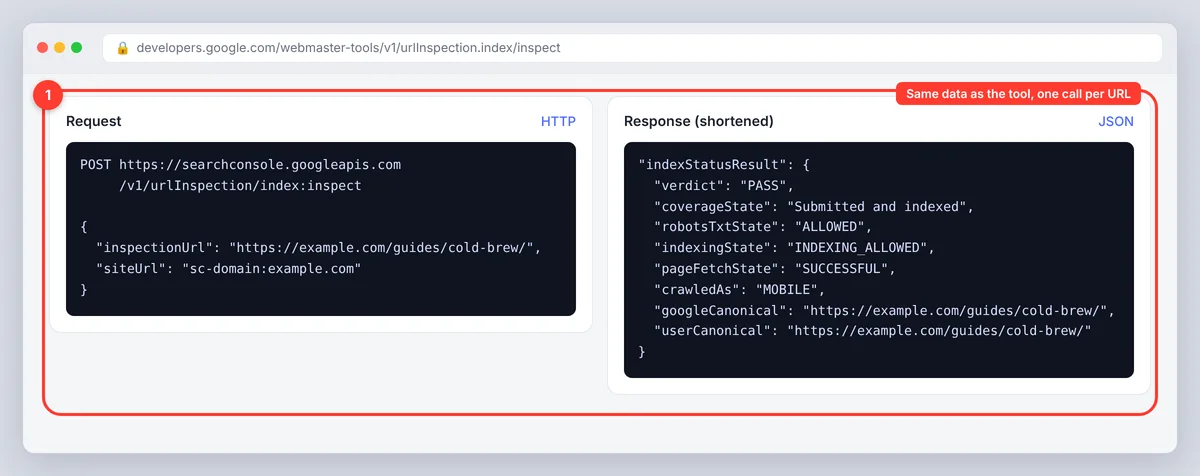
Checking URLs one at a time doesn't scale past a handful. Google's URL Inspection API, part of the Search Console API, returns the same indexing data (verdict, coverage state, last crawl, canonicals, rich results) for a URL you pass it, with a quota of 2,000 calls per property per day and 600 per minute. Desktop crawlers and SEO platforms use it (you enable API access in the tool and sign in with your Google account) to show index status next to each URL in a crawl, which is how you find a few hundred "Crawled, currently not indexed" pages in one pass instead of clicking. The API can't trigger indexing; that stays manual in the Search Console interface. It also enables monitoring: a weekly API run over your key pages identifies indexing errors before they show up as lost traffic, and the per-page insights (last crawl, canonical, status) are the same ones the interface shows. Analyze the results by template: if every recipe page or every product page shares a status, the fix is in the template, not the page.
Search Console URL Inspection: SEO tips and limits worth knowing
- The inspection tool reports the indexed version. If you changed the page an hour ago, the indexed data is stale until you run a live test. The same applies when you're allowing indexing of a page that was noindexed yesterday: the search engine hasn't seen the change until it recrawls.
- Inspect the exact URL. http vs https, www vs non-www, trailing slash and capitalization all count as different URLs.
- "Last crawl" dates weeks or months old aren't automatically a problem for existing pages that rarely change. Google crawls pages roughly as often as they change.
- The live test can fail for resources (CSS, JavaScript, images) blocked by robots.txt even when the HTML is fine. Blocked resources can affect how Google renders the page.
- The tool works for pages on verified properties only. To check a competitor's page you can only use the
site:operator in Google search, which is far less precise. - The report changes a few times a year, so when a label looks unfamiliar, check Google's URL Inspection tool help for the current wording. Mobile usability, for example, was removed from the tool in December 2023.
Conclusion
The URL Inspection tool is the fastest way to see how Google sees one page. Read the verdict, check the canonical and the last crawl, run a live test after every fix, and request indexing only for new or meaningfully changed pages. For many URLs at once, use the Pages report, a sitemap and the API instead of clicking through them one by one.
Frequently asked questions
How long does it take for Google to index a URL after I submit it?
Anything from a few minutes to several days. The button puts the URL in a priority queue for crawling, but indexing is a separate decision Google makes after the crawl, based on the page's quality and uniqueness.
How many URLs can I submit for indexing per day?
Google doesn't publish the exact quota, but it's a small number per property per day. When you hit it, the tool says the quota is exceeded and you can try again the next day.
Why does the URL Inspection tool say my page is indexed but I can't find it in search?
Indexed means eligible to appear, not that it ranks. Search for the exact URL with the site: operator to confirm it's there, then work on relevance, content quality and links to improve its position.
Can I inspect a URL that isn't in my Search Console property?
No. The tool only works for URLs within a property you've verified. For other sites, the site: search operator is the only public way to check indexing.
What's the difference between the indexed result and the live URL test?
The indexed result shows what Google stored at its last crawl. The live test fetches the page right now and runs the same checks, which is how you confirm a fix before Google recrawls on its own.