On this page
- Check backlinks in Google Search Console: step-by-step guide
- Why backlinks may be missing or delayed
- What the Links report doesn't show
- Search Console backlinks vs backlink tools
- Internal links to your website: the half of the report people skip
- How to disavow backlinks in Google Search Console
- Common mistakes when checking backlinks in Search Console
- Reading the report for SEO decisions
- Conclusion
- Frequently asked questions about GSC backlinks
To see your backlinks in Google Search Console (GSC), open the website's property, click Links in the left menu and look at the External links section: top linked pages, top linking sites and top linking text. It's free, it's Google's own data, and it covers only your website. This step-by-step guide walks through the Google Search Console backlinks report, how to export it, what it can't tell you, how it compares with backlink tools, and when (and how) to use the disavow tool.
Key takeaways
- The Links report shows a sample of the links pointing to your website, grouped by linked page, linking site and anchor text, plus your internal links.
- Each table shows up to 1,000 rows on screen; the Export external links button gives you larger lists of sample and latest links.
- No metrics: Search Console doesn't show link quality, dofollow status, dates or lost links. Backlink tools fill that gap.
- Disavowing is for manual actions and real spam attacks, not for cleaning up links you simply don't like. Most sites never need it.
- Use the report to find your most-linked pages, monitor your backlink profile over time and route that authority onward with internal links.
Check backlinks in Google Search Console: step-by-step guide
Step 1: Verify the correct Search Console property
Sign in to Google Search Console and select the property for your website. A domain property (example.com) shows links to every subdomain and protocol, www and non-www, http and https. A URL-prefix property (https://www.example.com/) shows only links to that exact version, so if you verified the wrong one the report will look thin. If the site isn't verified yet, add it with a DNS record (domain property) or an HTML file, HTML tag or Google Analytics tag (URL-prefix).
Step 2: Navigate to the Links report (External links, Top linking sites)
Click Links near the bottom of the left-hand menu. The page is split in two: External links on the left, Internal links on the right. Each section has a More link that opens the full table. Google's Links report help page describes every view if you want the official definitions.
At the top of External links you'll see a single number: Total external links. That's Google's count of links from other websites to individual URLs on your property, across the sample it's showing you, and it's the quickest health check you have. Watch it over months, not days.
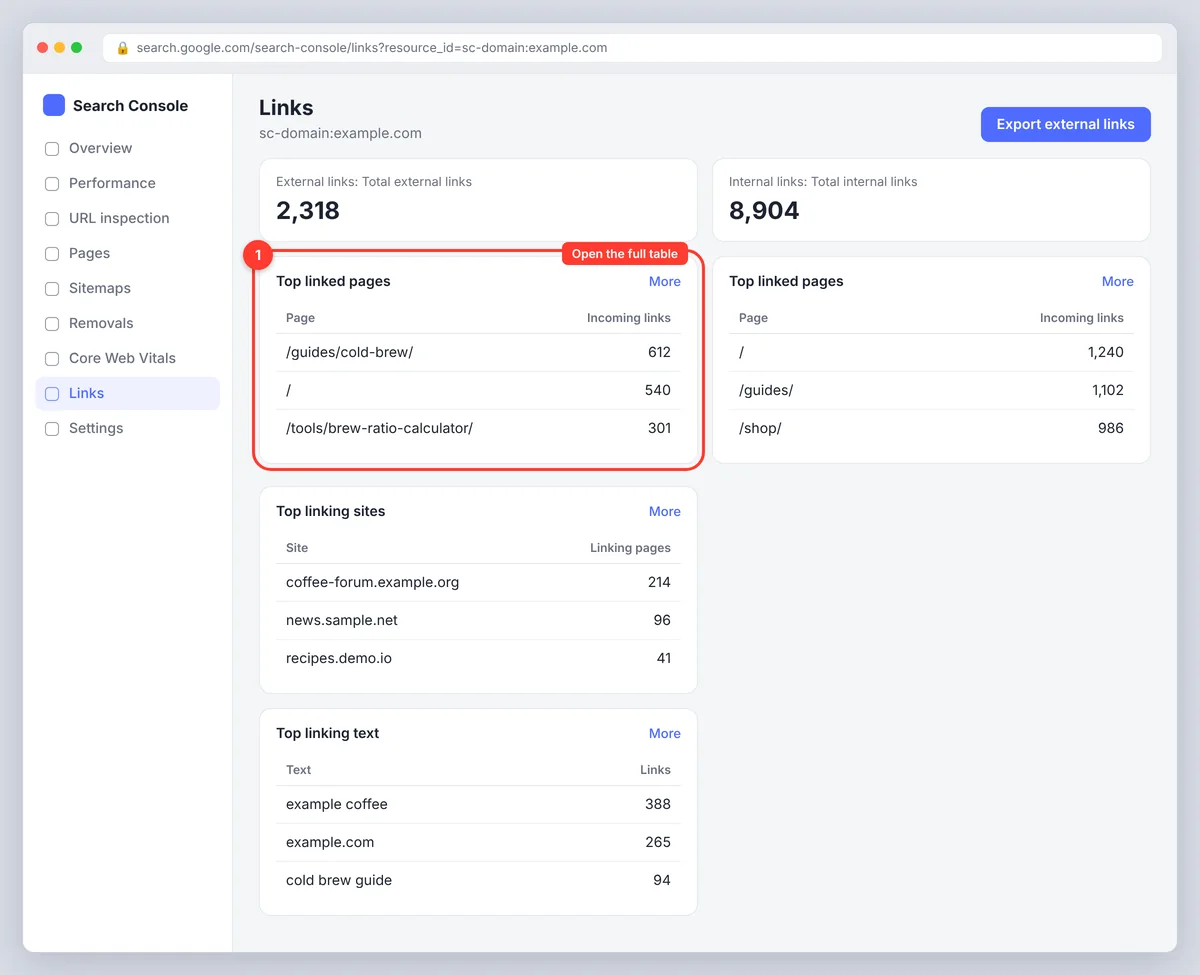
Step 3: Read the three external link views
Top linked pages
The pages on your site with the most incoming links, with two columns: incoming links and linking sites. Click a page to see which sites link to it, then click a site to see the exact linking URLs. This is where you find the content that earns links naturally: your most-linked pages are the ones worth updating, expanding and linking from, and the best guide to what your link-building should aim for.
Top linking sites
Websites that link to you, by root domain, sorted by the number of links; the Links top linking sites table is the one most people mean by "my backlinks". A site with 2,000 links is usually a sitewide footer or sidebar link rather than 2,000 editorial mentions, so look at the linking-sites column on the page view for a truer picture of who references you. Click a domain to see which of your pages it links to.
Top linking text
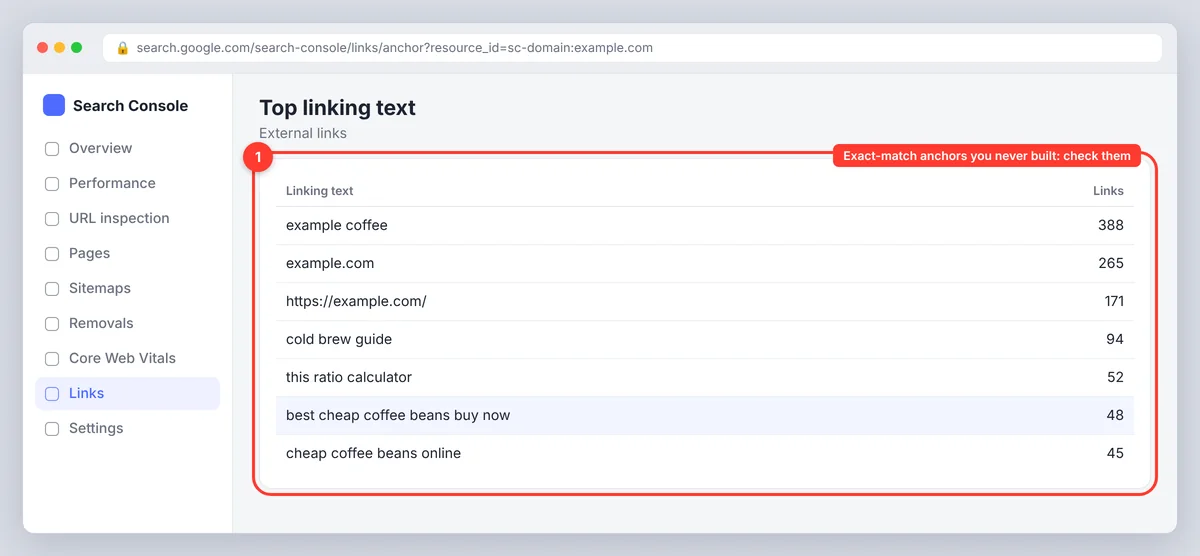
The anchor text other sites use when they link to you. A healthy profile is mostly your brand name, your URL and natural phrases. A sudden pile of exact-match commercial anchors you didn't build is the first sign of a negative SEO attempt or a spammy link network, which is where the disavow tool enters the picture.
Step 4: Export your backlinks to Excel or Sheets
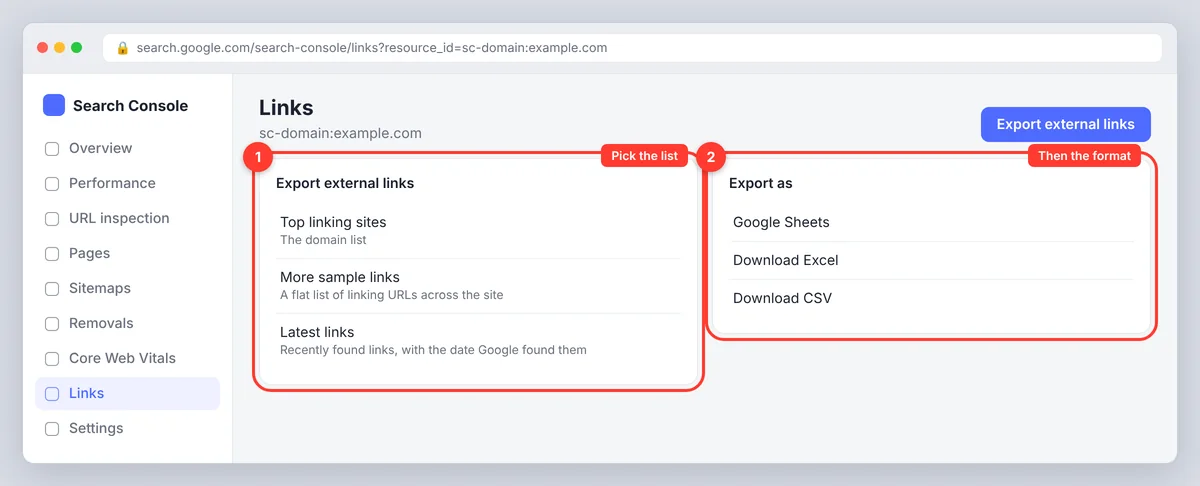
Each table shows up to 1,000 rows on screen, and each one has its own export button for that view. For bigger lists, go back to the main Links page and click Export external links in the top-right corner. You can save the file as a CSV, a Google Sheets file or an Excel file. Two options in that dropdown menu matter most:
- More sample links gives a flat list of linking URLs across your site, much longer than any on-screen table. It's the closest thing to a full backlink list Search Console offers.
- Latest links gives the most recently discovered links with the date Google found them, which is how you spot new links and new spam.
The third option, Top linking sites, exports the domain list from the linking sites view.
Export monthly and keep the files, and compare them for duplicates and drops. Search Console only shows the current sample, so your own archive is the only way to see what disappeared, and tracking the totals in a spreadsheet is the simplest backlink monitoring there is. Expect duplicates across the three exports, and keep tracking the same columns each month; the same link appears under its page, its site and its anchor text, so de-duplicate the downloaded file on the source URL before counting.
Why backlinks may be missing or delayed
A link you know exists can be absent from the report for a few reasons. The link is new and Google hasn't crawled the page yet; the reports update as Google crawls, not on a schedule. The page the link is on has a noindex or nofollow robots meta tag, or blocks crawling in robots.txt, so Google never records the link. The link points to a different version of your website (http instead of https, www instead of non-www) that isn't in the property you're looking at. Or the link is simply outside the sample Google chose to show. None of these mean the link doesn't count; they mean the Search Console reports aren't a complete index of the web, and Google won't specify which links it left out.
What the Links report doesn't show
- Link quality. No authority score, no spam score, no traffic estimate for the linking site.
- Follow vs nofollow. Everything is listed together, so you can't tell which links pass ranking signals.
- Lost links. A link that vanishes simply drops out of the sample; nothing flags it.
- Competitor backlinks. The report is for your verified websites only.
- Completeness. It's a sample. Google knows about more links than it shows, and the search console reports don't say how big the gap is.
For those you need a third-party tool that crawls the web and scores each link profile. Search Console remains the authoritative source for one thing: links Google itself has seen and counted for your website in Google search results.
Search Console backlinks vs backlink tools
| Google Search Console | Backlink tools | |
|---|---|---|
| Source | Google's own index | The tool's own crawler |
| Your site | Yes, verified properties | Yes |
| Competitors' websites | No | Yes |
| Metrics (authority, follow, traffic) | No | Yes |
| New and lost links, alerts | Latest links export only | Yes, with dates and email alerts |
| Cost | Free | Usually paid |
Internal links to your website: the half of the report people skip
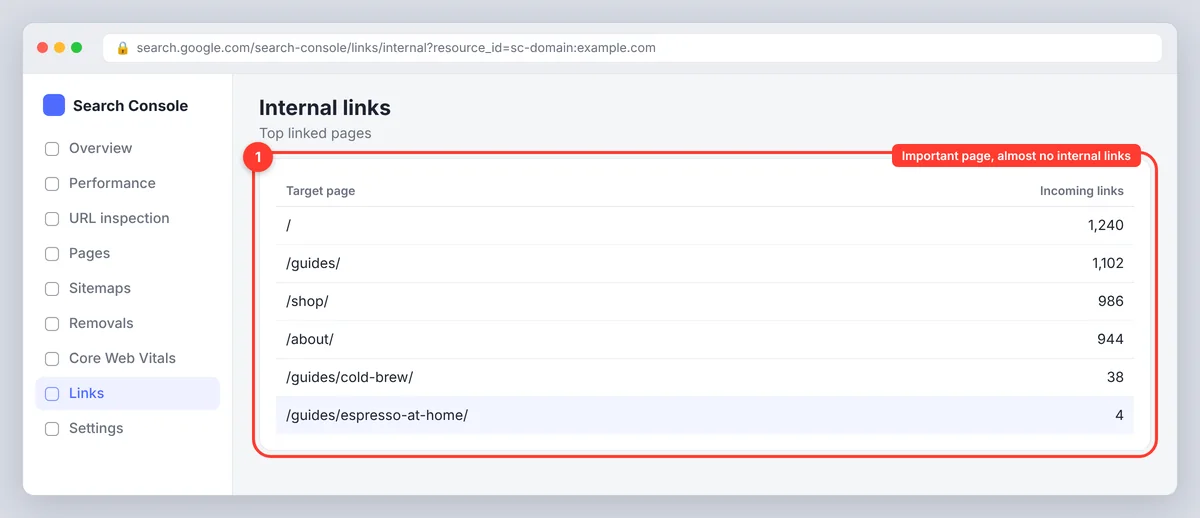
The Internal links section lists your pages by how many links they receive from elsewhere on your own site. It's the fastest way to find two problems on any website: important pages with almost no internal links, which Google will treat as unimportant, and old pages with hundreds of links (usually from navigation) that could pass that weight to newer content. Pair it with the external view, and with Google Analytics for the traffic side: a page with strong backlinks and weak internal links is wasting the authority it earned, and link-building effort is cheaper to spend on pages that already attract links. SerpPal reads your sitemap and suggests internal links while you write, so new articles get linked from the pages that already carry weight; see sitemap and internal links.
How to disavow backlinks in Google Search Console
The disavow tool tells Google to ignore specific links when assessing your website. Google's own guidance is blunt: most sites don't need it, and using it wrongly can hurt. Use it only if you have a manual action for unnatural links in Search Console, or if you can see a large number of spammy, paid or network links pointing at you that you can't get removed, and you have reason to think they'll cause a manual action.
- Create a list of links to disavow. Export your links, review the suspicious domains manually, and ask the site owners to remove the links first. Keep a record of the requests.
- Create a plain text file (UTF-8, .txt). One URL or domain per line. Use
domain:example.comto disavow a whole domain, which is almost always the right choice. Lines starting with#are comments. - Open the disavow links tool (it isn't in the Search Console menu), select the property and click the upload button. Only URL-prefix properties are supported, so a domain property owner has to add a URL-prefix version first.
- Wait. Google reprocesses the links as it recrawls them, which takes weeks. If you had a manual action, submit a reconsideration request afterwards and explain what you did.
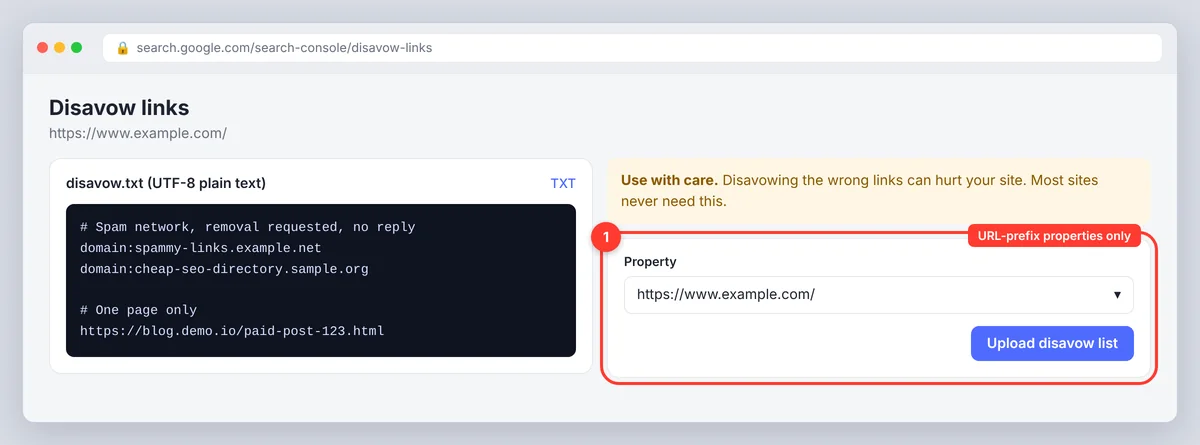
Uploading a new file replaces the old one, so keep a master copy. To undo, download the current file and use Cancel disavowals on the same page; the disavowed links then count again once Google recrawls them. Google's disavow documentation has the format details.
Common mistakes when checking backlinks in Search Console
- Looking at the wrong property. A URL-prefix property for
https://www.misses links to the non-www or http versions. Use a domain property for the full picture. - Treating the total as your real link count. The total is a count of links in Google's sample, inflated by sitewide links. The number of linking sites is the more useful figure.
- Panicking over spammy-looking domains. Every site picks up scraper and directory links. Google ignores most of them, so a few odd domains are not a reason to disavow.
- Checking once and never again. Without monthly exports you can't see trends or lost links, because the report only shows the current sample.
- Ignoring internal links. Strong external links to a page help most when that page links on to the pages you want to rank. Our on-page SEO checklist covers internal links step by step.
Reading the report for SEO decisions
- Find link magnets. Sort Top linked pages by linking sites. Those topics earn links; make more like them and refresh the originals. Relevance matters more than volume: ten links from sites in your field beat a hundred from directories.
- Route authority. Add internal links from your most-linked pages to the pages you're trying to rank.
- Catch spam early. Monitor and analyze Latest links and Top linking text monthly for sudden spikes, foreign-language or casino-style anchors from spam sites.
- Check a redirect migration. After changing URLs, confirm the old most-linked pages redirect to the new target URL, or the links are wasted; crawl errors on those URLs show up in the Pages report.
- Combine with performance data. A page with many backlinks and poor organic traffic usually has a content problem. Analyze the keyword, compare the page with the top results and fill the gaps. The Search Console connection in SerpPal puts the search data next to the article so that comparison is one click.
Conclusion
The Google Search Console backlinks report is free, comes straight from Google and takes a minute to check. Use it to find your most-linked pages, export the lists every month, watch the anchor text for spam and pass the authority on with internal links. Add a backlink tool when you need metrics or competitor data, and leave the disavow tool alone unless you face a manual action or a clear spam attack.
Frequently asked questions about GSC backlinks
Does Google Search Console show all links to your site?
No. It shows a sample of the links Google has found, up to 1,000 rows per view on screen and a longer list in the "More sample links" export. It's the most authoritative sample you'll get, but not a comprehensive list, and nothing in the Google index is guaranteed to appear.
How often is the Links report updated?
Continuously as Google crawls, with no fixed schedule. New links usually appear within days to a few weeks of Google discovering them. The Latest links export shows the discovery date.
Can I see nofollow links in Search Console?
Not separately. The report doesn't label links as follow or nofollow, and it may include either. Use a backlink tool or check the linking page's source if it matters for a specific link.
Should I disavow low-quality links?
Usually not. Google says it generally ignores spammy links it detects, and disavowing ordinary low-value links does nothing. Reserve the tool for a manual action or a clear, large-scale spam attack you can't get removed.
Can I see competitors' backlinks in Google Search Console?
No. Search Console only reports on websites you've verified. For competitor backlinks you need a third-party backlink checker.