On this page
- How to turn on spell check and grammar check in Google Docs
- How to run a full grammar and spelling check
- Google Docs grammar check not working? Try these fixes
- What the Google Docs grammar checker catches (and misses)
- Best grammar and spelling add-ons for Google Docs, including AI writing tools
- Tips for proofreading in Google Docs
- FAQ
To check grammar in Google Docs, go to Tools, then Spelling and grammar, then Spelling and grammar check, or press Ctrl+Alt+X (Cmd+Option+X on a Mac). The editor identifies each error and walks you through it so you can accept or ignore the fix. Red squiggly lines mark misspelled words; blue lines mark grammar errors.
This guide covers how to turn the built-in grammar checker on, how to use it, what to do when the Google Docs grammar check is not working, and which grammar checker add-ons and Chrome extensions, such as Grammarly and LanguageTool, are worth installing for more in-depth writing suggestions.
Key takeaways
- Run a full scan with Tools, then Spelling and grammar, then Spelling and grammar check, or Ctrl+Alt+X.
- Tick both "Show spelling suggestions" and "Show grammar suggestions", or the squiggly lines won't appear.
- Most problems come from a wrong document language, suggestions turned off, or a browser extension interfering.
- Google Docs catches typos and common grammar mistakes, but misses many style, tone and punctuation issues.
- For more, install a grammar checker extension or add-on; free versions cover the basics, Premium plans add style and tone checks.
How to turn on spell check and grammar check in Google Docs
- Open your document in Google Docs.
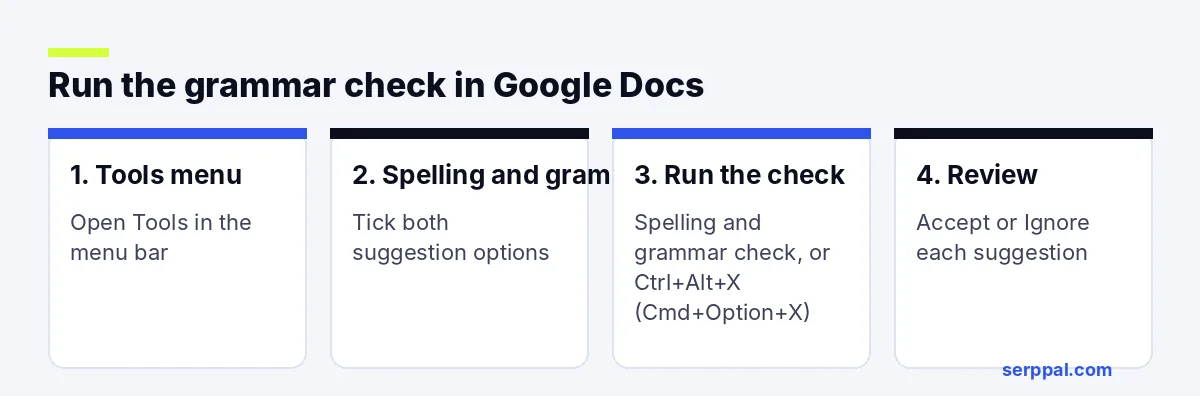
- Click Tools in the menu bar.
- Hover over Spelling and grammar.
- Make sure Show spelling suggestions and Show grammar suggestions both have a check mark.
Once they're on, Google Docs automatically underlines possible errors as you type: a red squiggly line for spelling errors and a blue one for incorrect grammar. Click an underlined word, or right-click it, to see the correction, then choose Accept or Ignore.
How to run a full grammar and spelling check
Underlines are easy to miss in a long document. To check spelling and grammar in one pass, run the full review; it identifies each issue in order:
- Press Ctrl+Alt+X (Windows, Chromebook) or Cmd+Option+X (Mac), or go to Tools, then Spelling and grammar, then Spelling and grammar check.
- A box opens in the top right with the first correction.
- Click Accept to fix it, Ignore to skip it, or use the arrows to move between corrections.
- Use the three-dot menu to Add to dictionary words that are correct but unusual, like names or technical terms, so they aren't flagged as incorrect again.
When the box says there's nothing left, you're done. Google Docs never changes your text on its own; every correction needs your click.
Manage your personal dictionary
Words you add are saved to your personal dictionary for all your documents. To review or remove them, go to Tools, then Spelling and grammar, then Personal dictionary. This helps if you added a misspelled word by accident.
Google Docs grammar check not working? Try these fixes
- Turn the options back on. Check that both options under Tools, then Spelling and grammar, are ticked.
- Check the document language. Go to File, then Language, and select the right language and variety, such as English (United States). Grammar suggestions work in fewer languages than spelling, and a wrong setting can hide them.
- Refresh the page. A simple reload often brings the underlines back.
- Disable conflicting extensions. Grammar checker extensions and some ad blockers can interfere with the built-in tool. Test in an incognito window, where extensions are usually off.
- Check your connection. Grammar suggestions need the internet; offline mode may only check spelling.
- Clear the cache or try another browser, such as switching from Chrome to Firefox or Safari for a quick test.
- Split very long documents, where the scan can be slow or incomplete.
- Check admin settings on a school or work account, where some features can be limited.
What the Google Docs grammar checker catches (and misses)
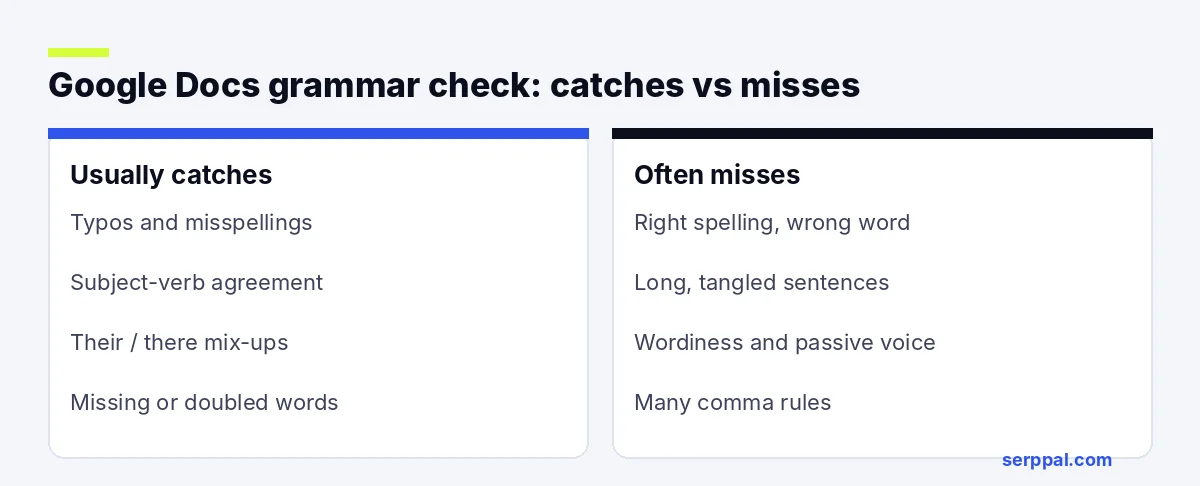
The built-in spell checker is reliable for typos, and the grammar check catches common errors, but it doesn't analyze style or tone in depth.
| Usually catches | Often misses |
|---|---|
| Typos and misspelled words | Correctly spelled wrong words ("form" instead of "from") |
| Subject-verb agreement | Awkward sentence structure and long sentences |
| Common homophones like "their" and "there" | Word choice, tone and consistency |
| Missing or doubled words | Many punctuation errors, like missing commas |
| Some incorrect verb tense and verb forms | Style, clarity, wordy phrasing and readability |
Best grammar and spelling add-ons for Google Docs, including AI writing tools
If the built-in tool isn't enough, these writing tools add deeper corrections, style and clarity improvements, and sometimes AI rewrites of whole sentences. Most install from the Chrome Web Store as a browser extension, or as a Google Docs add-on from the Workspace Marketplace (Extensions, then Add-ons, then Get add-ons). An add-on runs inside Docs; an extension runs in the browser on many sites.
Grammarly for Google Docs
Grammarly works inside Google Docs through its Chrome extension, so it fits your normal writing workflow. Grammarly's free version flags grammar mistakes, misspelled words and punctuation, and highlights each issue with an explanation; Grammarly Premium adds suggestions for tone, word choice, style and clarity, plus AI writing features and a plagiarism checker.
Pros: detailed explanations, tone suggestions, synonyms for overused words, works across many sites and in Firefox too. Cons: the best features need Premium; it can conflict with the built-in checker.
LanguageTool
LanguageTool is a multilingual grammar checker that supports more than 30 languages (a useful option if you write in two of those 30 languages), including Portuguese, Spanish, French and German. It works in Google Docs through a browser extension and also has a desktop app and an add-on for MS Word.
Pros: strong for non-English and mixed-language writing and academic text; works in all major browsers, including Google Chrome; a style check for repeated phrases; generous free version. Cons: fewer style suggestions in the free plan.
Gemini in Google Docs
On Google Workspace plans that include Gemini, an AI assistant sits inside Docs and can rewrite, shorten or refine a selection. It's generative AI writing help rather than a grammar checker, so it's best for rephrasing awkward passages or helping you generate drafts. Check any AI rewrites, because they can change your meaning.
SerpPal grammar checker
SerpPal's grammar checker is a paste-in tool: paste or upload your text, and it underlines each mistake, explains it, and lets you accept fixes one by one or all at once, so the corrected text is error-free before you paste it back. To check spelling across a long file, upload a PDF or Word document. Our free Chrome extension checks grammar and spelling in text boxes on most websites, such as email and forms; for Google Docs, paste your draft into the checker instead.
Pros: plain-language explanations, American or British spelling, optional clearer-wording suggestions, and you can upload a file instead of pasting. Cons: works on plain text, so paste formatting back by hand.
Tips for proofreading in Google Docs
- Read it aloud. Your ear catches incorrectly used words and clumsy phrases that your eyes skip.
- Use Find and replace (Ctrl+H) to fix a repeated mistake everywhere at once.
- Check the word count with Ctrl+Shift+C. Our guide to the Google Docs word counter shows more options.
- Check readability with a free readability checker to find long, complex sentences and wordy passages.
- Use suggesting mode when someone else edits your drafts, so you can review each change.
- Take a break. Proofread polished drafts after a pause; fresh eyes catch more misplaced commas and incorrect words. Clear, precise writing is what all these tools spelling and grammar checks aim for.
FAQ
Does Google Docs have a grammar checker?
Yes. Google Docs has a built-in spelling and grammar checker. Turn it on under Tools, then Spelling and grammar, and run a full scan with Ctrl+Alt+X (Cmd+Option+X on a Mac).
Why is spell check not working in Google Docs?
Usually because spelling suggestions are turned off, the document language is wrong, or an extension is interfering. Turn the option on, check File, then Language, and test in an incognito window.
Is Grammarly better than the Google Docs grammar checker?
Grammarly catches more style, tone and punctuation errors and explains its corrections, especially with Premium, and adds AI writing features. The built-in checker is free and good enough for typos and basic grammar.
Can Google Docs check grammar in other languages?
Spelling works in many languages. Grammar suggestions are available in fewer, so set the right document language. For multilingual writing, a tool like LanguageTool covers more languages.