On this page
- Overview: four ways to see the word count in Google Docs (quick comparison)
- Word count from the Tools menu or the shortcut
- Keep a live word count visible while typing
- Count selected text, a paragraph or a section
- Word count on mobile: Android, iPhone and iPad
- What Google Docs counts, in detail
- Free online word counter: characters, sentences, reading time and more
- Word count in Microsoft Word
- Word count not showing? Quick fixes
- A note on privacy and Chrome extensions
- Conclusion
- Frequently asked questions
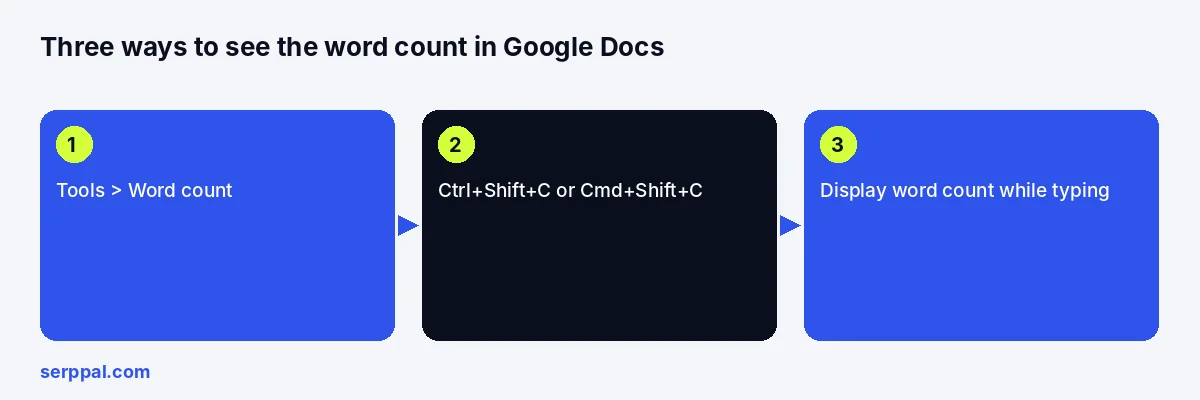
The simplest word counter for Google Docs is the one built in: open Tools > Word count, or press Ctrl+Shift+C on Windows and ChromeOS (Cmd+Shift+C on a Mac), and a box shows the words, characters, characters without spaces and pages in the document or in whatever text you have selected. Tick Display word count while typing and the count stays in the bottom-left corner and updates as you write. For a sentence and paragraph count, reading time, readability scores and the words you repeat most, paste the text into a free online word counter.
This guide covers every way to see the count on desktop and mobile, what Google Docs does and does not count, how to fix a count that will not appear, and when an online word counter tool is the better choice for essays, articles and social posts with strict word limits.
Key takeaways
- Desktop: Tools > Word count or Ctrl+Shift+C / Cmd+Shift+C. Select text first to count only that part.
- Live count: tick Display word count while typing in the word count box; it then sits at the bottom left and updates instantly.
- Mobile: tap the three-dot menu in the Google Docs app and choose Word count.
- Docs counts the body text. Headers, footers and footnotes are not included unless you select them.
- For a character count, sentences, paragraphs and reading time, plus repeated words, an online word counter adds what Docs leaves out, instantly and in your browser.
Overview: four ways to see the word count in Google Docs (quick comparison)
| Method | Where | Best for |
|---|---|---|
| Tools menu | Tools > Word count | A one-off check of the whole document |
| Keyboard shortcut | Ctrl+Shift+C (Windows, ChromeOS) or Cmd+Shift+C (Mac) | The same check without the mouse |
| Live word count | Tick "Display word count while typing" | Writing essays to a limit, such as a 500-word assignment |
| Mobile app | Three-dot menu > Word count | Checking on a phone or tablet |
All four use the same built-in counter, so the numbers match. The difference is only how you get to them. It works in any language that separates words with spaces, from English to Turkish, and it works offline once the document is open.
Word count from the Tools menu or the shortcut
- Open the document in Google Docs on a computer.
- Click Tools in the menu bar, then Word count. Or press Ctrl+Shift+C (Windows, ChromeOS, Linux) or Cmd+Shift+C (Mac).
- The box lists Pages, Words, Characters and Characters excluding spaces.
- Close the box when you are done, or press Escape.
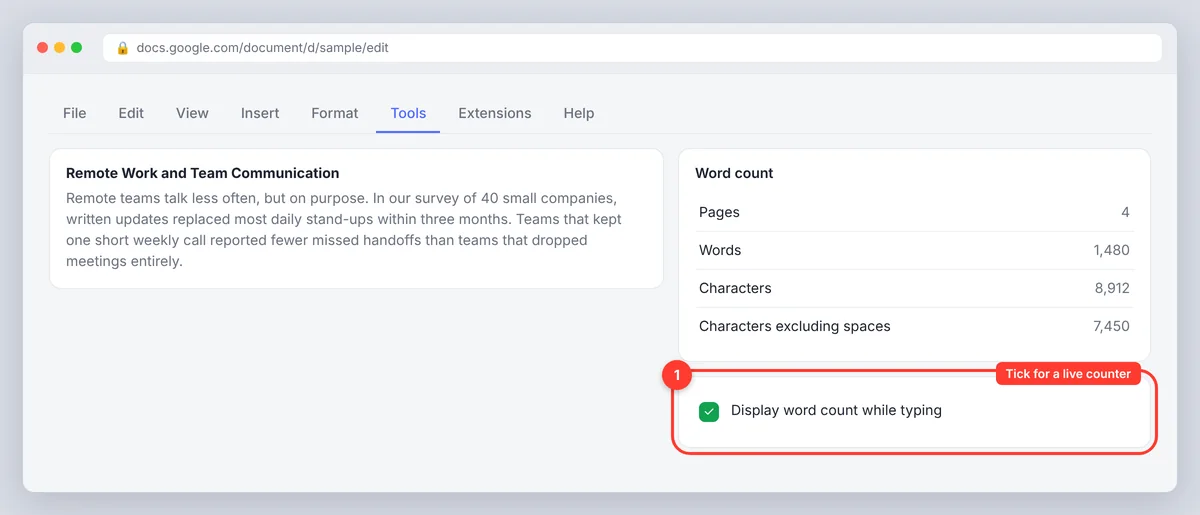
If the shortcut does nothing, a browser extension or another app has probably claimed the key combination; the menu always works. Note that Ctrl+K is a different shortcut in Docs: it inserts or edits a link.
Keep a live word count visible while typing
Open the word count box as above and tick Display word count while typing. A small counter appears at the bottom-left corner of the document and updates in real time as you type, delete and paste. Click it to switch the display between words, characters and pages. To remove it, click the counter and choose Hide word count, or untick the box.
The live counter is the one to use when you are writing essays or articles to a length limit. It shows the selection count whenever text is highlighted, so you can see how many words a paragraph is before cutting it.
Count selected text, a paragraph or a section
Highlight the text first, then open the word count (menu or shortcut). The box shows the selection's words and characters next to the document total, for example "312 of 1,480 words". With the live counter on, the same figure appears at the bottom left while the text stays selected.
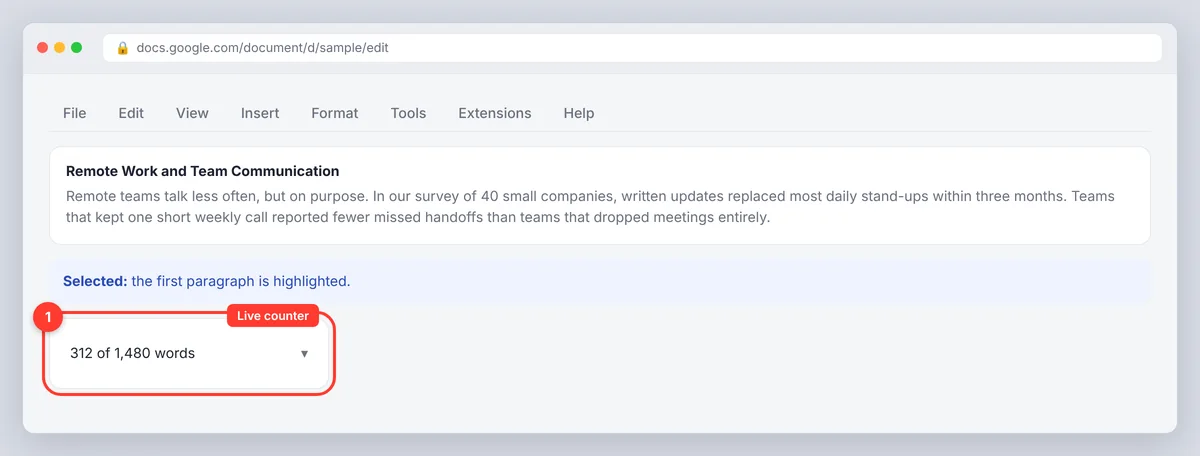
This is the quickest way to check an abstract, a single answer in a longer assignment, or the intro you have been asked to keep under 100 words. Double-click selects a word, triple-click selects a paragraph, and Ctrl+A (Cmd+A) selects everything.
Word count on mobile: Android, iPhone and iPad
- Open the document in the Google Docs app.
- Tap the three-dot More menu (top right on most devices).
- Tap Word count.
- The app shows the words and characters, with and without spaces.
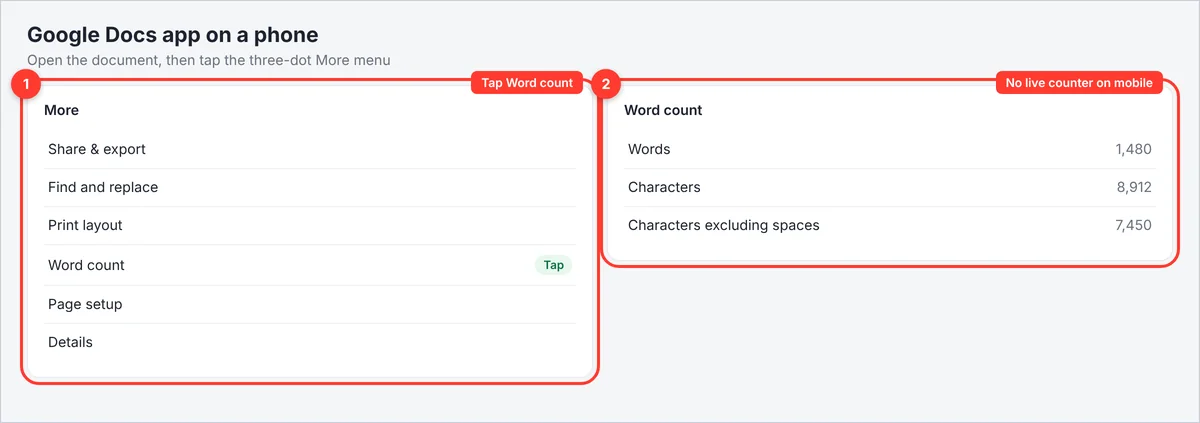
The mobile app has no persistent live word counter, and the menu position shifts a little between Android and iOS versions. If Word count is missing, update the application, or open the document in a mobile browser's desktop mode. There is no signup or extra install; it is part of the app. Selected text is counted the same way as on desktop: highlight it, then open the count.
What Google Docs counts, in detail
Knowing the rules saves arguments with a teacher or an editor:
- Body text only. Google's word count help page says the count covers everything except headers, footers and footnotes, unless you select a section. Select footnote text and count it separately if your assignment includes it.
- Hyphens, numbers and symbols can be counted differently from other tools. If your text has many hyphenated words, URLs or figures, expect a small difference between Docs and another counter.
- Characters include punctuation and, in the first figure, spaces; the second figure excludes spaces.
- Pages reflects the current page setup, so changing margins or font size changes it.
- Text in drawings and images is not counted; text in tables is.
- Languages without spaces (Chinese, Japanese, Thai) are counted differently, and the result may not match what a publisher expects. Follow the rules you have been given, not the software.
Free online word counter: characters, sentences, reading time and more
Google Docs gives you words, characters and pages. For any other stats, paste the text into a free online word counter. SerpPal's free word counter runs entirely in your browser, needs no signup or Google account, and shows a word and character count with and without spaces, a sentence and paragraph count, reading time (at 238 words a minute, the average adult silent reading speed), speaking time (150 words a minute), words per sentence and the words you use most. The text stays on your computer; nothing is uploaded, processed on a server or stored, which matters when the prose is a manuscript, a contract under NDA or confidential client work. The same stats are useful for essays with a word limit, blog posts with a reading-time target, and SEO copy with a character budget.
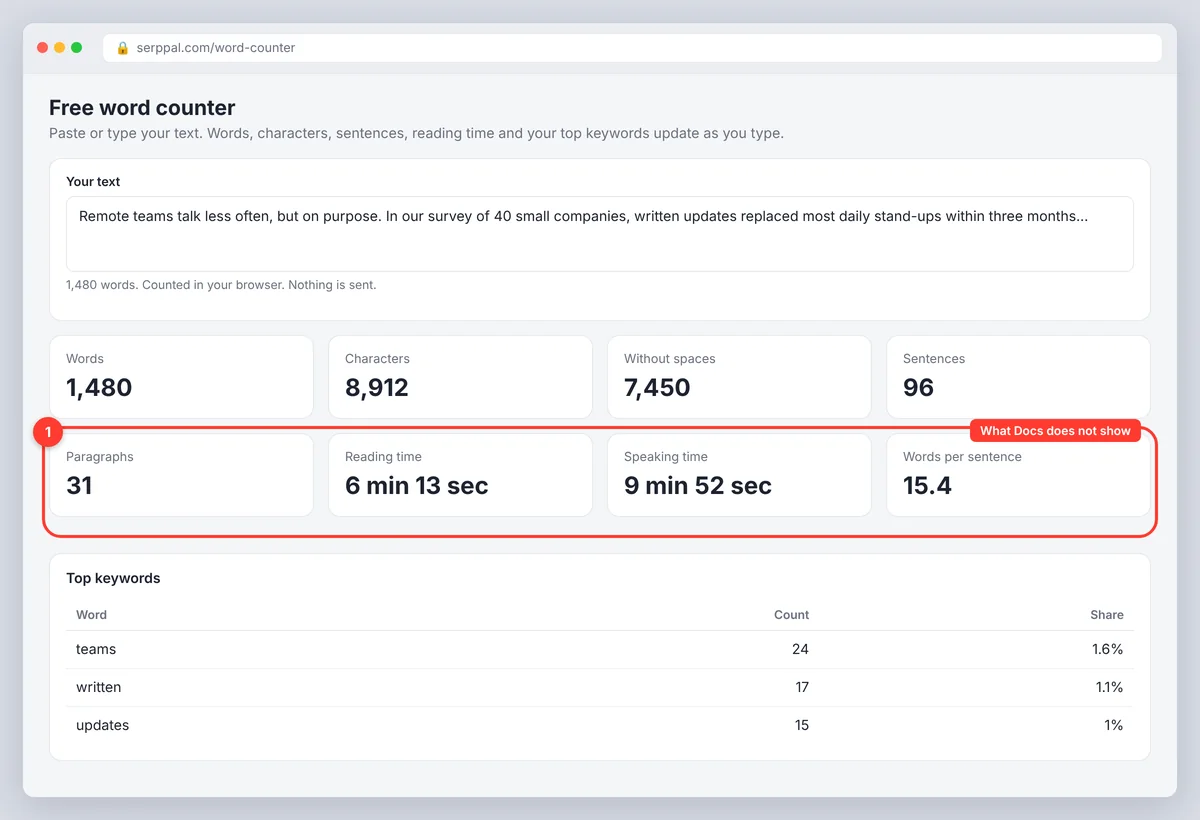
It is the better choice when you need to:
- hit a character limit for an SEO meta description, a LinkedIn post or an Instagram caption rather than a word limit;
- know the reading time of a piece, or how long it takes to say aloud, for blog posts, a speech or a video script; reading time is the stat editors ask for most;
- see the repeated words in a draft before an editor does, which marketers use as a quick keyword density check before running a proper density report;
- count text that is not in Docs at all: a Gmail message, a PDF, a web page, a chat message.
Copy, paste, read the numbers, and the original document stays untouched; it fits into any writing workflow without changing it, and the counts update in real time as you edit the pasted copy. For a deeper check on the same text, the readability checker and keyword density checker sit next to it, also free.
Adapt text for social and platform limits
Most platform limits are character limits, not word limits, and spaces and punctuation count. Check the character total against the platform's current limit before publishing, and remember that Docs' "characters excluding spaces" figure is not the one platforms use. A counter cannot confirm every platform rule, so check the platform itself for anything that matters.
Word count in Microsoft Word
Microsoft Word shows the word count on the status bar at the bottom of the window; click it for a dialog with characters, paragraphs and lines, or go to Review > Word Count. Select text first to count a passage, as in Docs. Word's rules differ slightly (it has an option to include footnotes and endnotes), so a document moved between the two word processors can show slightly different counts; neither is wrong, they count different things. For accuracy that matters, such as a submission limit, use the counter your teacher or publisher uses. Microsoft's word count help explains its own rules.
Word count not showing? Quick fixes
- The shortcut does nothing. Use Tools > Word count instead, then check your browser extensions for one that uses Ctrl+Shift+C.
- The live counter disappeared. Open the word count box again and tick Display word count while typing. It also hides if someone chose Hide word count.
- The number looks too low. Check whether text sits in headers, footers, footnotes, text boxes or drawings, which are left out. Select that text and count it on its own.
- The number looks too high. Selected text changes the figure. Click once in the document to clear the selection, then check again.
- The menu item is grayed out. You may be in a file that is not a Google Doc, such as a Word file opened for preview or a PDF. Open it with Google Docs first, or paste the text into an online counter.
A note on privacy and Chrome extensions
Several Chrome extensions add an always-on counter icon to Docs or count text in any browser tab. Docs' own live counter does the first job without an extension, and an online counter does the second. If you do install one, check what it can access: an extension that reads page content can read every document you open, and that text may be transferred to the developer's servers.
The Chrome Web Store listing tells you more than the reviews.
Details: what the developer declares that your data is used for
Under Privacy, the developer declares what the item collects and makes three promises: that your data is not sold to third parties outside approved use cases, not used or transferred for purposes unrelated to the item's core functionality, and not used or transferred to determine creditworthiness or for lending purposes. Under Details, a developer may also have identified itself as a non-trader, which means consumer protection rights for contracts between consumers and traders do not apply. Read the developer privacy policy linked there (a developer that handles user data has to publish one), prefer an application that processes text locally and does not keep anything stored, and avoid any extension that asks for access unrelated to counting words. If the developer cannot say plainly what is collected and what is transferred, the live word counter in Docs is the safer choice for consumers and businesses alike.
Conclusion
For most people, the built-in counter is all the word counter Google Docs needs: Tools > Word count, or Ctrl+Shift+C, with Display word count while typing turned on for anything with a limit. Select text to count a single part, and remember that headers, footers and footnotes are left out. When you need sentences, reading time, character budgets or repeated words, paste a copy into a free online counter and keep the original document as it is.
Frequently asked questions
How do I enable the word counter in Google Docs?
Open Tools > Word count (or press Ctrl+Shift+C on Windows and ChromeOS, Cmd+Shift+C on a Mac) and tick Display word count while typing. The counter then stays at the bottom-left corner of the document and updates as you write. Click it to switch between words, characters and pages, or to hide it.
How do I see the word count for selected text in Google Docs?
Highlight the text, then open the word count box or glance at the live counter. Docs shows the selection's words and characters alongside the document total, for example "312 of 1,480 words".
Does Google Docs count footnotes, headers and footers?
No. The word count covers the body of the document only. To count footnotes, select the footnote text and open the word count; to count a header, select it the same way. Check what your instructor or publisher includes before relying on the figure.
How do I check the word count on the Google Docs mobile app?
Open the document, tap the three-dot menu in the top corner, and tap Word count. The app shows words and characters. There is no persistent live counter on mobile; for that, use a computer or the browser's desktop mode.
How do I count words in a Google Doc without opening it?
Open the document, press Ctrl+A to select all, copy, and paste into an online word counter. Or share the document and check it from any device with the Docs app. There is no way to see a document's word count from the Drive file list itself.