On this page
- What on-page SEO in WordPress means, and how it differs from technical SEO
- Search engine optimization checklist for WordPress: the on-page elements in easy steps
- Which on-page elements WordPress handles, which SEO plugins handle, and which you do
- Common SEO for WordPress mistakes on any WordPress site
- Conclusion
- Frequently asked questions
On-page SEO in WordPress means matching each post or page to what someone is searching for, then making that content clear to readers and easy for search engines to understand: the SEO title, subheadings, slug, body copy, internal links, images and schema. WordPress gives you the controls (slug settings, an editor, categories) and an SEO add-on fills the gaps (titles, meta descriptions, the sitemap, schema), but neither chooses the focus keyword or writes the answer. This WordPress SEO checklist walks through twelve easy steps, in the order you'd do them for a new blog post, with notes on what to check differently for an existing page.
Key takeaways
- Start with search intent and keyword research; the format of the top results tells you what kind of content to write.
- WordPress handles slugs, heading structure and categories. One SEO plugin (Yoast SEO, Rank Math or AIOSEO) handles metadata, the XML sitemap and basic schema. Use one, not two.
- Internal linking is the most under-used on-page lever on WordPress sites: link new posts from the posts that already rank.
- Images, speed and Core Web Vitals are on-page work too; a slow theme or oversized photos drag down otherwise good, user-friendly web pages.
- Measure in Google Search Console before and after changes; refresh and optimize posts when impressions fall or intent shifts.
What on-page SEO in WordPress means, and how it differs from technical SEO
Search engine optimization splits into three areas. On-page SEO is everything inside a single post or page: content, SEO title, meta description, slug, heading structure, images, internal links and structured data. Technical SEO covers the whole WordPress website: crawling, indexing, speed, mobile usability, SSL. Off-page SEO is mostly backlinks and mentions elsewhere. They overlap, and strong on-page work can't rescue a site that blocks crawlers, but the on-page elements are the ones you control completely from the WordPress dashboard, and they're the signals search engine algorithms read first.
WordPress itself is reasonably SEO-friendly out of the box: clean HTML, an editable permalink structure, proper heading markup in the block editor, categories for organization. What it doesn't do is pick a keyword, write a good SEO title, set a meta description, generate a sitemap or add schema. That's what SEO plugins are for, and the rest is writing. The best practices below apply whatever tool you use, or none.
Search engine optimization checklist for WordPress: the on-page elements in easy steps
Step 1: Do keyword research and check search intent
Begin with the problem a searcher wants solved, not a keyword list. Search Google for the query you have in mind and look at what ranks: tutorials, comparisons, product listings, quick answers? Your post needs to match that format or it won't compete, however well it's written. Pick one primary keyword that describes the post's purpose, collect the related phrases and questions the top results cover, and plan to answer them in your own words. A free tool like Google's Keyword Planner gives volume ranges; Search Console shows the searches your existing posts already appear for, which is often the best source of new topics in your niche.
Keyword density is not a target. Use the focus keyword in the title, the first paragraph and a heading or two, then write naturally. A keyword density checker is useful for catching repetition, not for hitting a number. Our guide to writing SEO content that ranks covers the research step in more depth.
Step 2: Make sure WordPress lets search engines index the post
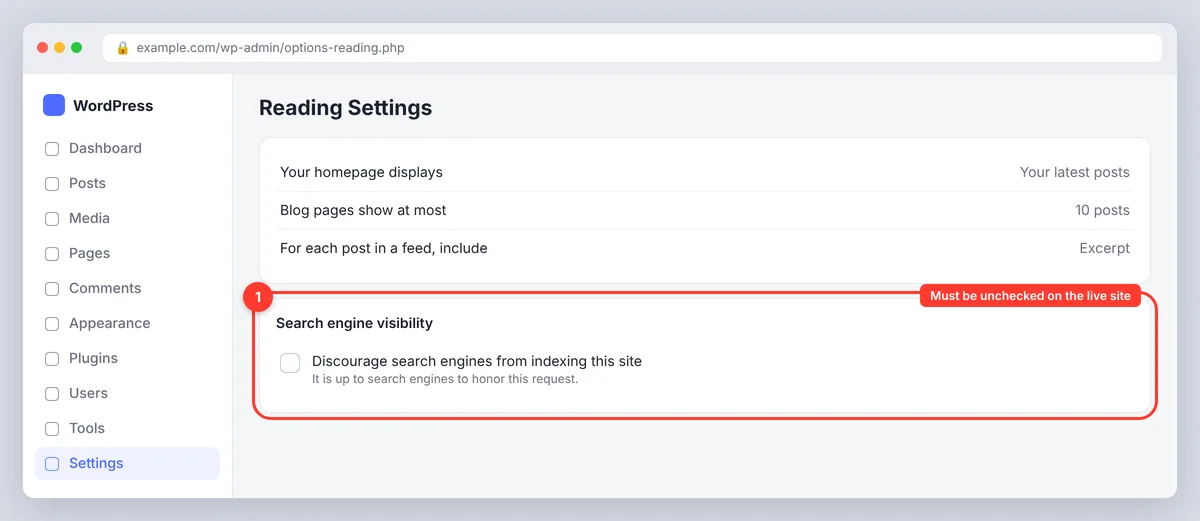
Under Settings, Reading, confirm that "Discourage search engines from indexing this site" is unchecked on the live site. It's commonly left on after a staging build, and it hides the entire website. Then check the post's own visibility and any noindex toggle in your SEO tool. Submit the XML sitemap your SEO tool generates to Search Console (and Bing Webmaster Tools), and use the URL Inspection tool to confirm important posts are indexed and showing in search results. Submit only one sitemap; two tools each generating their own is a common source of crawl confusion.
Step 3: Write a distinct SEO title and meta description
The title tag is the strongest on-page element. Put the main keyword near the front, keep it under about 60 characters so it isn't cut off in results, and make it specific to this post rather than a pattern repeated across the site. Google rewrites titles it considers weak, so treat yours as a strong suggestion. The meta description (around 150 characters) doesn't affect rankings directly but drives click-through rates: say plainly what the reader will get. The snippet preview in your SEO tool shows how both will look in search results on mobile and desktop.
Step 4: Set an SEO-friendly permalink structure and keep addresses stable
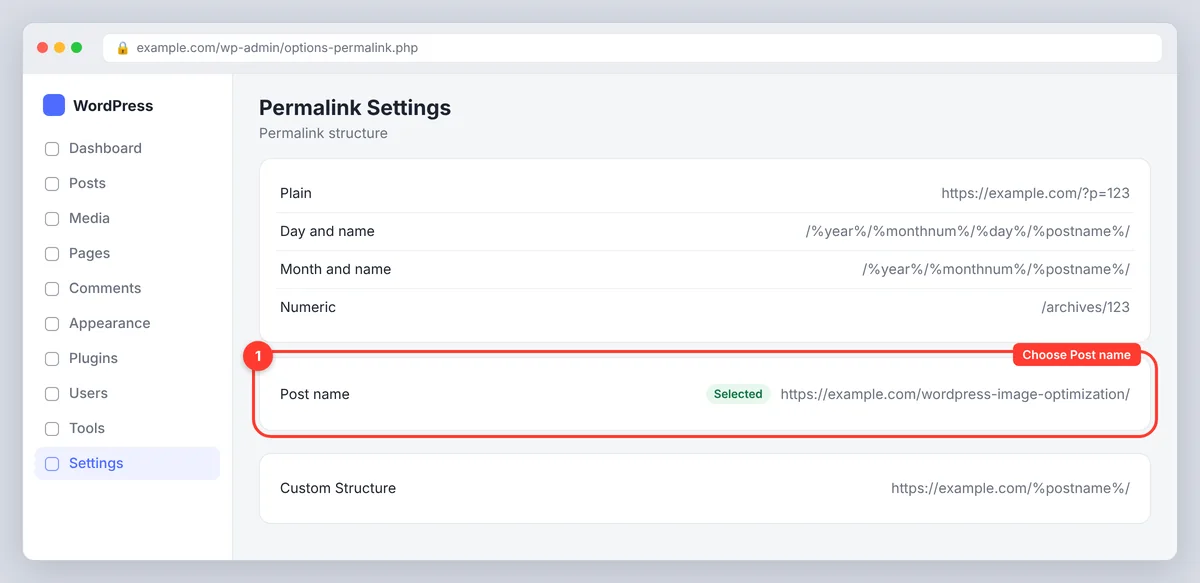
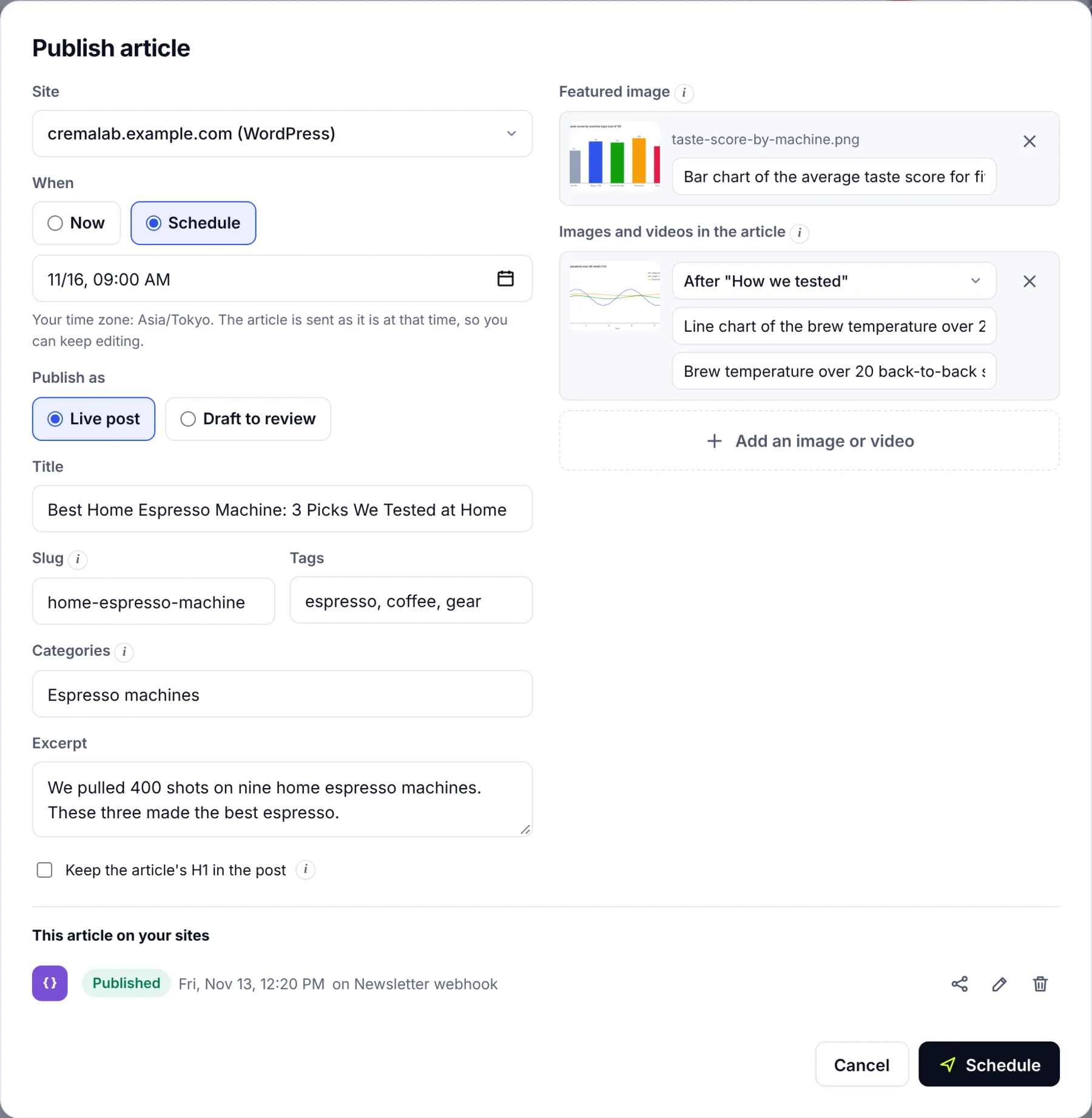
Under Settings, Permalinks (see the WordPress permalinks documentation), choose Post name so URLs read example.com/wordpress-image-optimization/ rather than ?p=123 or date-based paths. Keep slugs short and descriptive; WordPress copies the title into the slug, so trim filler words before publishing. For a blog post that's usually three to five words. For an existing post, don't change the URL to tidy it up: it may already have rankings, backlinks and internal links. If a change is justified, add a 301 redirect from the old address, update internal links and confirm the new address returns 200. Keep one canonical version of the site (www or not, always https) and let the canonical URL your SEO tool sets handle the rest.
Step 5: Use one H1 and a clear heading structure
In most WordPress themes the post title becomes the H1 automatically, so don't add another H1 at the top of the content. Use H2 for the main sections and H3 for subtopics, and write each subheading so a reader could scan the page and understand the whole post without scrolling back. Never pick a level for its font size; adjust the theme's CSS instead. A clear structure also helps search engines pull featured snippets and jump links.
Step 6: Write content that answers the question and covers the topic
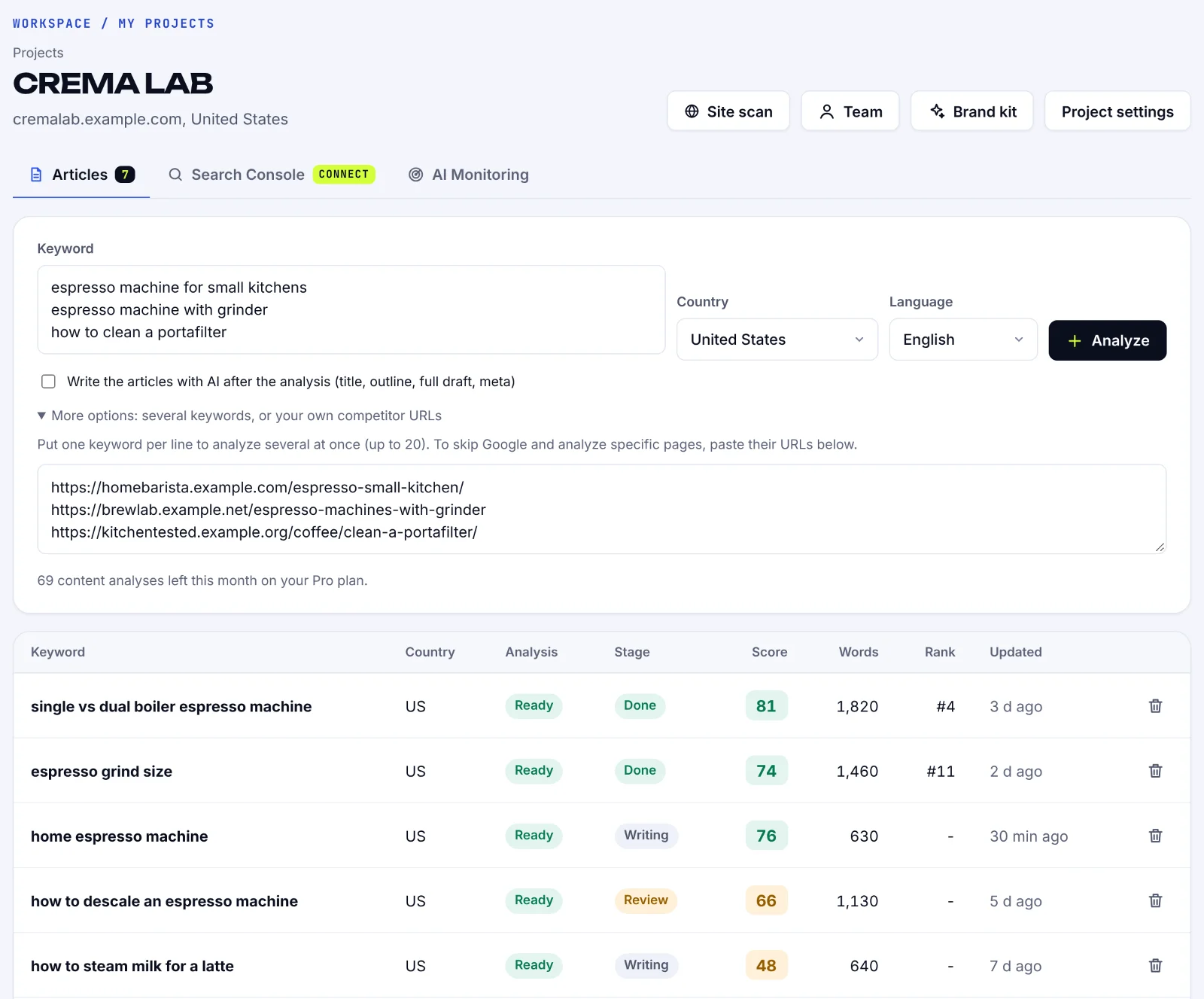
Answer the main question in the first two or three sentences, then add the steps, examples and caveats that help someone act. Cover the subtopics the top results share, in your own words, and skip the ones that don't fit. There's no ranking bonus for length by itself; there is one for completeness. Short paragraphs, lists and a table where comparison helps all improve readability on mobile, where most WordPress blog post traffic arrives; relevance to the search matters more than any of them. If you draft with an AI assistant such as ChatGPT, treat the output as a first pass and check every fact. SerpPal's editor does the comparison for you: it reads the top results for your keyword, lists the terms, headings and questions they share, scores your draft against them, and then publishes to WordPress through the WordPress connection with title, slug and featured image set.
Step 7: Internal linking from and to related posts
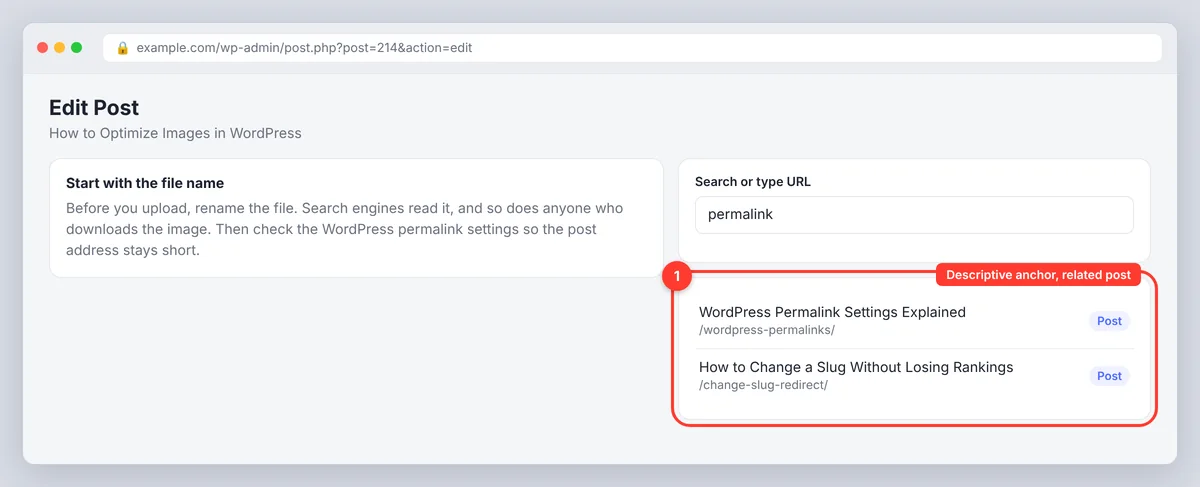
Internal linking is the step most WordPress sites skip. Every new post should link to two or three related posts with descriptive anchor text ("WordPress permalink settings", not "click here"), and, more importantly, should receive links from older posts that already rank. Go back to those posts and add a sentence that links forward. Categories help too, as long as they describe real groupings rather than one label per keyword variation. A WordPress plugin for internal linking can suggest targets, and so can an editor that reads your sitemap; SerpPal's sitemap and internal links feature suggests existing pages to link while you write. Run a broken link checker a few times a year; dead internal links waste the authority you're trying to pass around.
Step 8: Image optimization and alt text
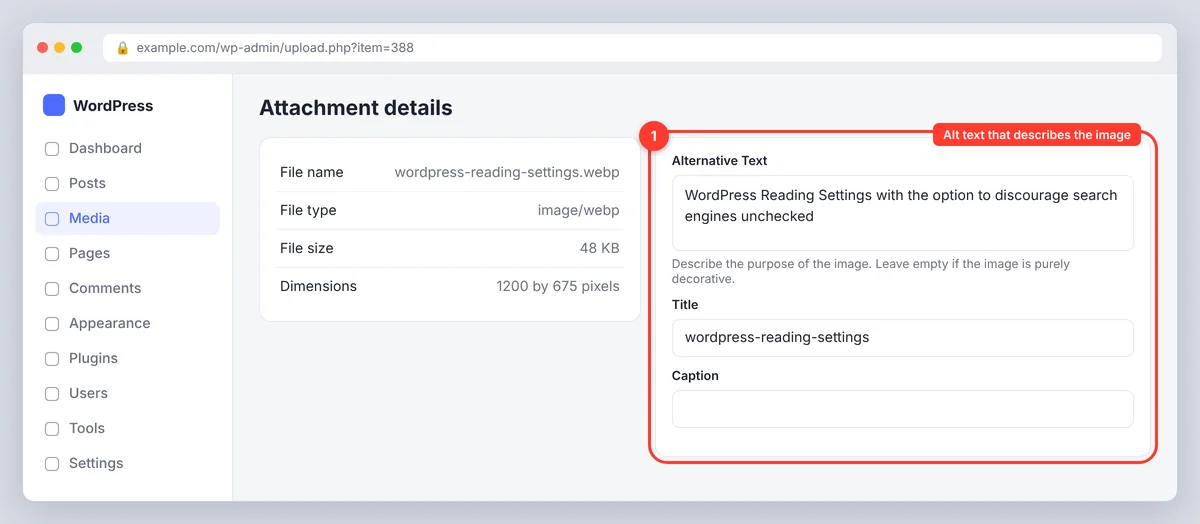
Name image files descriptively before uploading (wordpress-reading-settings.webp, not IMG_1048.jpg), write alt text that describes what's in the image when it carries information, and leave the field empty for purely decorative images. Compress photos and serve them as WebP; WordPress generates responsive sizes automatically, and an image optimization tool or a CDN can convert formats. Descriptions also matter for accessibility, which is the reason they exist. Set width and height so the browser reserves space and the layout doesn't shift while loading. Optimizing images is often the single biggest speed win on a WordPress website.
Step 9: Add relevant schema markup
Schema markup is structured data that tells search engines what a page is: an article, a product, a recipe, an FAQ, an organization. Most SEO plugins add Article and Organization schema automatically (as JSON-LD) and let you choose a type per post; Schema Pro and similar tools add more types and controls. Mark up only what's visible on the page, don't add FAQ schema to chase rich snippets, and test with Google's Rich Results Test. Schema makes a post eligible for rich results; Google decides whether to show them.
Step 10: Optimized for speed and security: mobile, Core Web Vitals and SSL
Preview the post on a phone. Text should be readable without zooming, tap targets large enough, and tables and images contained within the screen. Then run PageSpeed Insights and look at the Core Web Vitals (LCP, INP, CLS) from real visitors where available. The usual WordPress culprits are oversized images, too many add-ons loading JavaScript and CSS on every page, page builders, and cheap hosting. A caching tool such as WP Rocket, a lightweight mobile-friendly theme and a CDN help; so does deleting extensions you don't use. Make sure the site runs on HTTPS with a valid SSL certificate (Let's Encrypt is free through most hosts).
Step 11: Review with your SEO plugin, but don't write for the score
The popular SEO plugins each add a checklist to the editor: focus keyword in title, meta description length, readability, internal links. Use the checks as prompts. A green light means you filled in the fields, not that the content is better than what ranks. Never run two at once; duplicate titles, sitemaps and schema cause more problems than either solves.
Step 12: Measure and refresh
Record a baseline before you change anything: impressions, clicks, average position and the queries in Search Console, plus engagement metrics in Google Analytics. Give Google a few weeks to recrawl and reassess, then optimize what the data points to. Revisit a post when impressions fall, clicks lag behind impressions (a title problem), the facts change, or the results page starts favoring a different format. Updating existing posts is usually a faster win than publishing new ones.
Which on-page elements WordPress handles, which SEO plugins handle, and which you do
| On-page element | WordPress core | SEO plugin | You |
|---|---|---|---|
| Keyword research and intent | No | No | Yes, before writing |
| SEO title and meta description | Title only | Yes, with preview | Write them |
| Slug and canonical URL | Permalink settings | Canonical tags | Choose the structure once |
| Heading structure and content | Block editor | Readability checks | Write and structure |
| Internal links | Manual links, categories | Suggestions in some tools | Link from older posts |
| Images and alt text | Responsive sizes, description field | Reminders | Compress, name, optimize |
| Schema markup | No | Yes, basic types | Pick the right type |
| Indexing | Basic XML file | Full XML file | Submit to Search Console |
| Speed and Core Web Vitals | Depends on theme | No (caching tools) | Hosting, images, add-on diet |
Common SEO for WordPress mistakes on any WordPress site
- Changing addresses without redirects. Old links break and the rankings the post had go with them.
- Two SEO tools at once. Duplicate titles, sitemaps and schema. Keep one tool per job.
- Writing for the green light. It measures fields, not quality or intent match.
- Keyword stuffing. Repeating the phrase in every heading reads badly and doesn't help your SEO ranking. Optimize for the reader; the practices that help visitors tend to be the ones Google supports.
- Leaving "Discourage search engines" on after launch. The whole site disappears from search and nobody notices for weeks.
- Orphan posts. Publishing without linking from existing content leaves the new post hard to discover.
- Theme and add-on bloat. Slow-loading pages hurt rankings and conversions; run a quick SEO audit of the installed list twice a year and prioritize what you actually use.
- Ignoring Bing and AI search. Clear structure, direct answers and good headings help in Bing, in AI Overviews and in whatever people are calling generative engine optimization this year; the fundamentals are the same. Local SEO for a business site adds a Google Business Profile, but the on-page work is identical.
Conclusion
On-page SEO for WordPress isn't a setting; it's a routine and an SEO strategy. Research the intent, let WordPress and one SEO tool handle the mechanical elements, write the most useful answer on the topic, link it into the site, keep it fast, and check the data a month later. Do that for every post and the site compounds. Skip the research or the internal links and no amount of green lights will make up for it.
Frequently asked questions
How do I set up SEO on WordPress?
Set the permalink structure to Post name, uncheck "Discourage search engines" under Reading settings, install one SEO plugin (Yoast SEO, Rank Math or AIOSEO), connect the site to Search Console and submit the XML sitemap it generates. Then follow the checklist above for every post.
Which is the best SEO plugin for WordPress?
Yoast SEO, Rank Math and AIOSEO all handle titles, meta descriptions, sitemaps and basic schema well. The differences are in interface and extras. Pick one, learn it, and never run two together.
Does WordPress have built-in SEO?
Partly. WordPress produces clean HTML, an editable permalink structure, proper heading markup and a basic XML file. Metadata, canonical control, the full sitemap and schema need a plugin, and the content and links are up to you.
How many internal links should a WordPress post have?
There's no fixed number. Link wherever a reader would reasonably want more detail, typically two to five links in a 1,500-word post, and make sure the new post receives at least two or three links from older, relevant posts.
How long does on-page SEO take to show results on WordPress?
Usually a few weeks for Google to recrawl and reassess a post, and longer for rankings to settle. Track impressions and clicks in Search Console rather than waiting for a position to jump, and judge changes over a month or more.