On this page
Microsoft Word counts words for you as you type: the word count sits in the status bar at the bottom-left corner of the window. Click it, or press Ctrl+Shift+G (Cmd+Shift+G on a Mac), to open the Word Count dialog with pages, words, characters with and without spaces, paragraphs and lines.
This guide shows every way to use the Microsoft Word counter on Windows, Mac and the web, how to count words in part of a document, how to get a character count, and how to count words without citations, footnotes or the reference list, which Word can't do in one click.
Key takeaways
- The live word count is in the status bar at the bottom-left of the window. If it's missing, right-click the status bar and tick Word Count.
- Press Ctrl+Shift+G (Windows) or Cmd+Shift+G (Mac), or go to Review, then Word Count, for the full dialog.
- Highlight text first to count words in just that part. The status bar shows "120 of 2,450 words."
- Untick Include textboxes, footnotes and endnotes to leave footnotes out of the count.
- Word has no button to exclude in-text citations. Highlight only the body text, or remove citations in a copy of the document, then count.
Finding the word counter in Microsoft Word
The status bar
In every recent version of Word, the word count appears in the status bar at the bottom of the window, next to the page number. It updates in real time while typing and during real-time text editing, so you always know the length of the document.
If you don't see it, right-click the status bar and tick Word Count. Word saves the setting, so it stays on for every document.
The Word Count dialog
For more detail, click the word count in the status bar, or open the Review tab and click Word Count in the Proofing group. The dialog box shows:
| Statistic | What it counts |
|---|---|
| Pages | Pages in the document |
| Words | Every word, including numbers and single letters |
| Characters (no spaces) | Letters, numbers and punctuation |
| Characters (with spaces) | The same plus spaces |
| Paragraphs | Paragraphs that contain text |
| Lines | Lines of text |
A checkbox at the bottom, Include textboxes, footnotes and endnotes, decides whether those parts are counted.
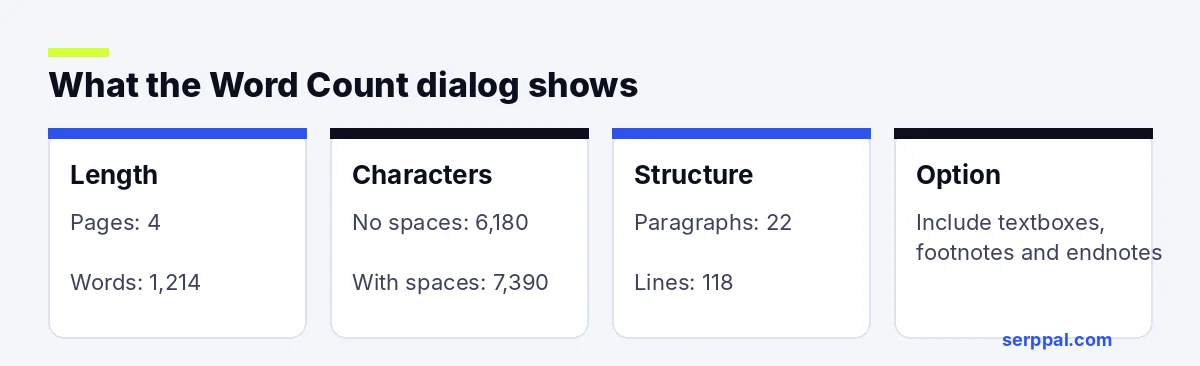
The word count keyboard keys
The keys for the Word Count dialog are Ctrl+Shift+G on Windows and Cmd+Shift+G on a Mac. It's the fastest way to check the number of words when you're writing to a limit, and it works in all recent Word versions.
How to count words in part of a document
To count words in one section, a paragraph or a single sentence, highlight the text first. The status bar changes to show both numbers, for example "312 of 2,450 words." Press Ctrl+Shift+G to see the full statistics for that part only.
To count separate parts at once, hold Ctrl (Cmd on a Mac) while you drag. Word adds up all the highlighted text.
How to count words without citations in Word
Many assignments set a word limit that excludes citations, the reference list, footnotes, tables or the title. Word's counter has no single switch for this, but you can get an accurate word count in a few steps.
Exclude footnotes and endnotes
Open the Word Count dialog and untick Include textboxes, footnotes and endnotes. The number updates right away. Text boxes are excluded with the same box.
Exclude the reference list or bibliography
Highlight from the start of your essay to the end of the conclusion, stopping before the references heading. The status bar shows the word count for that part, which is the body text alone.
Exclude in-text citations
Parenthetical citations such as "(Smith, 2021, p. 14)" are the hard part, because they sit inside your sentences. Two ways to handle them:
- Count them and subtract. Use Find (Ctrl+F) to see how many citations there are, estimate the average length (often three to five words), and subtract. Good enough for most essays.
- Remove them in a copy. Save a copy of the document. Open Replace (Ctrl+H), click More, tick Use wildcards, type
\([!\)]@\)in Find what, leave Replace with empty, and click Replace All. This removes everything in parentheses, then you read the new word count. Do this only in the copy, and remember it also removes non-citation brackets.
If your citations are footnotes (Chicago style), the checkbox above does the job.
Character count in Microsoft Word
The same dialog gives you the character count, with and without spaces. Use "characters (with spaces)" for limits on forms, abstracts and social posts that count every keystroke, and "characters (no spaces)" for translation quotes and some publisher limits. Highlight text first to get the character count for one paragraph or a headline.
Word count in Word for Mac and Word for the web
- Word for Mac: the count is in the status bar at the bottom. Click it, press Cmd+Shift+G, or choose Tools, then Word Count.
- Word for the web: the status bar shows the word count too. For the full statistics, go to Review, then Word Count.
- Word mobile apps: tap the edit icon, open Review, and tap Word Count.
The counts match across versions, so a document saved as .docx on Windows shows the same word count on a Mac.
The best online word counter alternatives
You don't need Word open to count words. An online word counter is quicker when you're writing in a browser, an email or a form: paste the text and the counting tool shows the metrics at once. SerpPal's free word counter is a word counter online that counts words, characters, sentences and paragraphs as you type or paste, and shows reading time. There's no sign-up and no file upload; the word counter tool works on any device.
An online tool is handy for blog posts, articles and social posts written outside Word, and for students who need to check essay assignments on a school laptop or a phone. It's also the quickest way to compare two drafts: paste each one and compare the number of words and sentences side by side.
If you write in Google Docs, the keys are Ctrl+Shift+C; our guide to the Google Docs word counter covers the details. To check whether your sentences are easy to read once the length is right, use the free readability checker.
Which file formats a word counter supports
Word itself reads .docx, .doc, .rtf and .txt files, and it can open PDF files and convert them into an editable document (formatting may shift). For PDF files you can't convert, copy the text and paste it into Word or an online word counter. Some online counters accept uploaded files in multiple formats; check what a site supports and its privacy policy before uploading anything confidential.
Word counters in other office apps
Other word processors work much the same way. LibreOffice Writer and WPS Writer, a cross-platform alternative to Microsoft Office, both show a word count in the status bar and a full statistics dialog in their Tools or Review menu. Excel and PowerPoint don't have a word counter; copy the text from cells or slides into Word or an online counter to calculate the total. Presentations with speaker notes are easiest to count after exporting the notes to a document.
Why do word counters give different numbers?
Different tools count hyphenated words, numbers, URLs and symbols differently. Word counts "well-known" as one word, while some counters count two. For a strict word limit, use the tool your teacher or editor uses, usually Microsoft Word, so you can count accurately against the same standard.
Frequently asked questions
What is the word count shortcut in Word?
Ctrl+Shift+G on Windows and Cmd+Shift+G on a Mac. It opens the Word Count dialog with words, characters, paragraphs, lines and pages.
Why can't I see the word count in Word?
The status bar setting is turned off. Right-click the status bar at the bottom of the window and tick Word Count. If the status bar itself is hidden, exit full-screen or focus mode.
Does Word count citations in the word count?
Yes. Word counts everything in the main text, including in-text citations and the reference list. Footnotes and endnotes are counted only if Include textboxes, footnotes and endnotes is ticked.
How do I count words in one paragraph in Word?
Click and drag over the paragraph. The status bar shows the number of words in it next to the total, for example "85 of 1,200 words."
Does Word count headings and captions?
Yes. Headings, captions and table text are part of the document, so they're counted. Highlight only the body paragraphs if your limit excludes them.