On this page
- What a SERP simulator is and how the preview tool works
- Google SERP limits: pixels vs characters
- Desktop and mobile previews in a free SERP simulator
- Writing effective title tags for the preview
- Writing useful meta descriptions
- Before and after: snippet examples
- Common snippet mistakes a preview catches
- Why Google may rewrite titles or descriptions
- A workflow that uses the preview
- Conclusion
- Frequently asked questions
A SERP simulator shows how your title and meta description will look in Google search results before you publish, on desktop and on a phone, and tells you whether either one will be cut off. Paste your title, description and page URL into a free SERP preview tool, and the search snippet is rendered in your browser in real time with a character count and a pixel width for each line; a free SEO tool like this is the quickest way to optimize meta tags before they go live. It takes thirty seconds and catches the two most common snippet problems: a title cut off mid-phrase and a description that ends in an ellipsis before the point.
Key takeaways
- Google truncates by pixel width, not character count. Around 580 px for desktop titles (usually 50 to 60 characters) and about 920 px for descriptions (120 to 158 characters).
- A simulator is an estimate. Google rewrites titles and descriptions for some queries, and it bolds words that match the search query.
- Check desktop and mobile; the layouts differ, and mobile wraps text rather than cutting it.
- Front-load the primary keyword and the specific benefit; the first words are the ones that survive a cutoff.
- Nothing you type into a browser-based preview is saved anywhere.
What a SERP simulator is and how the preview tool works
A SERP (search engine results page) simulator, also called a Google snippet preview or SERP snippet generator, is a small SEO tool that draws a search result the way Google displays it: the favicon and domain, the breadcrumb path built from your URL, the title link in Google's blue, and the two-line description underneath. You type the title tag and meta description you plan to use, and it renders them in the same fonts Google uses (Arial, 20 px for the title and 14 px for the description), measures their width, and applies the same truncation Google would. Pixel-accurate truncation is the point; a plain character counter cannot do it.
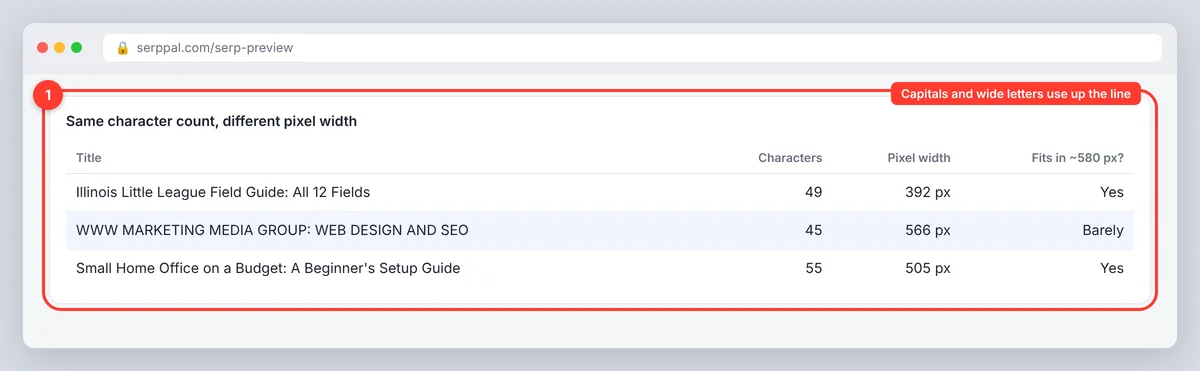
That is the whole trick. Measuring pixel width is what makes a snippet preview more useful than a character counter, because "WWW Marketing" and "Illinois" have the same number of letters and very different widths.
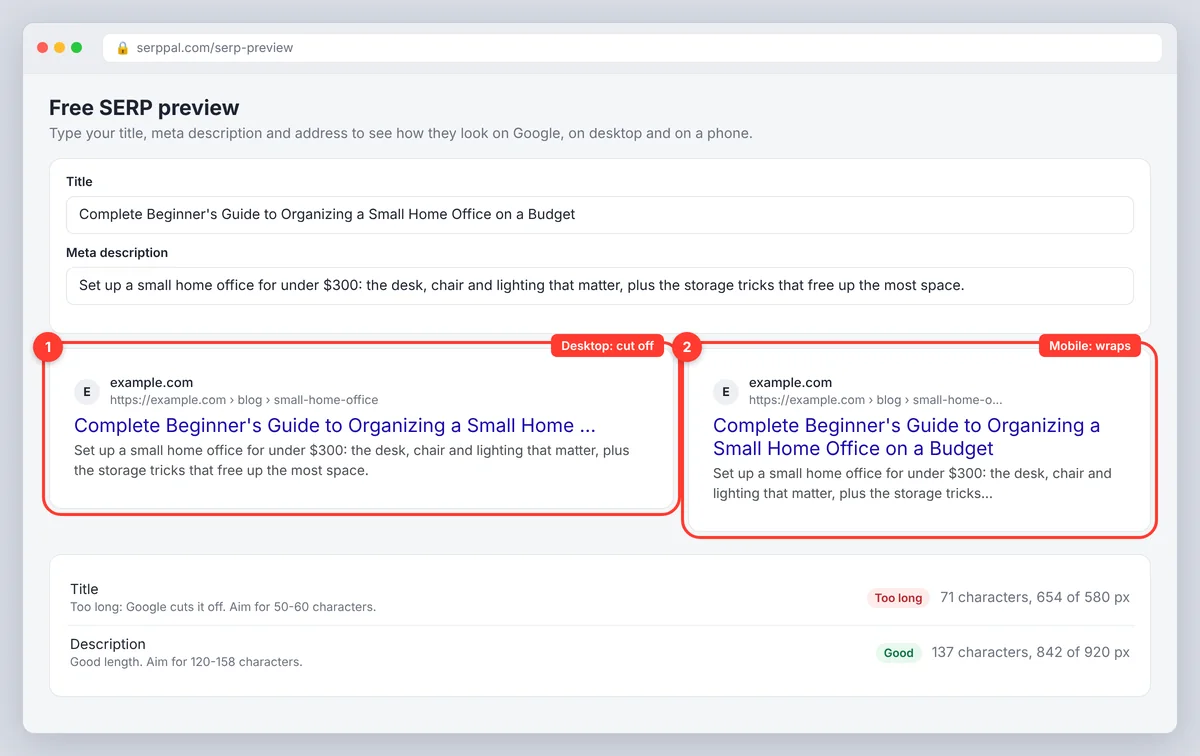
SerpPal's SERP preview is free, needs no account, and runs entirely in your browser; the title and description you paste never leave your computer. It shows a desktop card and a mobile card side by side (no toggle needed), plus a meter under each field with the character count, the pixel width against the limit, and a verdict: good length, a bit short, or too long. Keep the tab open while you write and the preview updates as you type.
Google SERP limits: pixels vs characters
Google does not publish a title or description length. It publishes a width: the title link gets one line on desktop, and the description gets about two. Everything else is measurement.
| Element | Desktop width limit (approx.) | Typical characters | What happens past the limit |
|---|---|---|---|
| Title tag | ~580 pixels (tools use 580 to 680) | 50 to 60 characters | Cut with an ellipsis, or replaced by Google |
| Meta description | ~920 pixels | 120 to 158 characters | Cut with an ellipsis, or replaced by page text |
| URL breadcrumb | One line | Depends on path depth | Middle segments collapsed |
Two notes on that table. First, the desktop limit varies between SEO tools because Google's layout shifts and nobody has an official number; 580, 600 pixels and 680 all appear in different SEO tools, and the difference is a few characters. Second, the old "160 characters" rule for descriptions is a rough proxy for the pixel limit, not a Google rule, which is why a description of 150 wide characters can still be cut off, and a tight 120 characters of narrow ones is safe on every device.
Desktop and mobile previews in a free SERP simulator
Mobile results give the title more room and wrap it onto a second line instead of cutting it, and the description can run to three or four short lines. So a title that is cut on desktop often shows in full on a phone, while a long description looks cramped on the narrower mobile screen and fine on desktop. Check both cards before you settle. Most searches happen on phones, but the desktop cutoff is the stricter test for titles, so write for the desktop limit and read the result on the mobile card.
Writing effective title tags for the preview
The title is the only part of the snippet you fully control, and Google says it uses the title tag as the main source for the title link. A title that previews well:
- puts the primary keyword in the first half, so it survives any cutoff and matches the search intent behind the search query;
- says what is specific about the page (a number, a year of data, a comparison, a result), not just the topic;
- stays under the desktop width, which the simulator lets you see directly; 60 characters is the usual ceiling;
- adds the brand at the end, after a separator, only if there is room;
- reads as a sentence a person would click, not a list of keywords.
Write three variants (an AI-powered assistant such as ChatGPT is fine for generating them), paste each into the simulator, and keep the one that fits and says the most. The preview turns "is this too long?" from a guess into a yes or no. Our guide to title tag SEO has more examples and patterns.
Writing useful meta descriptions
The description does not affect ranking, but it affects clicks, and a good one improves click-through rate (CTR) because it tells the searcher what they will get. For an organic listing in the top 10, CTR is the one metric the metadata can move. Summarize the page's specific value in plain language, include the target keyword once (Google bolds keywords matching the query, which draws the eye), and end with a complete sentence rather than a cliffhanger. Aim for 120 to 158 characters and check the width meter; if the description is "a bit short", you have room for the detail that makes it distinct from the nine other results.
Before and after: snippet examples
Here is what the preview typically catches, with a fix for each.
| Problem | Before | After |
|---|---|---|
| Title cut off mid-phrase | Complete Beginner's Guide to Organizing a Small Home Office on a Budget | Small Home Office on a Budget: A Beginner's Setup Guide |
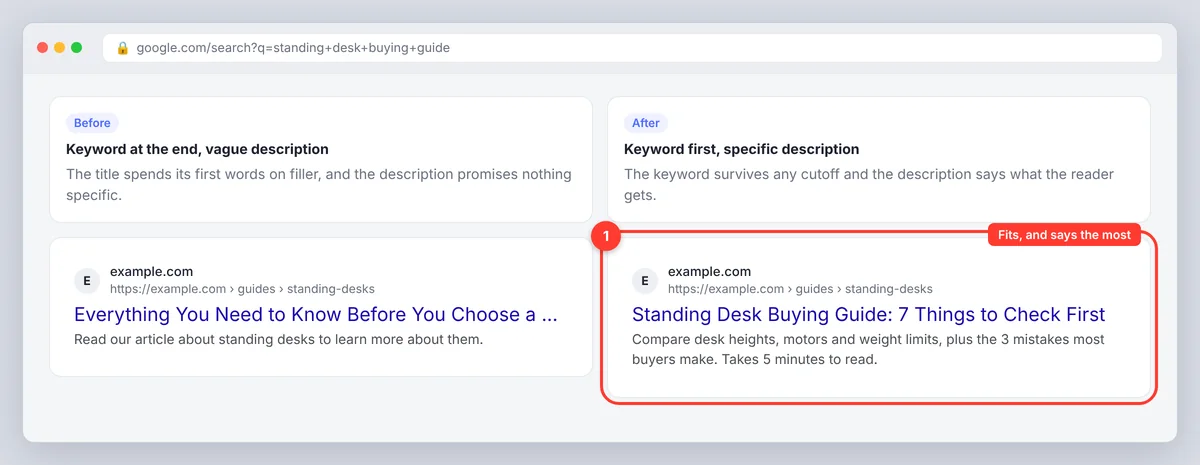
| Keyword at the end | Everything You Need to Know Before You Choose a Standing Desk | Standing Desk Buying Guide: 7 Things to Check First |
| Vague description | Read our article about standing desks to learn more about them. | Compare desk heights, motors and weight limits, plus the 3 mistakes most buyers make. Takes 5 minutes to read. |
| Description cut before the point | A long setup sentence that only reaches the useful detail after 170 characters... | Lead with the detail, then add context if there is room. |
The pattern is the same each time: move the specific part forward, cut filler words, and let the meter confirm the fit. For more on writing the description itself, see our guide to meta descriptions.
Common snippet mistakes a preview catches
- Duplicate titles across pages. Category and tag pages often share one template title. Each page needs its own.
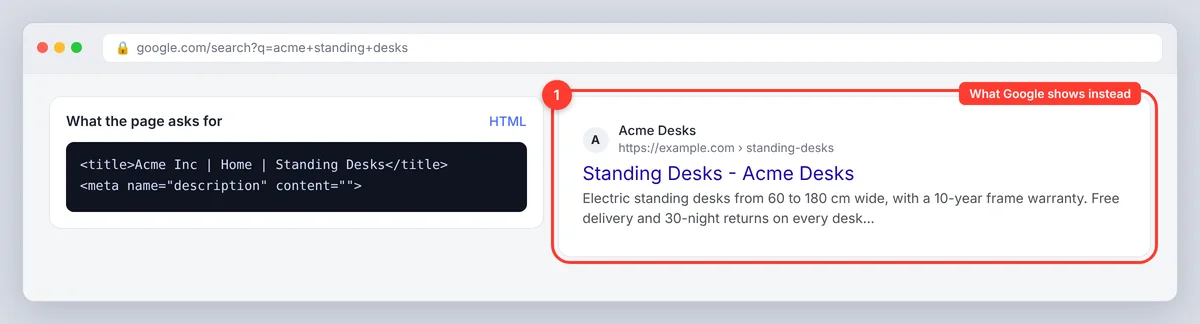
- Brand name first. "Acme Inc | Home | Standing Desks" wastes the most visible words. Put the brand last, or leave it out if space is tight.
- All caps or heavy punctuation. Capital letters are wider, so an all-caps title hits the pixel limit sooner, and it reads as shouting.
- Missing description. With no meta description, Google picks text from the page, which may be a cookie notice or a menu label.
- Outdated dates. A title that says last year's date looks stale next to fresher results. Update it when you update the page.
Why Google may rewrite titles or descriptions
A simulator shows the snippet you asked for. Google decides what to show. According to Google's own documentation on snippets, it may replace your meta description with text from the page when that text answers the query better, and it rewrites title links that are too long, stuffed with keywords, boilerplate or missing. In practice, a well-written title and description within the limits is shown as written most of the time; the rewrites cluster around titles that break the rules above. The preview helps you stay out of that group.
Keyword bolding and snippet formatting
Google bolds words in the description (and sometimes the title) that match or are close to the search query, and it does the same in a competitor's listing. You cannot force this and should not repeat the keyword to chase it; one natural use is enough. Formatting also varies by query: the same page can show a date, a sitelink, or a different description for two searches.
Rich results, ratings and evolving layouts
Structured data can add rich snippets such as star ratings, FAQ dropdowns, prices or breadcrumbs, and AI Overviews now sit above the organic results for many queries. A basic simulator shows the plain result only; it cannot render schema markup or where your listing lands relative to an AI Overview. Answers in ChatGPT, Perplexity, Gemini and Claude cite pages without showing a snippet at all, though the title still appears in the citation. Treat the preview as a check on the text, and use the live SERP for everything else.
A workflow that uses the preview
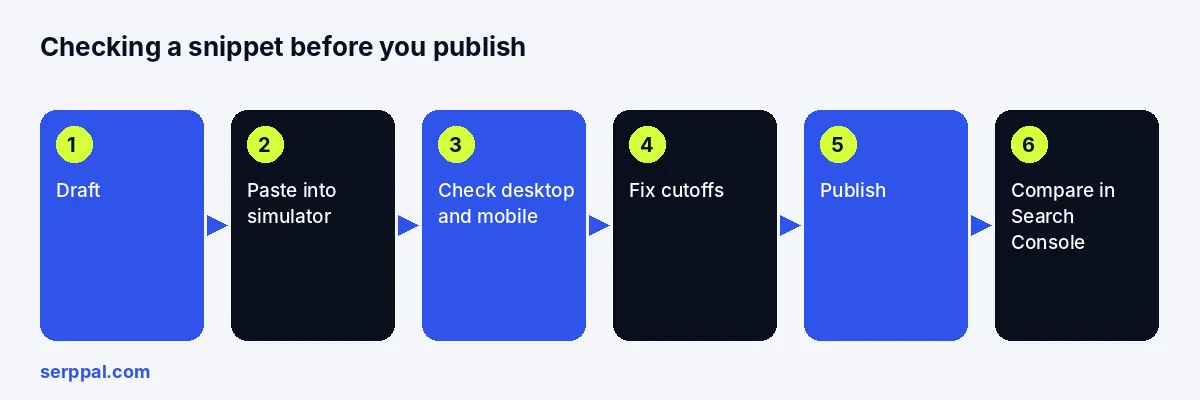
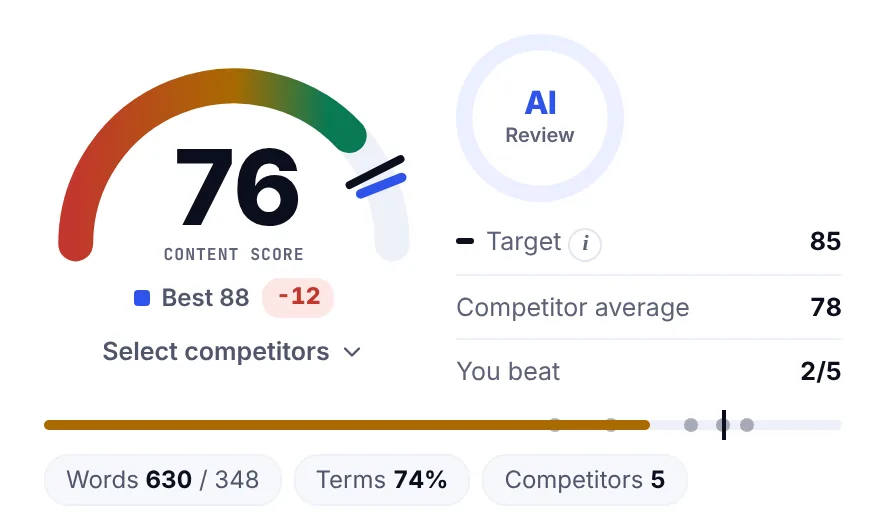
- Draft the title and meta description while writing the page, not after. In SerpPal's editor, both are part of the content score, so the length and keyword are checked as you type.
- Paste them into the simulator with the page URL and read both cards aloud.
- Fix anything cut off or vague, then paste again. Two rounds is usually enough.
- Publish the tags in your CMS, SEO plugin, page template or HTML head.
- Validate a few days later in Google Search Console: the Performance report shows impressions and CTR per page, which is the real measure the preview tool was estimating. Marketers who track this see the effect of a title change within a couple of weeks.
Conclusion
A SERP simulator is a thirty-second check that saves you from cut-off titles and weak descriptions. Draft both while you write, paste them into the preview, fix whatever the meter flags on desktop and mobile, and then confirm the result in Search Console. Google has the final say on what it shows, but a title and description that fit the limits and say something specific are the ones it usually keeps.
Frequently asked questions
What is a Google SERP simulator?
A preview tool that renders your title tag and meta description as a Google search engine result, on desktop and mobile, and measures their pixel width so you can see whether Google will truncate them. It is an estimate of appearance, not a rank checker and not a guarantee of what Google will display.
Does a SERP simulator affect rankings?
No. It only previews metadata. A clearer title and description can raise click-through rate from the same position, and the keyword in the title helps Google understand the page, but the preview itself changes nothing on your site.
Why does pixel width matter more than character count?
Because Google cuts titles and descriptions at a fixed width, and letters vary in width: an "m" is roughly three times as wide as an "i" in Arial. Two titles with 58 characters can differ by 60 px, enough for one to fit and the other to be cut off. A pixel-accurate preview tool measures the rendered width instead of guessing from the character count. Character counts are a rough guide; the width meter is the real test.
Can I preview rich snippets like ratings or sitelinks?
Most simulators, including SerpPal's, show the standard result only. Rich results depend on structured data Google chooses to use, which a text preview cannot predict. Use Google's Rich Results Test for the markup and the live search results for the appearance.
Is my title or description stored when I use the preview?
Not with SerpPal's tool. The preview is drawn in your browser and nothing is sent to a server or saved, so unpublished pages and client work are safe to check.